The need for color correction for furniture photography is not an exception at all. After all, during digital screening, you see color anomalies in every product photographed. Once a nightmare for every photographer and photo editor, it’s now a lot less hassle.
Especially in 2026, some great updates to legacy software like Adobe Photoshop and Lightroom will make your OK product photos marketable.
Today’s step-by-step pro guide brings together best practices for accurate furniture color in product photos, covering both before and after photoshoot, where you’ll learn how to do it professionally.
TL;DR:
- For ease of color correction, when photographing furniture in 16-bit RAW, make the environment non-reflective and lighting material-friendly, and use a color checker in the camera and 95+ Color Rendering Index (CRI) LED lights.
- Color correction photo editing comprises separating furniture from the photo, white balance, matching the furniture with its physical swatch, retaining its wood grain authenticity, and giving red, green, blue (RGB) values check.
Color Correction for Furniture Photography at a Glance
| Before/After Photoshoot | What to do |
| Pre-production | Creating a non-reflective environment |
| Using color checker cards (such as SpyderCheckr, X-Rite ColorChecker) in the camera | |
| Choosing high CRI (more than 95) LED lights | |
| Setting the capturing mode to 16-bit RAW | |
| Prepare lens and lighting + using large softboxes | |
| Post Production | Separating furniture from pictures |
| Conducting white balance | |
| Matching furniture to its physical swatches | |
| Retaining the authentic color of the wood grain | |
| Final checkup: Analyzing the Red, Green, and Blue numbers |
Since you have gone through each row of the table above, it is obvious that you should start doing color correction right away. Because you have a clear understanding of what things to consider when.
Surely the question that arises in your mind is that there are many offline and online tools to do the pre-production part. Which one should I rely on?
A very valid question. And know that the answer is the one that is already on your mind!
Yes, the legendary Photoshop is the best software for color correction in furniture photography.
But you need to step back a little, because to get accurate colors, you have to go step by step. And first, you have to learn how to take good pics of furniture.
Furniture Photography Pre-production To-dos for Accurate Colors
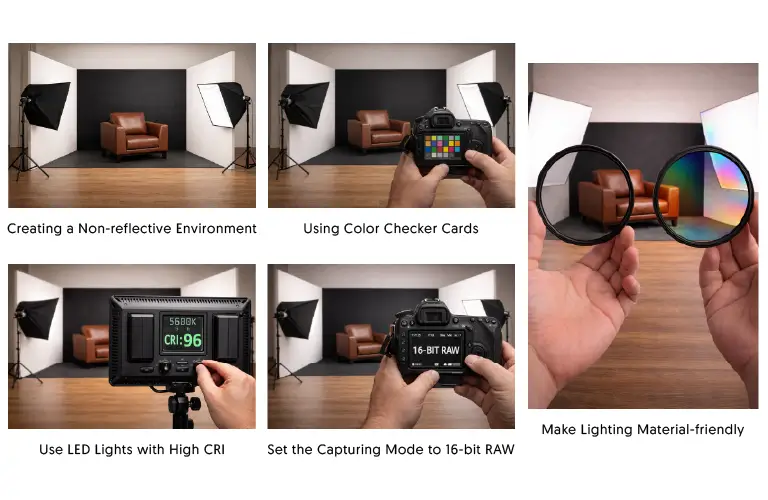
Learning how to correct color of furniture in a photo demands proactivity and the reason is that there are some influential factors before the photoshoot that work behind getting the best color. They are clearly revealed below:
Creating a non-reflective environment
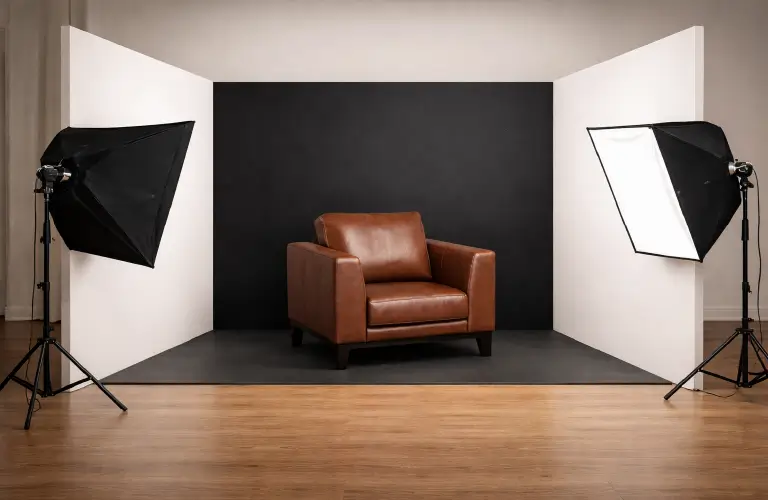
Start by using large sized V-flats of black and white foam board. Place white boards around the furniture in the room and hide the edges of the furniture behind black boards.
This will create an atmosphere against the highly reflective properties of the furniture, while also providing a negative fill.
Using color checker cards
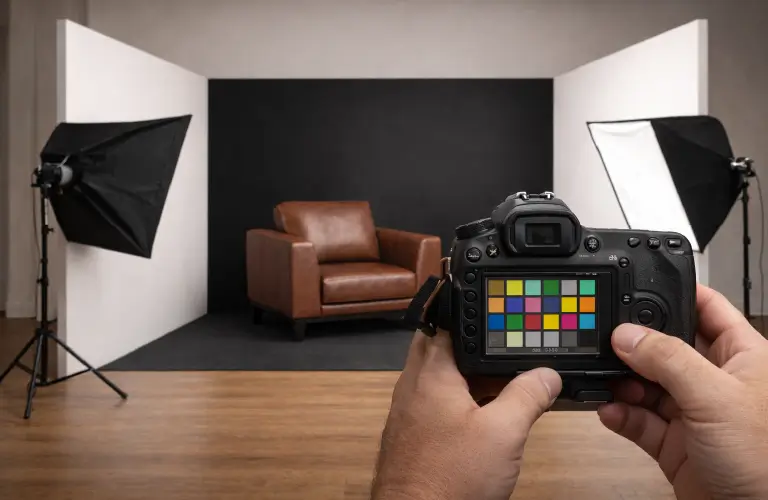
Color calibration is the most important factor in efficient color rendering in post-production. So, be sure to have a color checker card like the X-Rite ColorChecker or SpiderChecker on your camera during your photoshoot.
You should even do this for the first shot each time after implementing a new furniture setup. Color profiles won’t be invisible when editing in Photoshop, which will play a positive role in your further color correction.
Use LED lights with high CRI
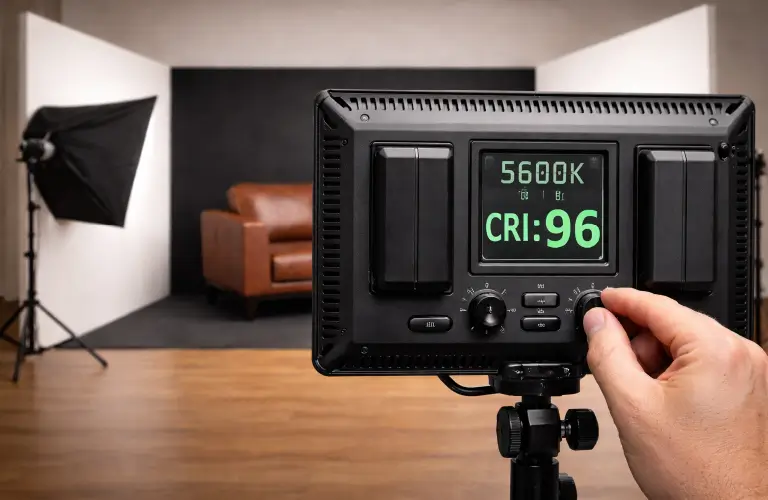
A high CRI means that it should be above 95.
A low CRI means the light doesn’t emit “true red”(which is required for color to be visible during post-production). Consequently, your camera won’t be able to capture the light, so there is no color, let alone correcting it.
Set the capturing mode to 16-bit RAW
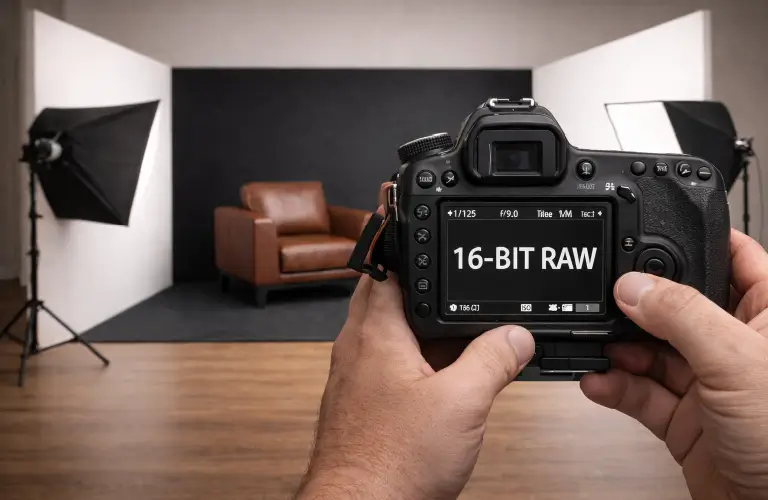
RAW (uncompressed) and 16-bit depth are the ideal capture modes for product photoshoots. 8-bit files and JPEGs below 16 retain tonal decisions with fine gradients. This prevents the extensive photo editing that 16-bit RAW offers.
Make lighting material-friendly
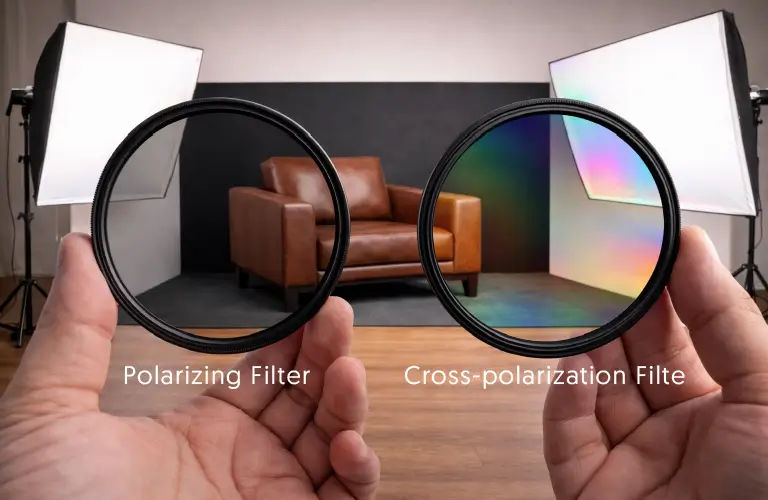
A large softbox is ideal for upholstery because it avoids heavy white circles on fabrics and highlights the clean whiteness.
There are two types of filtering for wood: one is polarizing, which is used on the lens, and the other is cross-polarization, which is applied to the light. This means you don’t have to worry about the glare on the shiny surface of the wood; rather, the camera captures the vibrant colors of the underlying grain of the varnish.
Furniture Photography Post-production: Color Correction Step by Step
Now you are about to enter the main stage of learning how to fix color accuracy in furniture product photos. Keep scrolling, and the step-by-step process will unfold before you:
Step 1 | Separate furniture from the image
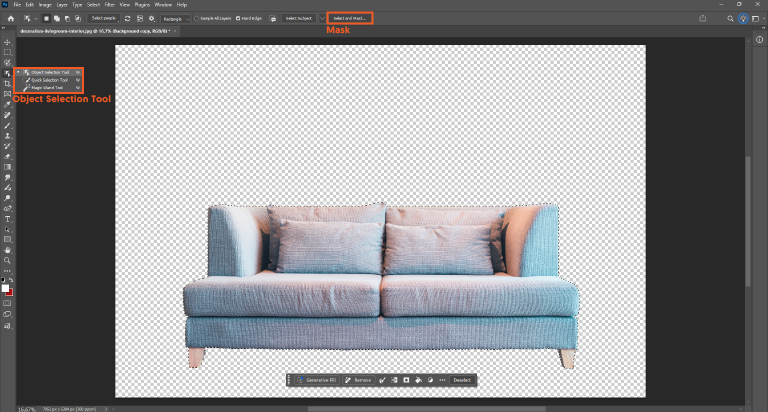
First, you need to use the Object Selection Tool, which you can select by pressing W. Then, hover over the furniture in the image; you will see that the furniture is highlighted with a sharp edge.
Once the entire furniture is selected, click on the Mask icon, which you will find in the contextual task bar.
Step 2 | Do the white balance
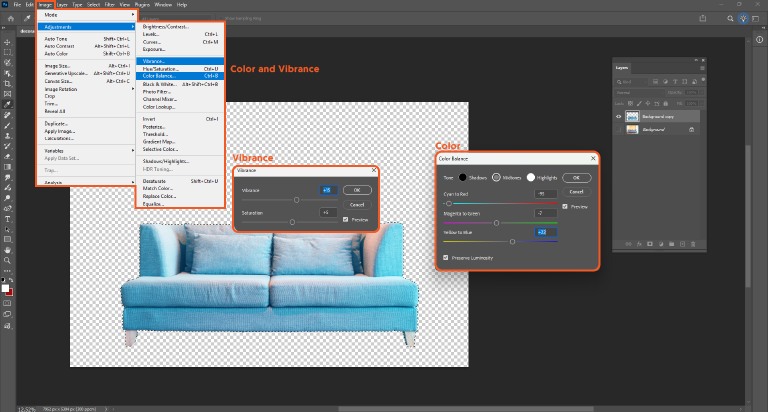
Go straight to the Adjustments panel, where you’ll need to select “Color and Vibrance”, which, you might know, is the very icon in the latest version of Photoshop.
There you’ll find the Temperature slider, which you can use to remove the blue daylight cast on white furniture. If the furniture in your photo is made of light wood, you can use it to remove the yellow cast.
It’s best to use the eyedropper in the Adjustments panel. This will automatically align the temperatures as you click on a neutral area.
Step 3 | Match furniture to its physical swatches
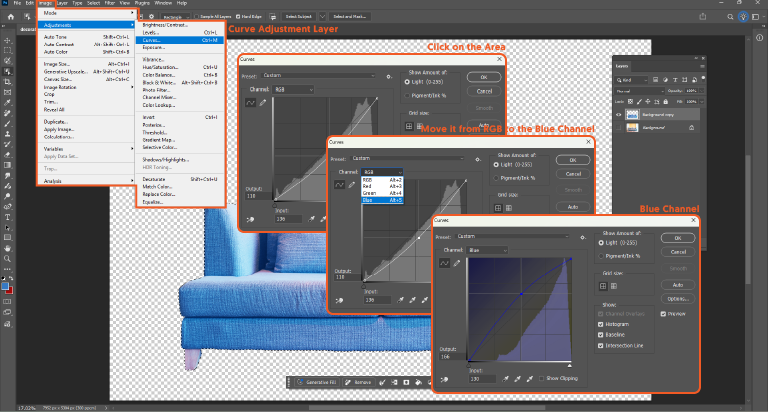
In this step, you will be using a “Curve Adjustment Layer”. Open the curve and select the eyedropper of the middle gray dot. Then click on the area of the furniture fabric that is in the middle of the relatively vibrant color.
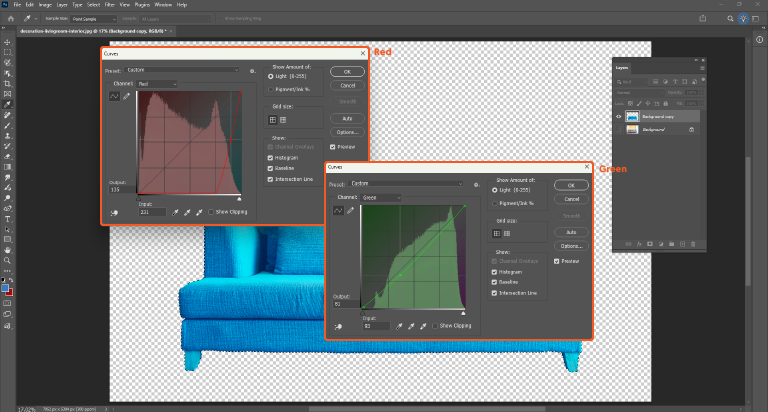
Now grab the curve channel and move it from RGB to the blue channel if, for instance, the navy velvet furniture looks dark purple. Then drag the middle point up slightly to make it magenta-free.
Step 4 | Retain the authentic color of the wood grain
Now it’s time to add a Selective Color Adjustment Layer, where you’ll need to choose either yellow or red from the dropdown menu. Then, grab the black slider and try to match those colors.
This will prevent the wooden furniture from becoming oversaturated and losing its authentic color.
Step 5 | Give RGB values a proper check
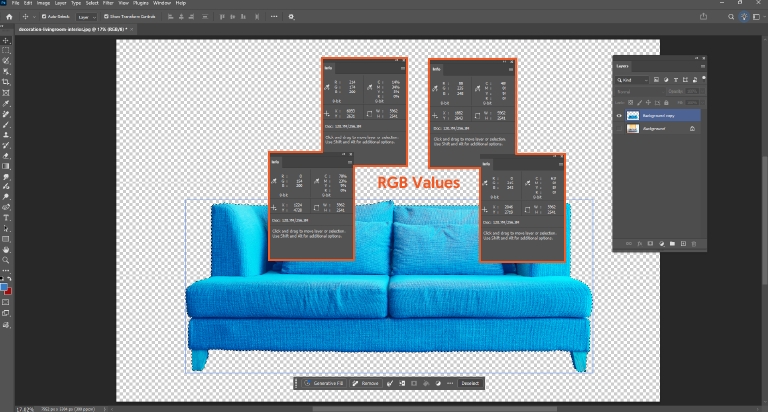
Last but not least, press F8 to open the Info Palette. Then, hover your mouse cursor over the parts of the furniture that you find are most important.
Keep a close eye on the RGB values as you work. Make sure none of the R, G, and B numbers are too high or too low from one another.
Frequently Asked Questions about Color Correction of Furniture Photos
-
What is the best software for professional furniture photo color correction?
Adobe Lightroom and Photoshop are both good for color correction of furniture. But if you want to do advanced color correction (i.e., color grading, white balance, saturation, luminance), Photoshop is the best. Lightroom, on the other hand, is ideal for raw processing and batch editing.
-
How can I get perfect furniture shots?
If you want to take high-end furniture photos, you will definitely want to make the surroundings non-reflective. Use a large softbox, and place the camera on a tripod. It is best to maintain a straight angle during this time.
Insert a color checker card (either SpyderCheckr or X-Rite ColorChecker) into the camera. Set the photo shooting mode to 16-bit RAW and get an LED light with a CRI of 95+. Finally, take shots from multiple angles (close-up shots, three-quarters, and head-on).
-
How do I change the color of furniture in a photo?
You can easily change the color of your furniture (from yellow to red or green to purple) in Photoshop. To do this, you need to use the Hue/Saturation tool in the Adjustment Layer.
From the Properties panel, click on the part of your image where you want to change the color. Drag the Hue slider to change the base color and adjust the Saturation and Lightness.
-
What kind of lighting setup do I need for furniture photoshoots?
If the furniture you are photographing is made of wood, you will need to have polarizing filtering on your lens and “cross-polarization” in your lighting. Apart from these, you will want to use a large sized softbox for upholstery.
-
How to fix temperature and tint without entering Camera Raw?
To operate this fix, you first need to go to Photoshop’s Adjustments panel and select the Color and Vibrance icon.
Click on a neutral area with the eyedropper so that the Temperature slider automatically aligns. Now use this slider to adjust the Temperature and Tint.
-
What capture mode should I set my camera to during a furniture photoshoot?
Not just furniture; for any product photoshoot, you should set your camera to uncompressed RAW with a depth of 16-bit. This is because shooting in this mode will allow you to do extensive photo editing in post-production.
Pilling Up
This easy-to-follow guide to color correction for furniture photography extends from the specifics of post-production (photo editing) to pre-production (before and after photoshoot).
You can confidently prepare a setup and give a quick attempt to take the best shot because now you know how to take professional photos of furniture. It can be frankly admitted that Photoshop’s Color and Vibrance feature turns Okay results into high-end performances with accurate colors.
At least if you don’t want to dive into all these nitty-gritties, you still know what you have to get from a professional photographer. Plus, for the editing part, you can also get your requirements fulfilled from industry-leading furniture photo editing services<span style=”font-weight: 400;”> because you know where to look.