
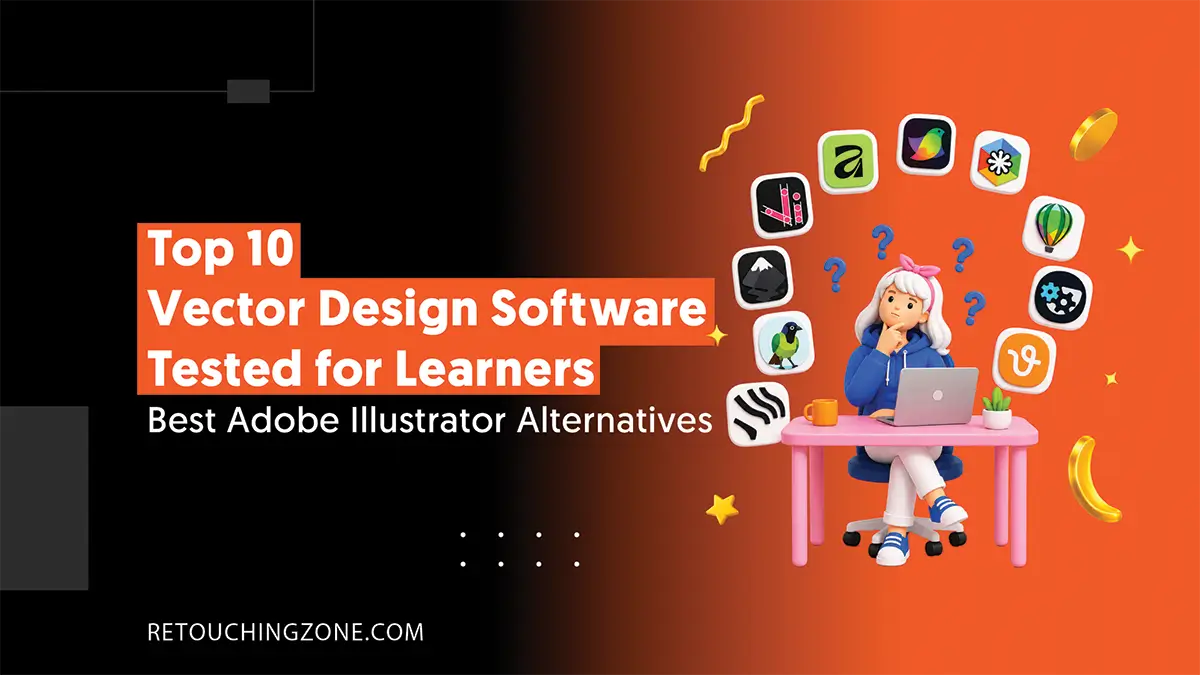
Randomly switching from one vector image editor to another is tedious when you want to enlarge an image. What if you could get the top 10 vector design software that has been pre-tested for you?
You don’t have to worry about blurring the image when you drag along the borderline of the image. What’s more? Your long-standing search for the best Adobe Illustrator alternatives is finally coming to an end.
Keep up with this listicle, your checklist is about to fill up with some great easy-to-use vector graphic design free and paid both software.
1. CorelDRAW

| Link: coreldraw.com | No free version | Runs on Windows and Mac |
It would be an understatement to call CorelDRAW only a vector design tool. Because you will find a complete solution for photo editing in it, just like Adobe’s Photoshop and Illustrator.
You can create all kinds of marketing materials like business cards, leaflets, brochures, and banners through it. The most useful thing is that you can restore very poor-quality colors here and convert simple hand-drawn sketches into vector graphics.
Pros
- The color quality it delivers works well for printing
- Designers can make necessary checks and edits without damaging the original image
- It can integrate with Google Drive, Dropbox, Adobe Photoshop, and a variety of marketing tools
- There are a large number of built-in templates that are suitable for marketing
Cons
- The monthly subscription is quite expensive
- Fewer features than software that runs online
- Software performance slows down as editing gets harder
2. Inkscape

| Link: inkscape.org | Free software | Runs on Windows, MacOS, Linux |
Of all the free vector graphics software we’ve tested, Inkscape ranks first. It works great for controlling any type of shape and changing its numerical parameters. You will get incredible speed here when you go to clone objects.
What’s more fascinating is the curve setting, where you can use the Python programming language.
Pros
- You can have full control over the nodes when handling the shape of any type of object
- Context tools are quite handy
- You can work on different platforms according to your needs
- The interface is quick to adapt to
Cons
- The export options are not sufficient for all types of printing work
- You won’t find deep nuance in typography works
3. Affinity

| Link: affinity.studio | No free version | Runs on Web, Windows, iPhone, macOS |
If you want to work combining different design modes, Affinity Designer should be your choice. Its main strength lies in the accuracy and performance speed that even contemporary design tools cannot offer.
In this software, you’ll find effective layer management, quality zooming, and real-time pixel previews.
Pros
- You can work with both vector and raster
- You can create high-quality illustrations without slowing down
- It can be your best editing tool for iOS
- You can work with PDF, AI, and PSD file formats, including SVG
Cons
- You will find inconsistencies in the cloud when working on multiple devices
- There is less scope for using plugins and other third-party extensions here
4. SVGator

| Link: svgator.com/create-svg | Limited free version | Runs Online |
This is the ability to animate SVG files, which makes SVGator jump on our list. Of course, this vector graphics software also has a timeline and keyframe track feature that are very useful.
You can do all of your vector asset management and creation of workable files for your project.
Pros
- Works directly with files created in Illustrator and Inkscape
- You can work directly with files created in Illustrator and Inkscape here
- Much lighter than other vector editing tools
- This image editor is suitable for creating regular photo assets
Cons
- You can only animate SVG files
- There is very little editing flexibility on the free plan
- Animation timeline doesn’t work properly when there are too many layers
5. DRAW-SVG

| Link: drawsvg.org | Free editor | Runs Online |
You will find DRAW-SVG to be the best vector design software if you are looking for a huge range of custom templates containing diagrams and charts. With it, you can create the graphics you need for presentations and newsletters from scratch.
Pros
- No additional hassles of software installation
- This software works well with touch-sensitive smart devices
- You can work with photo formats like JPEG, PNG, as well as SVG
Cons
- You can’t use it offline
- It lacks its own library, so you need to rely on external ones
6. Amadine

| Link: amadine.com | Free software | Runs on Mac, iPad, or iPhone |
This is a vector image tool that novice artists can rely on for easy-to-use toolsets. With Amadine, you can easily create a variety of shapes and use the paint mode to choose the color you want.
This software goes very well with graphics for flyers, posters, brochures, and web designs. Its exporting image formats include all the most commonly used ones, like SVG, TIFF, PDF, JPEG, and PNG.
Pros
- You can create objects with rounded corners
- You can use all the beautiful stock images on its canvas
- Its tools for changing color styles are quite rich
Cons
- The image effects are not very premium
- There is no way to use it on a desktop PC
7. BoxySVG

| Link: boxy-svg.com | Free software | Runs on Mac and Windows |
We tested Boxy SVG and found that here you don’t have to put much effort into creating icons, banners, buttons, and interface sketches. You rarely find a user-friendly tool like this out there, especially for creating a set of icons for a website.
With Boxy SVG, learners who have just started editing can design very quickly, and the results are impressively immediate.
Pros
- Learners get access to a vast template library for vector drawings
- Here you can also import raster images and work on them
- If needed, you can use Google Fonts when editing images
Cons
- There are not enough scopes for doing premium-level work
- The number of necessary functions for your editing is pretty low
8. Vector Ink

| Link: vectorink.io | Free editor | Runs on both desktop and mobile |
If you want a free vector graphics program for creating and editing SVG files directly within the browser, Vector Ink will impress you right away. Its tools for creating illustrations and graphics can compete with any contemporary online editor.
What’s most appealing is its AI-powered tools that can create complete AI processes through a node-based studio. You don’t have to completely abandon your creative hand-drawing, rather, you can do it faster.
Pros
- You can use AI in your hand drawings
- You don’t need to install it due to its browser-based nature
- Its path tools are quite professional compared to other contemporary ones
Cons
- You can’t run it offline, so you must have an internet connection
- It doesn’t let you go to very fine levels when editing
9. Vecteezy Editor

| Link: vecteezy.com/editor | Free version available | Runs online |
Another great online drawing software for a large, versatile editable illustration library is Vecteezy Editor. Thanks to its collection of 75 fonts, you’ll have a fair amount of freedom in your text design.
Its color palettes are so simple that it can handle your complex illustration and SVG file import and editing.
Pros
- You can edit the shapes to your desired level of detail
- You will have access to a huge collection of useful materials for vector graphics
- You can create an entire illustration from scratch
Cons
- Sometimes the interface freezes and loses its normal pace of working
- There is no other way to login except with a Facebook account
- There are limits to how large files you can use
10. Linearity Curve

| Link: linearity.io/curve | Free software | Runs on iOS and Mac |
This could be a great addition to your checklist of free graphic design tools for easy use with countless layers. Very few free software programs can convert raster images into perfect vector graphics as quickly and easily as Linearity Curve.
Among its features, the ones with unparalleled results are shape and contour tools, custom fonts, CMYK color profiles, masking, and true layer blending modes.
Pros
- It puts an end to your repetitive tasks
- Its infinite number of layers lets you be creative freely
- You can work together with your fellow editors here
Cons
- When performing object duplication, the whole system slows down and sometimes even hangs
- The way to get software support in case of a problem is weak
Frequently Asked Questions on Top 10 Vector Design Software
1. Which of these software can I use to create vector designs for free?
Among this list of 10 software that will give you free access to vector design are Inkscape, DRAW-SVG, Amadine, BoxySVG, Vector Ink, Vecteezy Editor, and Linearity Curve.
2. Which file format is most needed for vector image editing?
The most common file format for vector image editing is SVG, which stands for Scalable Vector Graphics. This file takes up much less space and can display images on any type of screen without downsizing the quality.
And so the format is effective for any element related to a web page.
3. As a beginning learner, what things should I look for when choosing a vector graphics design tool?
The first thing you should look at is how friendly its user interface is, because you should find the design tools very easily.
Then you should see how rich its library of templates and graphic materials is. Because it will give you the freedom to quickly edit with just drag and drop.
4. AI or human? Which raster-to-vector converter is better?
This mainly depends on how complex the graphics elements are in your raster image. If it’s at a very basic level, AI is better because it will get you bulk conversions in a very short time.
But if the level of complexity is quite high, for volume projects, converting by human editors will be more reliable than AI ones.
5. Which vector design software have effective features for freehand drawing assistance?
CorelDRAW and Vector Ink have features that automatically fix any problems with your hand-drawn lines. It goes with everything, whether you’re drawing straight, zigzag lines, or even curves.
Final Words
We curated this list by picking a balance point between quality results and easy interfaces. So these top 10 vector design software don’t just lean towards good image output or just ease of use. Rather, it takes the best of both.
You can confidently put these on your best Adobe Illustrator alternatives checklist for your vector image editing learning. Among the free ones, you can jumpstart your learning journey with Inkscape and DRAW-SVG.
But you can’t let this overshadow your business, especially if you’re dealing with large-scale vector conversion. Your best option for delegating these edits is the Retouching Zone.
Having ruled the photo editing industry for over a decade, they have a vast hold on vector graphics. Want to see their expertise? Start with this free trial and see their output quality in an instant.