The better you learn how to edit photos for eBay, the better you will be able to list your products on the platform. You can see how important this skill is when you look at the popularity of eBay worldwide.
In order to attract customers on this highly competitive platform, product images have to be attractive enough. And good images mean perfect editing that includes brightness, color, and contrast adjustments, background changes, and the right export format.
In this post, you will learn 5 clear steps for editing photos for eBay, which will help you make your product images platform-friendly.
5 Steps for Editing Product Photos for eBay
After taking perfect product shots, you must edit them to match the eBay image guidelines.
The following are the steps for editing photos on eBay listings.
Step 01: Resize the image
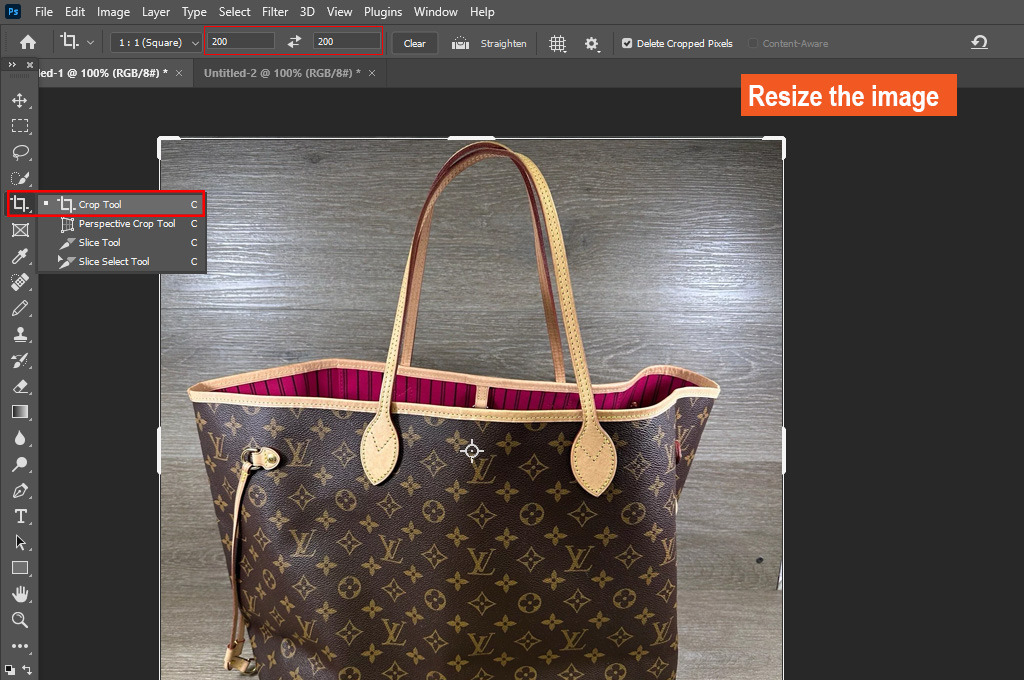
- Depending on the EXIF orientation data, you may need to rotate your product image. The dimensions of the photo can be landscape, portrait, or square. But maintaining consistent orientation and size is crucial for all eBay product photos.
- Crop and resize the image using your preferred photo-editing software. Keep the product fully focused and remove unwanted objects by changing its aspect ratio.
- An eBay picture must be at least 500×500 pixels but not more than 9,000 x 9,000 pixels. Try to keep 800-1600 pixels for both vertical and horizontal sides.
- The image file size can’t exceed 12 MB. Keep the padding size between 10% to 20%, whereas the product should cover around.
Step 02: Adjust Brightness, Color, or Contrast
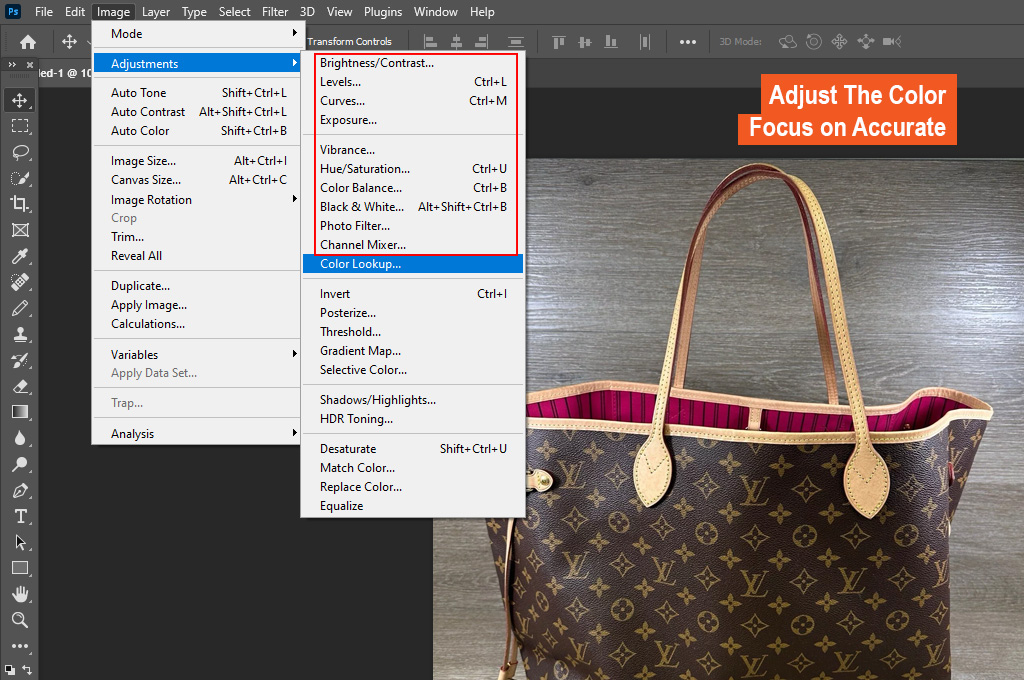
- Uploading bright and clear images on the eBay platform is necessary. You may need to adjust the brightness, color, and contrast levels. But focus on accurate representation of the product.
- Besides, work on the sharpness level. It should be sharp enough to see its textures and fine details clearly. However, avoid over-sharpening it. Otherwise, it will introduce noise or artifacts.
- Another important thing is to skip using any special filters. It may completely change the product’s look.
Step 03: Remove or Change the Background
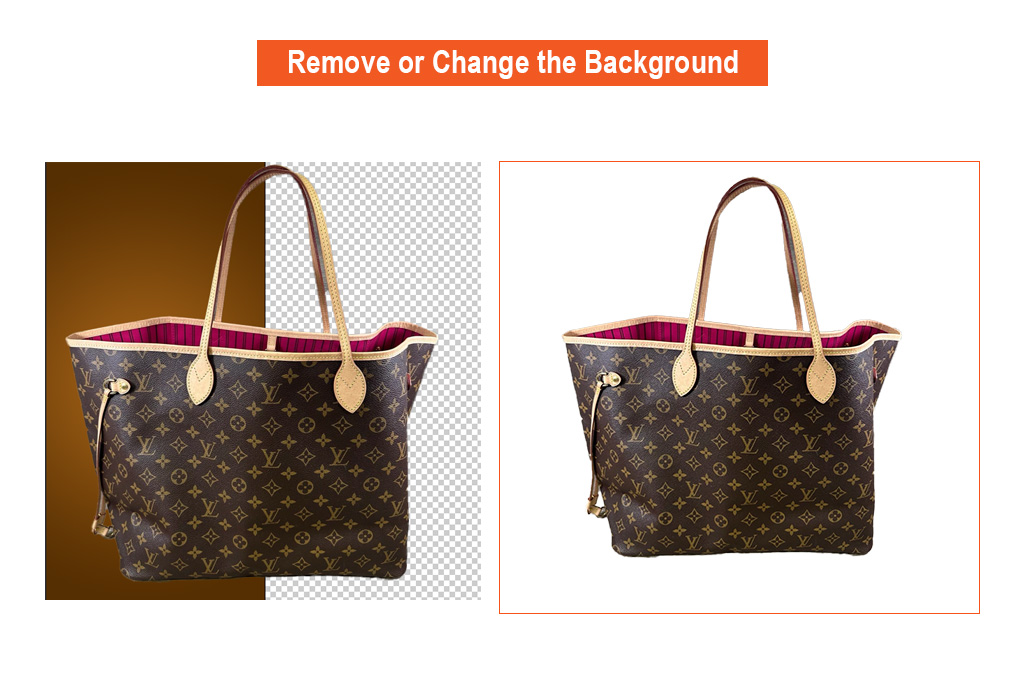
- It is always best to use a solid background for eBay product photos. You can choose white, black, beige/canvas, or neutral tones. But regardless of the option you choose, it must complement the item.
- A clutter-free background is a must to focus on the main product. Remove extraneous stuff or the entire backdrop and replace it with a solid option. Keep it as simple as possible.
Step 04: Save Images in The Right Format
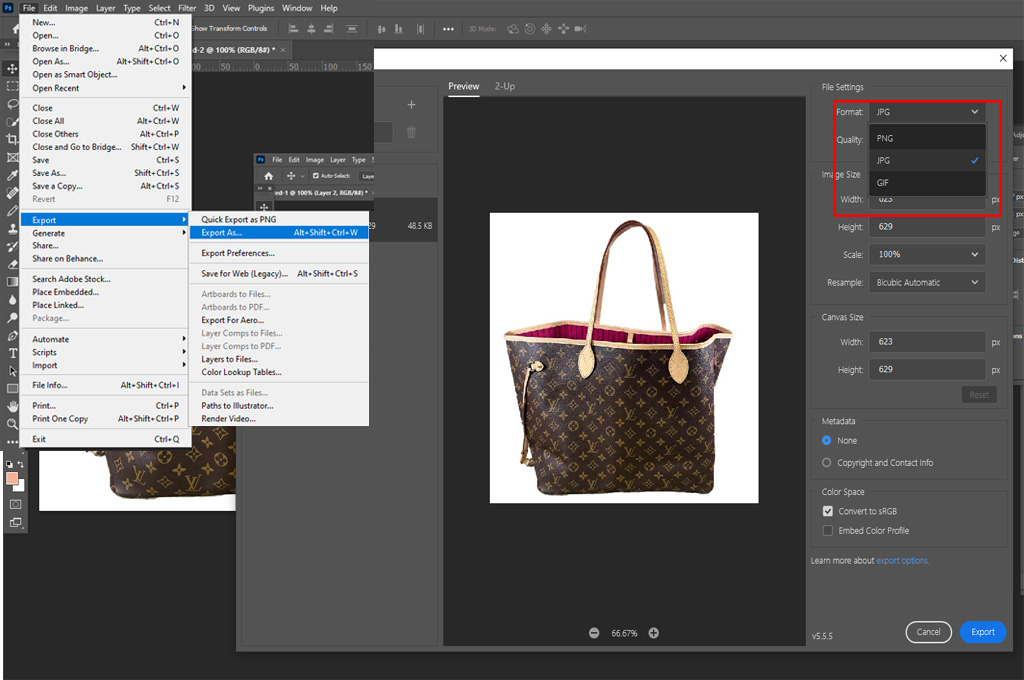
- Once you are done editing, save the product photos in PNG, JPEG, TIFF, GIF, WEBP, HEIC, AVIF, or BMP format.
- The quality scale of eBay images must be 90+ for JPEG format. Plus, keep the size lower than 12 MB.
Bonus Tips for eBay Product Images
- Make sure the photo accurately matches the main product.
- The item image should not contain any borders, extraneous stuff, copyright marks, or barcodes.
- Upload only the original product images that have only your intellectual property rights.
- Crop the pictures carefully to avoid cutting out any important areas.
- Don’t add people or body parts unless it is necessary.
- Avoid using any sensitive or nude content in the eBay images.
- Keep photos free from props and other distracting elements.
- The entire image should not contain overly bright areas to prevent distortion.
- If you add two product parts in the same photo, make sure both are visible clearly.
- Adding secondary images is okay if they do not have the same angle as the primary images.
Frequently Asked Questions about Editing Photos for eBay
What is the best resolution for eBay photos?
eBay requires a minimum of 500 x 500 pixels, but for the best results, you should use 1600 x 1600 pixels. This ensures the Zoom functionality works perfectly for potential buyers.
Which file formats are accepted for eBay listings?
You can upload images in JPEG, PNG, TIFF, GIF, and BMP formats. However, JPEG is recommended with a quality scale of 90+ for the best visual performance.
How to edit images for eBay while maintaining the high-quality scale?
After finishing editing, when you go to save the image in JPG format, set the quality scale to 90+. It will allow your final output to be of high quality, which will later benefit you when listing your products on eBay.
How much of the frame should the product occupy?
The product should cover approximately 80% to 90% of the image frame. Maintaining a padding of 10% to 20% ensures the item isn’t “cut off” and looks professional.
Is a white background mandatory for eBay photos?
While not strictly mandatory (neutral tones like beige are allowed), a solid, clutter-free background is required. Using white is highly recommended to make the product stand out and stay consistent with professional listings.
Similar Reads for You
Conclusion
These steps to learn how to edit photos for eBay will be a great addition to your ecommerce platform-based product photography. Make sure your photos are high-resolution to avoid losing important details.
Keep the photo resolution between 500×500 pixels and 9,000 x 9,000 pixels. After giving the final retouch, save it in JPG format, where you must not forget to keep the quality scale at 90+.
After brain-checking these basics, you can expect your images to be eBay-friendly. Good luck getting some incredible e-commerce product photo editing results!