
Lack of color accuracy is one of the main reasons behind product returns that plague the entire e-commerce industry. Plus, in the 2026 electronics marketplace with high-fidelity displays at its peak, there’s no way to take risks with spectral accuracy anymore.
Just having a well-configured PC and Adobe Photoshop on it is not enough, especially when you are about to do color correction on a product.
The original color may have been correct, but the lighting in your room has created an environment where you are seeing the color on the monitor incorrectly. The result? You went the extra mile to give the photo a retouch that was not necessary at all.
This blog brings together the most useful expert color correction tips in the context of the ecommerce industry to turn your store browsers into lifelong customers.
1. Implement a Reference Lighting Environment

Before you even touch a pixel, set up your photo editing environment. Don’t let the harsh sunlight coming through the window or the bright light from the bulbs in your room fall on your monitor and trick your eyes.
Set an Image Editing-Friendly Base
- Use bulbs with D50/D65 reference: D50 stands for 5000 Kelvin, which gives a daylight-like environment and is widely used in printing. D65 stands for 6500 Kelvin, which is perfect for the web.
- Paint the walls Munsell N7 Neutral Gray: If you paint the walls of the room or studio where you edit, your monitor screen will be free from unwanted color reflections.
2. Get the Most Out of 10-bit HDR Profiling
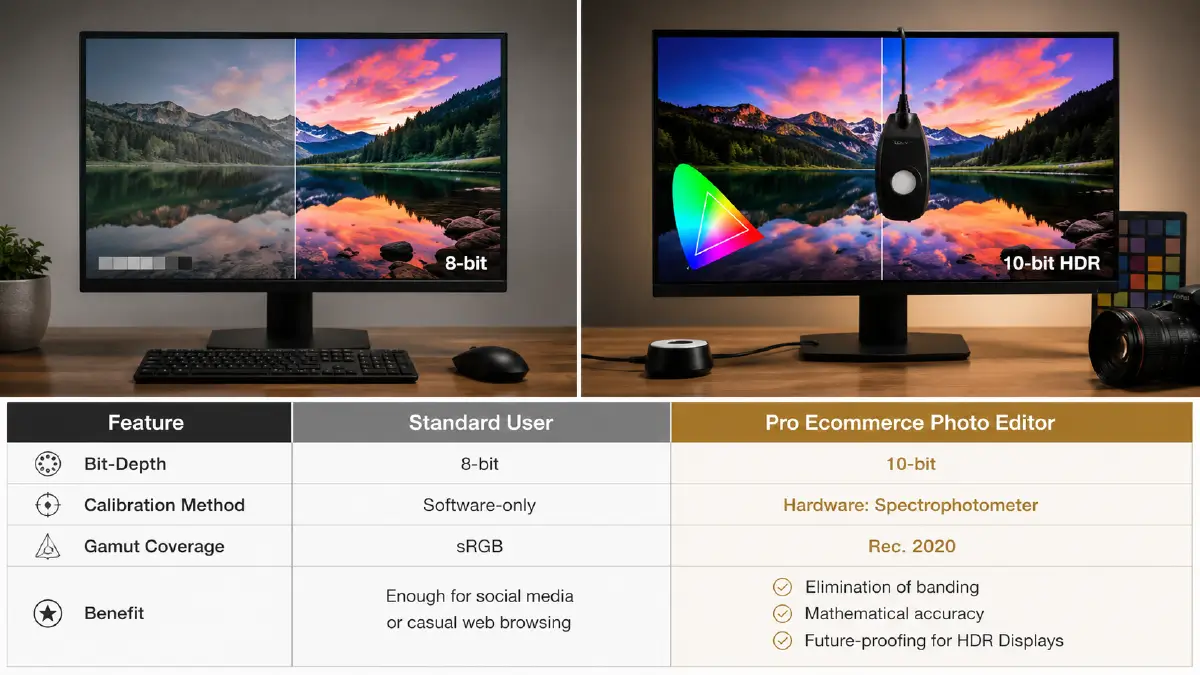
The better you can see the photo on your screen, the better you can edit it, right? And that’s why you should be using 10-bit HDR profiling, which is a capability that allows your screen to display over 1.07 billion colors.
Impact of Custom ICC Profiling
Custom ICC profiling uses a spectrophotometer to convert digital color values on your monitor screen to display. The spectrophotometer’s job is to correct for any natural color changes over time based on the light coming out from the monitor.
Table: Standard User vs Pro Ecommerce Photo Editor: Hardware Comparison
| Feature | Standard User | Pro Ecommerce Photo Editor |
| Bit-Depth | 8-bit | 10-bit |
| Calibration Method | Software-only | Hardware: Spectrophotometer |
| Gamut Coverage | sRGB | Rec. 2020 |
| Benefit | Enough for social media or casual web browsing |
|
3. Utilize the Device-friendly Lab Color Space
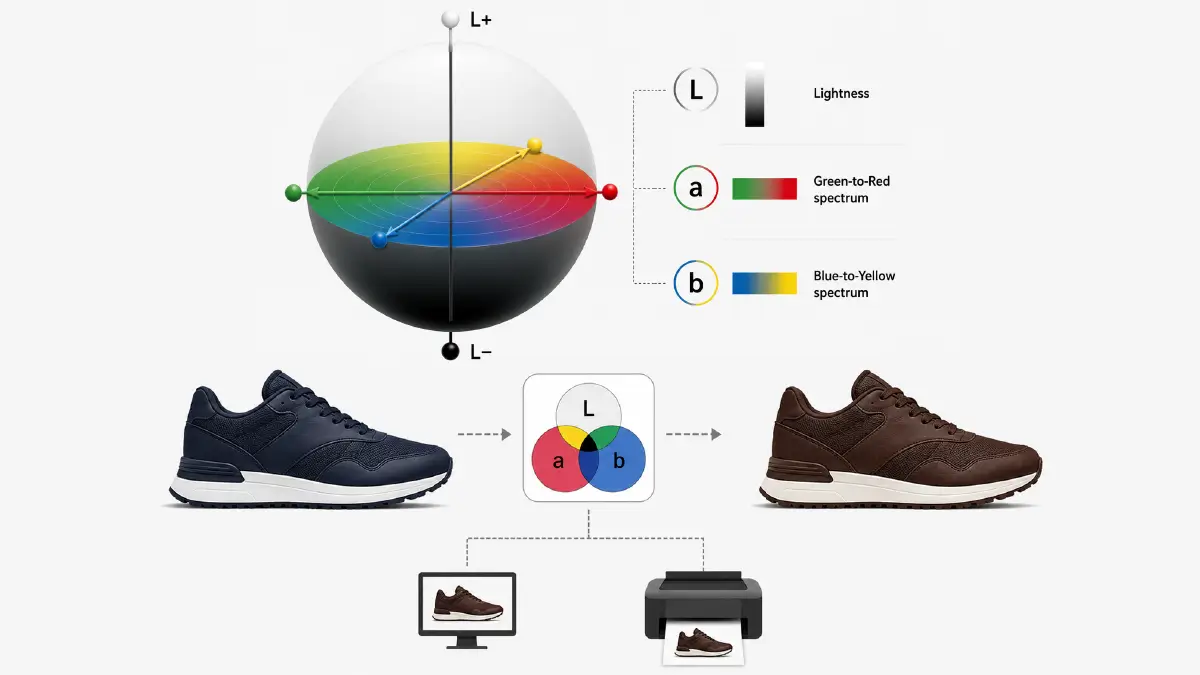
To be advanced in 2026, you need to prioritize Lab color space over RGB or CMYK. In the Lab model,
- L stands for Lightness
- a: the color channel that handles the Green-to-Red spectrum
- b: the color channel that handles the Blue-to-Yellow spectrum
This color model provides true color perception across devices. Here, brightness does not change with color change, because lightness does not depend on color channels.
Lab Color Space Wins Over RGB and CMYK
Let’s say you want to change the color of a sneaker from dark navy blue to dark chocolate. You want this change to be effective both on print and on screen, regardless of the device.
You don’t have to set the color mode to CMYK and RGB, respectively, for this. Set it to the Lab color space, and your color will mathematically match the screen and print versions of your product.
4. Integrating Spectral Data and ICC Profiling
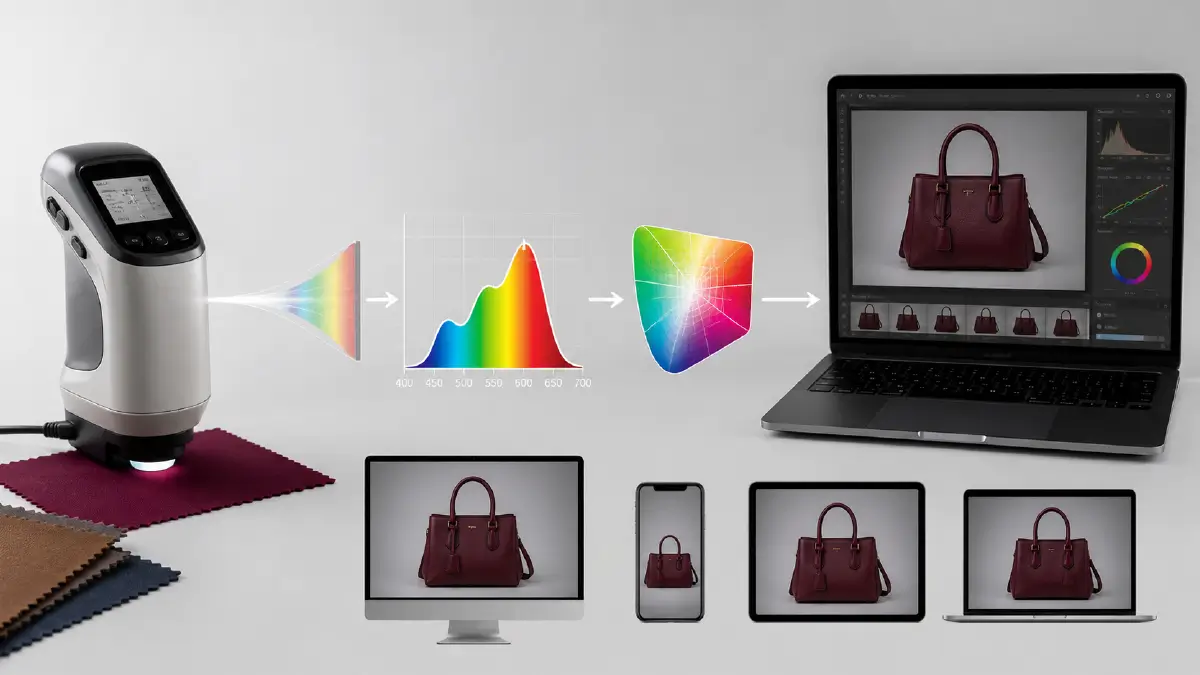
You want a digital identity for the color of each of your e-commerce product, and this demand is what drives you to integrate spectral data. The lighting in your home, lobby, or studio cannot change this color data one bit.
ICC Profiling for Image Editing
Spectral data will only be useful for your editing until it goes through custom ICC profiling. This profiling does not let the product’s color change even slightly through the entire editing journey from opening a RAW file to exporting a JPEG.
What’s more, this color consistency persists across different web browsers and even devices.
5. Selective Frequency Separation for Texture Preservation
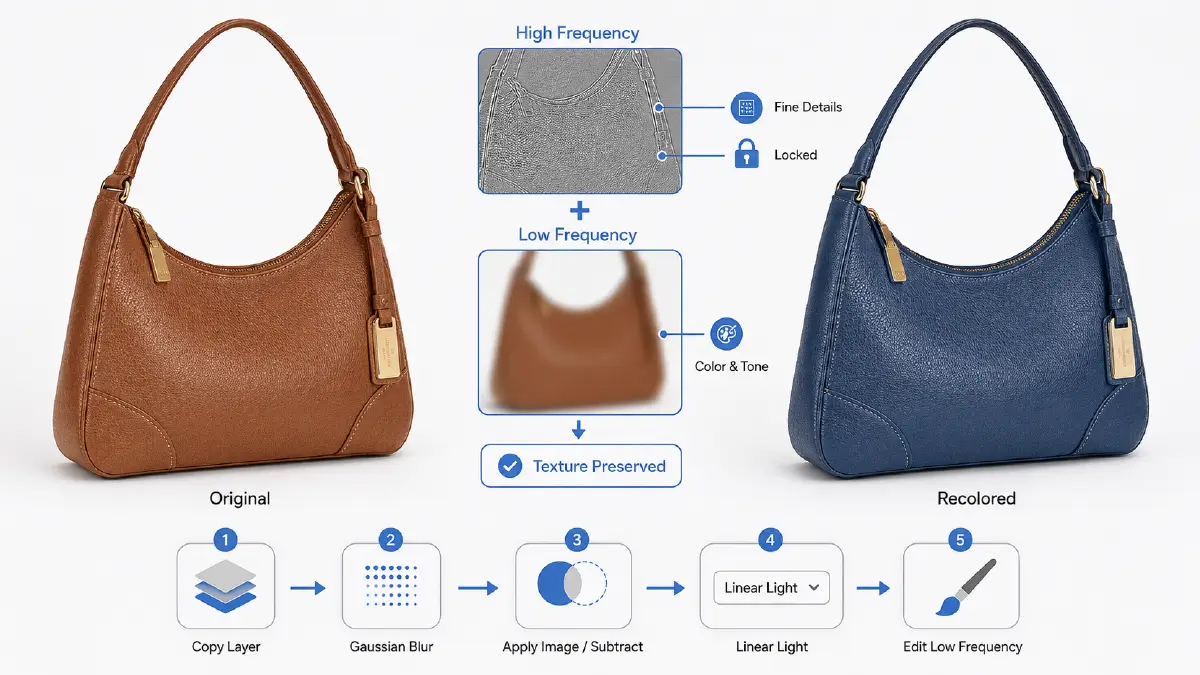
Trying to change the color of e-commerce product photos and end up making it look like “CGI” objects? What you need here is frequency separation, which divides your image into two distinct layers:
- High frequency (accommodating all the fine details)
- Low frequency (having the color and tone information)
Color Correction Without Blur
That means you don’t need to touch the high-frequency elements at all. Just focus on the low frequencies, and you’ll see that you can correct the color at a much deeper level.
6. Correcting for Metamerism Failure
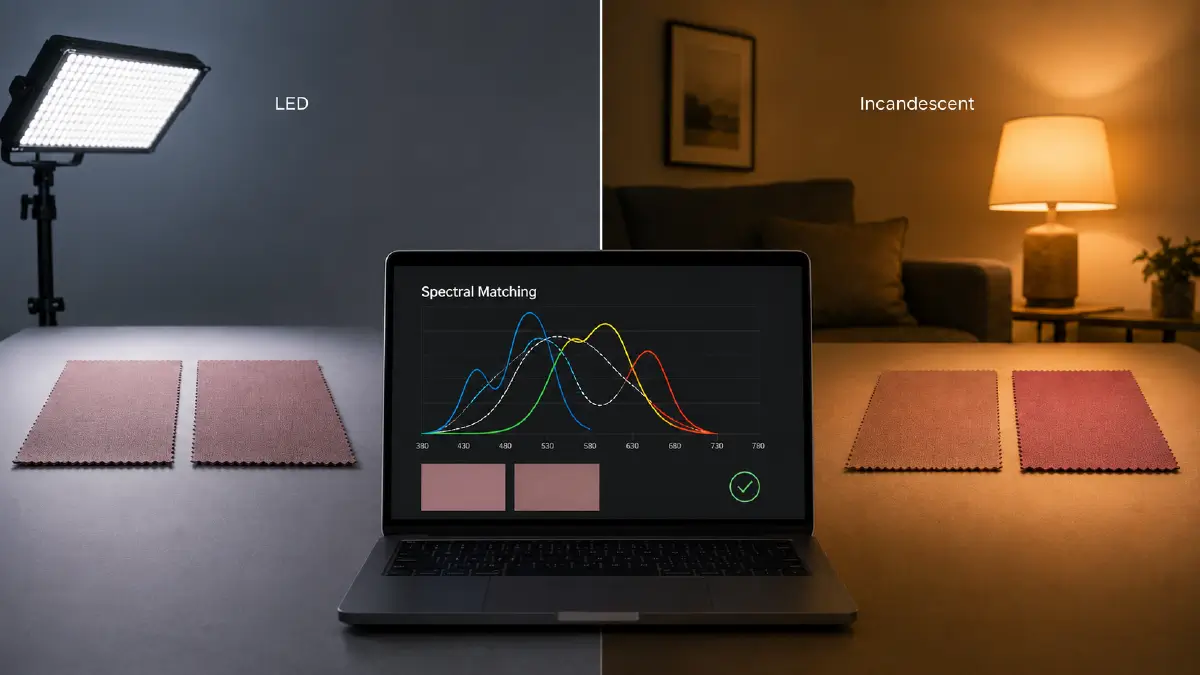
It often happens that you see that two colors look the same under the LED lights of your photo studio. But when you look at them under the incandescent light of your living room, the same colors look different. This is actually a metamerism failure.
The Solution: Software-based Spectral Matching
The solution to this problem is software-based spectral matching, which allows you to identify the spectral curve of the product material. As a result, the digital file provides a neutral version of the color, which is consistent across different displays.
Not limited to just white balance, this technique neutralizes the intensity of specific light in a way that prevents color variations in different lighting environments.
7. Handling Light Scattering Products
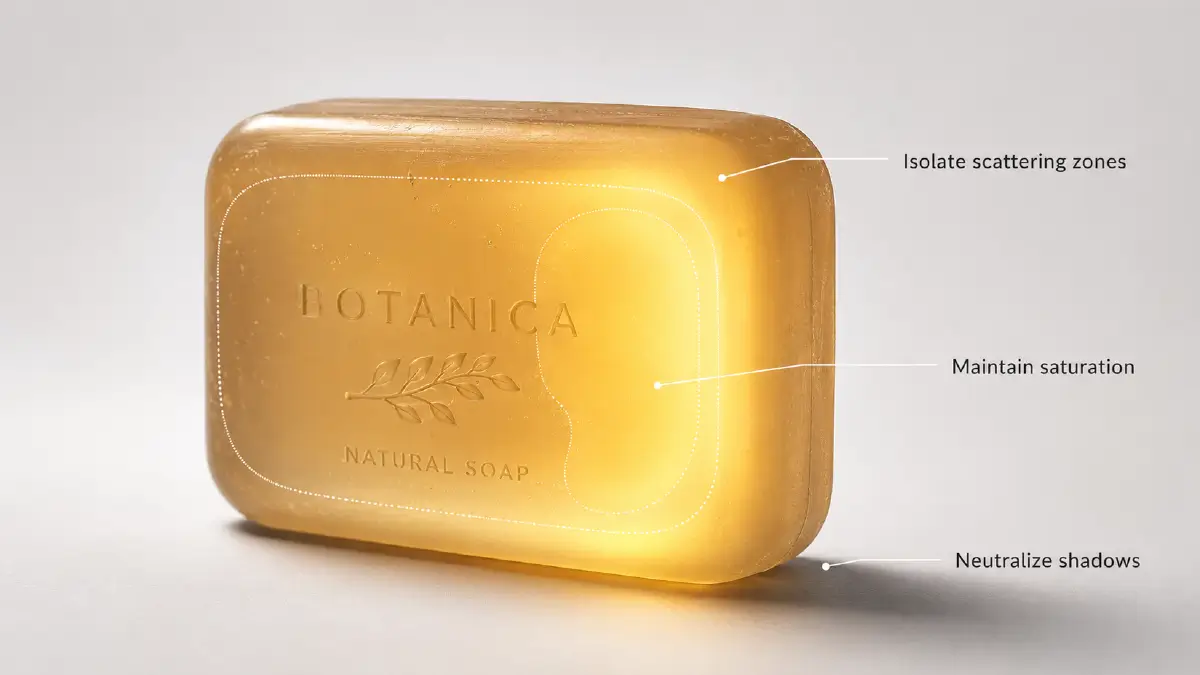
There are some materials (like soap, certain types of plastic) that reflect and refract light when it hits their surface, a phenomenon known as subsurface scattering. To handle this type of feature, you need to use an adjustment layer and specific masking.
What this does is that you can fix only the bright areas that are causing the scattering. Significantly, it saves you the hassle of changing the color of the entire object.
8. Balancing HSL and Curves Equalization
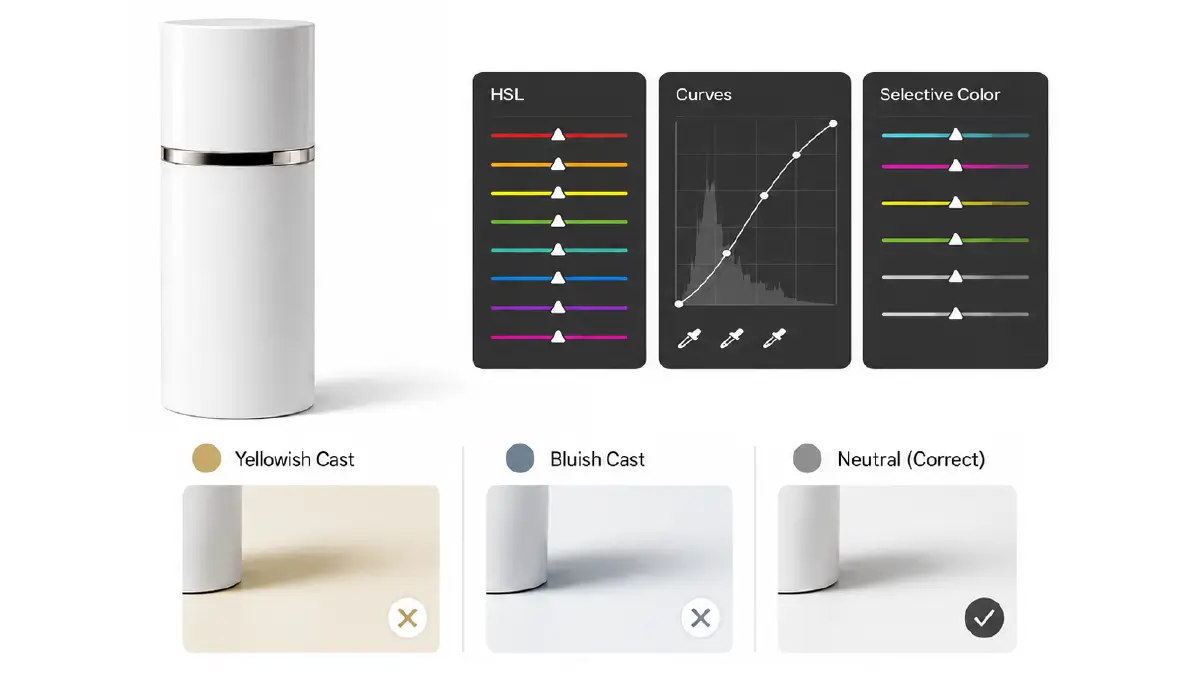
Have you ever heard of the ‘zero-cast policy’? It’s a way of editing light and shadow, whereby the highlights and shadows of your product are not exposed to any kind of bias.
Why is this policy necessary? The reason: the sensitive brain of consumers. If they detect even the slightest yellow or blue tint in the color of the image, they don’t take long to throw it to the unnatural level.
The way to achieve this zero cast is to balance between HSL (Hue, Saturation, Lightness) and Curves equalization.
- With HSL balance, you can change a specific color family without leaving any flaws.
- With Curves adjustment, you get the benefit of tonal range mapping, which controls the power of the image.
Table: Adjustment Layer Cheat Sheet
| Tool | Primary Function | Pro Tip for E-commerce |
| HSL Balance | Targeted Chromatic Shifts | Isolate the Saturation slider for the product’s primary hue |
| Curves | Mapping Tonal Contrast and Luminance | Use the Black Point eyedropper on the deepest shadow until it hits 0% saturation |
| Selective Color | Fine-tuning Ink Densities | Adjust the Black slider within the White/Neutral channels |
9. Platform-Specific Optimization: sRGB vs Display P3
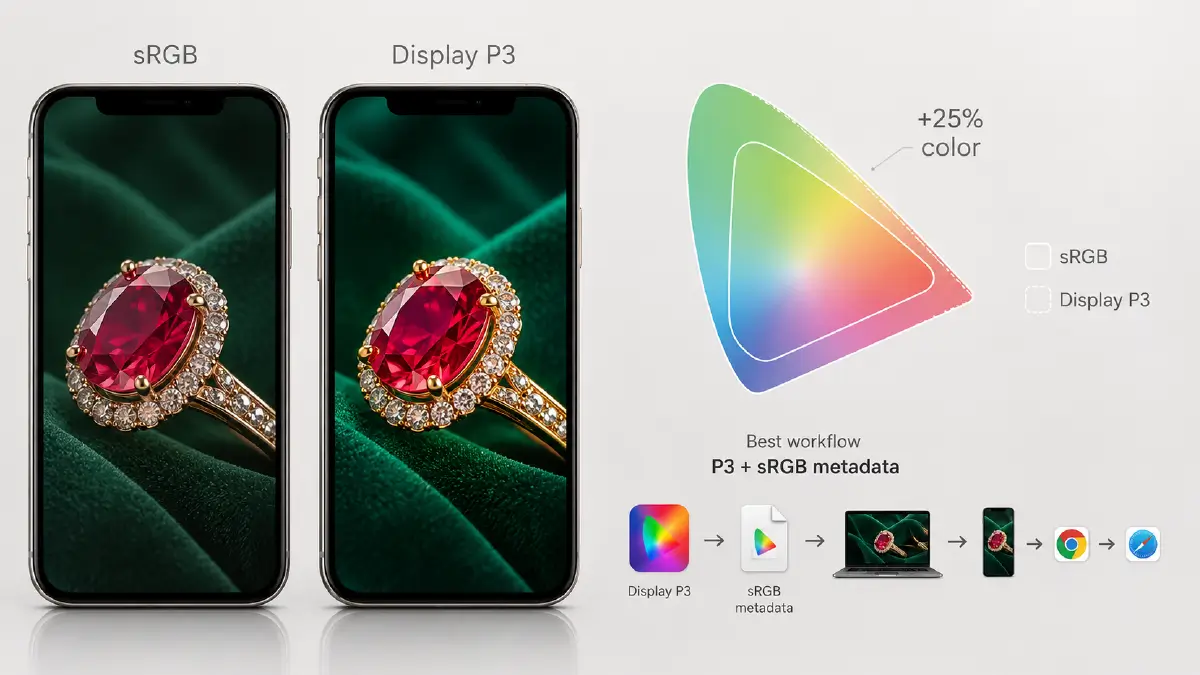
sRGB has long been a safe option, but it often clips the brightest colors that high-gamut devices display. In today’s high-end fashion and jewelry, Display P3 offers 25% more color data than sRGB.
Display P3 or sRGB: Which One to Choose
Even so, we don’t recommend going solely to Display P3; in contrast, a combined workflow with sRGB is better.
It’s okay to use Display P3 for basic mobile experiences, but include sRGB in the metadata. Because you definitely don’t want your images to look oversaturated in older browsers, right?
10. AI-Assisted Batch Matching and Quality Control
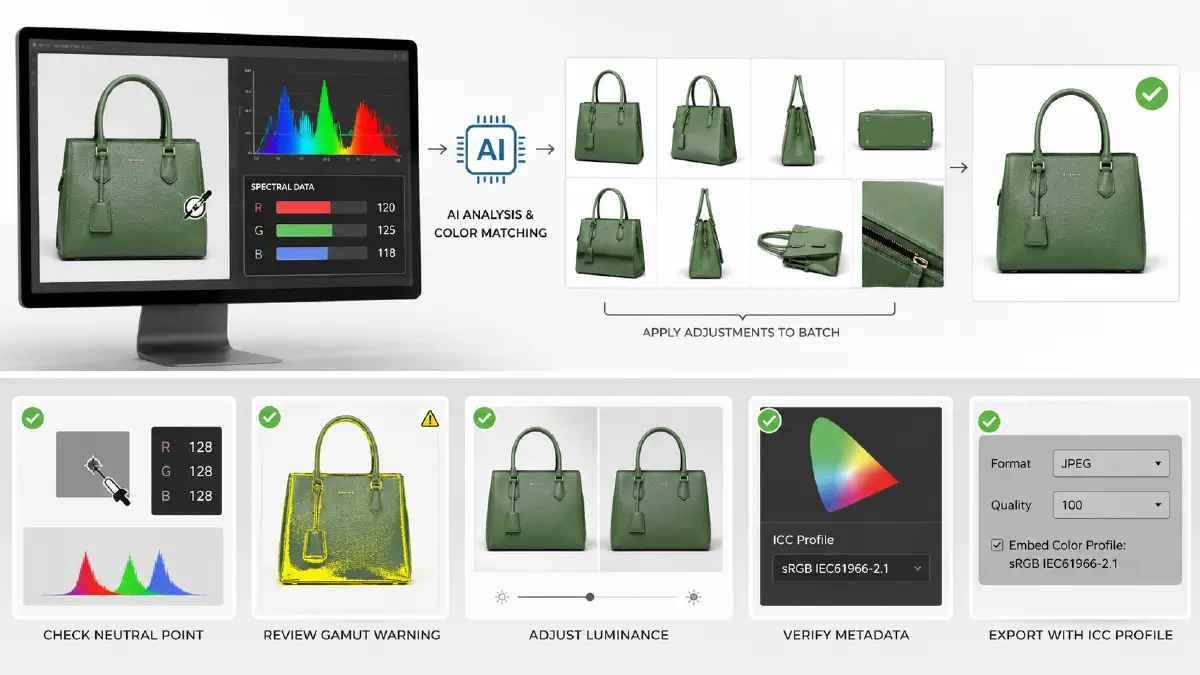
Now, you can’t handle large-scale color correction with manual ecommerce photo editing alone. You have to resort to using it in conjunction with AI-assisted batch matching.
The biggest plus point is that it analyzes the spectral data of your hero image and gives you the adjustments you need to make. You can then apply them to every other angle and variation in the batch.
AI does the job of identifying the original color of the e-commerce product photos and maintaining the same color across the frame or shot. However, your intervention, i.e., human control, is essential for quality control (QC).
Pre-Export Image QC Checklist
- Check Neutral Point: Perform digital sampling and verify that the R, G, and B values of “neutral gray” areas are consistent.
- Review Gamut Warning: Toggle the Gamut Warning in Photoshop and detect overly bright colors for the sRGB web standard.
- Adjust Luminance: Verify whether the brightness of products is consistent throughout the gallery.
- Verify Metadata: Input the ICC profile (is it sRGB or Display P3) correctly in the final export settings.
Frequently Asked Questions About Color Correction Tips for E-commerce
1. How much better is 10-bit HDR than 8-bit HDR?
10-bit HDR allows digital screens to display 1.07 billion colors, which is 64 times more than that of 8-bit HDR.
2. Where exactly does Lab Color Space beat RGB and CMYK?
For product printing, you need to use CMYK color mode, while RGB mode is right for web or digital screens. Lab Color Space is the model through which you can match the color of the product print with the color of the screen.
3. What is the digital DNA of a product’s color?
It is essentially a code for the color that can be read by any relevant machine. What is contained within this code is the exact value and spectral information of the various components within the color. This prevents the color of the product from changing between both the screen and the real-world version of the product.
4. What frequency should I modify for color correction accurately for a product?
When you are going to color correct a product, be sure to choose low-frequency data to modify, as it can address all aspects of lighting, including the color and tone, in detail.
5. What does the color gamut of a device actually refer to?
The color gamut of a device refers to the range of colors that the device is capable of giving output, i.e., showing and receiving input, i.e., capturing from. You already know what colors a monitor can display, namely the primary colors red, green, and blue.
Higher gamut devices have the capability of displaying a color range that is 25% more than that of traditional devices.
Final Words
These 10 expert color correction tips represent the insight that the online shop business gets more planned in 2026, putting the customers mainly at the focus. From adopting a D65 reference environment to human-AI hybrid batch matching, these 10 tips will help you bridge the gap between the digital and physical versions of your product.
Accurate color wins the hearts of customers in such a way that they don’t care how much editing the image has undergone, and start trusting the brand. And this is how viewers start converting to customers on the one hand, and product returns on the other hand decrease.
Still overwhelmed by all the technicalities? Know that there are seasoned experts who will take care of all the hassles of color correction for your products.
Get to know Retouching Zone, a leader in the ecommerce photo editing industry. Start with their free trial, where you’ll get a chance to check out their retouching skills.