

Did you see a noticeable difference between the picture you have taken and the view you saw through the live camera? Or there might be an unwanted tone presence in your image that is making the photo distracting or bland. You can add your preferred vibe and bring the feel you crave into the photo by altering the color palette. This post will cover how to change color in Photoshop.
Why Change Color in Photoshop?
Which Tool Should You Use
| Task | Best Tool |
| Changing a specific object (like a shirt) | Color Range + Hue/Saturation |
| Replacing one specific color with another | Replace Color Tool |
| Subtle tinting of the whole image | Color Balance or Photo Filter |
| High-precision professional work | Pen Tool + Solid Color Fill |
An image tone can be cool, mute, warm, bright, gradient, pastel, and so on.
Your captured picture might not have the same hue as you want it to have. But you can transform the boring shade into a stunning one to achieve your desired result.
People alter and adjust a photo’s tone for various reasons, such as
- Portraits with unnatural hues or unappealing tones that clash with the subject
- Unaligned shades that don’t match a brand vision
- Improvement of the tone grading to create a mood with the hue palette
- Experiment with new options to create a unique style
How to Change Color in Photoshop?
When it comes to altering tones or hues in Photoshop, you have many options. You can use a hue/saturation adjustment layer, color replacement tool, color replacement brush, blending modes, color fill layer, etc. However, beginners may struggle to use complicated methods for adjusting tones in images. Here is a simple way to change shades in Photoshop.
These are just a few of the many ways you can change colors in Photoshop. With practice and experimentation, you can develop your own techniques and achieve stunning results.
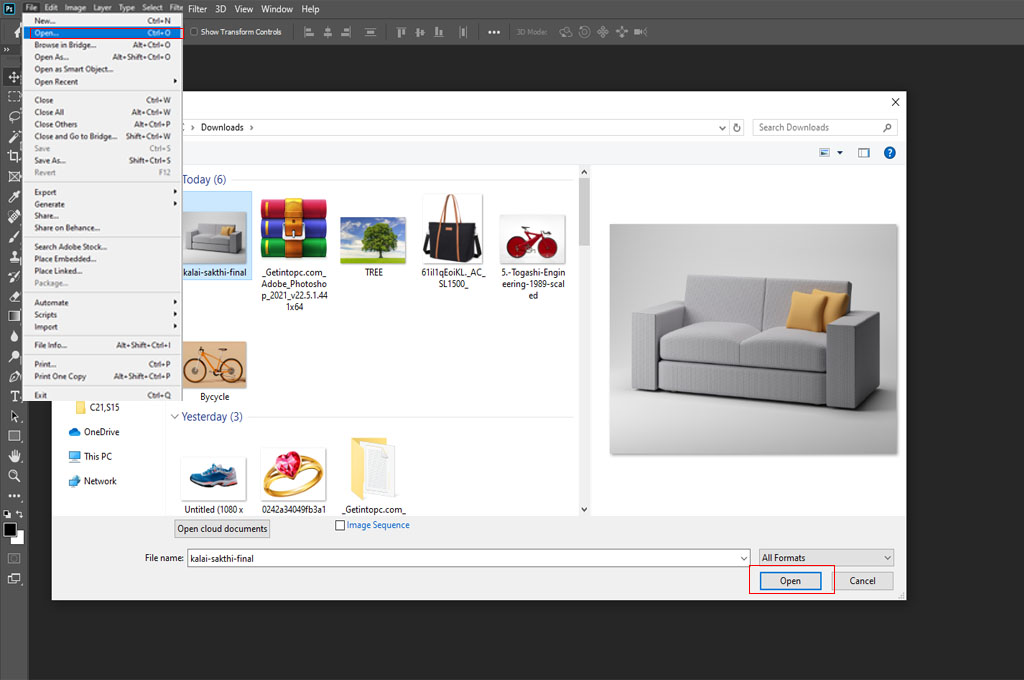
Step_01: Import The Image
- The first step is importing the image whose coloring grade you want to change. Follow the drag-and-drop method to import the photo.
- Or navigate to the menu bar and select File › Import › Images from Device.
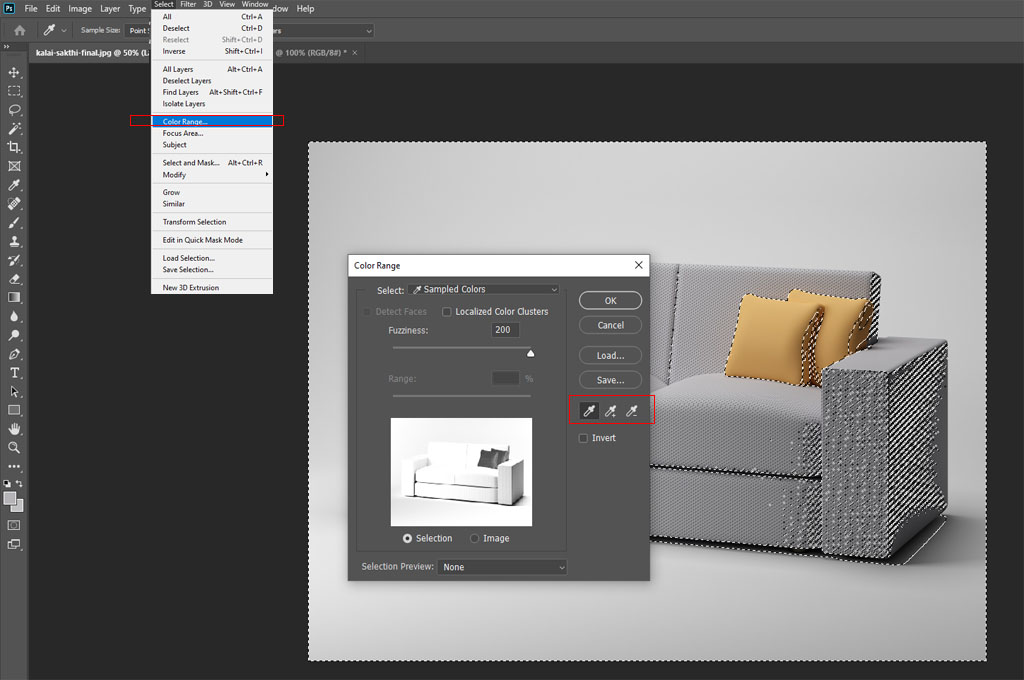
- Again, head to the menu bar and tap Select › Color Range.
Step_02: Pick Your Preferred Coloring Range
- A Color Range window will appear on the screen’s right side.
- Go to the left-hand vertical toolbar section and select the middle-eyed dropper tool. It has an eyedropper icon.
- This powerful tool allows you to pick the exact tone from your image and use it in other areas.
- Once you select the sample tone, it will be the foreground section. You can add it to your Swatches panel.
- Changing the intensity of the tone is also possible by tapping on various shades.
Step_03: Make Your Selection Precise
- Move the Fuzziness slider left or right to increase or decrease the range of coloring around your sample one.
- Keeping the Fuzziness slider value high will extend the sample shade to the surrounding areas.
- In contrast, if you set the Fuzziness slider value low, the specific sampled tone will be narrowed down to the surrounding zones.
- Once you are happy with the result, tap on the OK button and close the pop-up window.
You may also like to read… Photoshop vs. Lightroom: Best Choice for Photo Editing
Step_04: Save the Layer
- Navigate to the menu bar and select Layer› New Adjustment Layer› Hue/Saturation.
- It allows you to adjust the Hue, Saturation, and Luminance of a specific range of hues in the photo.
- Give the name of this layer and hit the OK button. It will create a Hue/Saturation adjustment layer along with a separate mask layer.
You will now see this new layer appear in your Layers Panel.
Photoshop automatically applies masking to this adjustment layer based on the selection you made in the Color Range step. This mask ensures that your color changes only affect the specific object you selected, leaving the rest of the image in its original state.
Step_05: Change the Tone
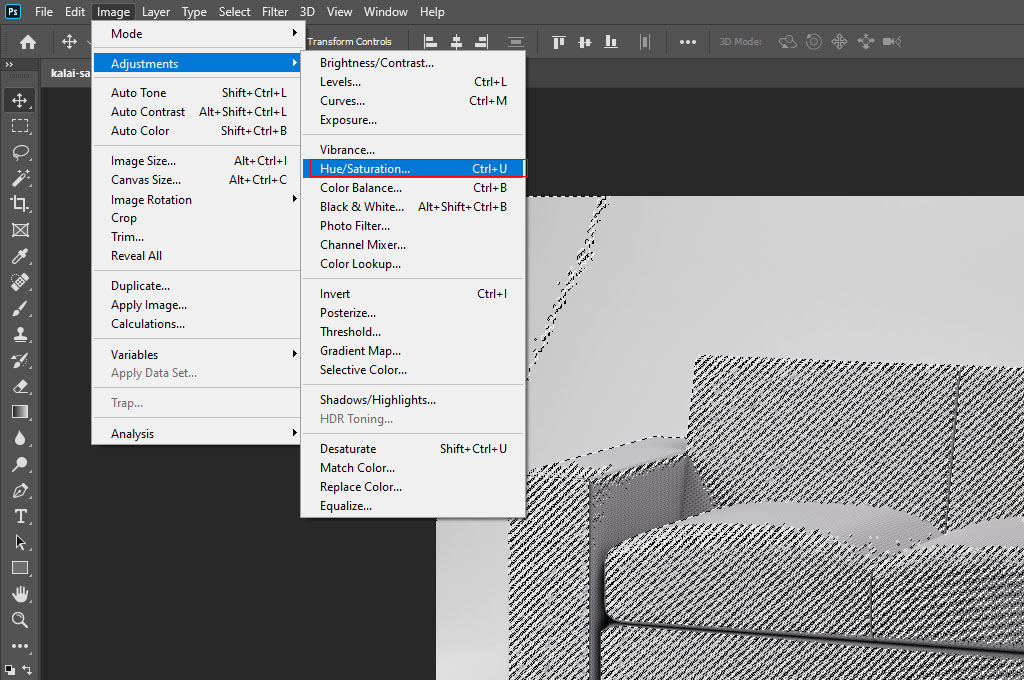
- Tap on the newly created Hue/Saturation adjustment layer and go to the top right corner.
- Hit the Properties icon and choose your preferred tone choice from the second option, such as Blues, Yellows, Greens, Reds, etc.
- Adjust the Hue, Saturation, and Lightness slider to achieve your preferred result. Once you are done with changing the shade of your image, save it in your desired format.
Frequently Asked Questions
1. Is changing colors in Photoshop non-destructive?
Yes, if you use Adjustment Layers as described in this guide. This method is considered non-destructive editing because it applies color changes on a separate layer. You can hide or delete the adjustment layer at any time to return to your original image without losing any data.
2. Why isn’t the color changing when I move the Hue slider?
This usually happens if your Masking isn’t active or if the “Master” channel is selected for a color that isn’t in the image. Ensure you have the Hue/Saturation layer selected in your Layers Panel and try selecting a specific color channel (like Reds or Cyans) from the Properties dropdown to target the object more accurately.
3. How do I fix “fringing” or messy edges after changing a color?
If the edges look unnatural, go back to the Color Range step and adjust the Fuzziness slider. A lower fuzziness creates a sharper edge, while a higher value softens the transition. You can also use a soft brush on the layer mask to manually clean up any areas where the color bled into the background.
4. Can I change a black or white object to a different color?
The Hue slider works best on objects that already have some “chroma” (color). To change pure black or white objects, you will need to adjust the Lightness slider within the Hue/Saturation properties or use a Solid Color Fill layer set to a different blending mode like “Multiply” or “Overlay.”
5. Do I need to use the Pen Tool before using Color Range?
Not necessarily. While the Pen Tool is great for complex shapes, the Color Range method is much faster for objects with a distinct shade. It automatically handles the selection process by identifying similar pixels, saving you the time of drawing manual paths around your subject.
Final Words
Photoshopping images is a time-consuming job. But knowing how to change color in Photoshop doesn’t require you to be an expert photo editor. We have mentioned a simple step-by-step guideline to adjust the hue palette of images. Make sure not to over-touch or under-touch the photo. The final result should look natural and show fine details with minimum imperfections.


