You can immediately see the power of Amazon A+ content images in making your product pages conversion-friendly when you place them correctly. But the ecommerce platform’s strict image restrictions make this setup more challenging, where you often face the fear of rejection.
Especially when you run into trouble trying the complex modules of premium A+ and then end up getting back to basic A+! The thing is, you need to make your images responsive anyway, but you’re still wondering which one is right for you!
Don’t worry, give this comprehensive guide a try, and you’ll be able to rest assured that your A plus content images are ready for your Amazon listing.
TL;DR:
All of the things that together contribute to getting the images for A+ content on Amazon responsive are:
- Edit images at a resolution of at least 72 dpi and limit the file size to under 2 MB.
- Export in JPG, PNG, or BMP format (RGB only)
- Provide alt text with keywords for each image without any repetition, but make sure that it does not exceed 100 characters.
- Use as few modules as possible and choose single-column, vertically arranged ones.
What is Amazon A+ Content?
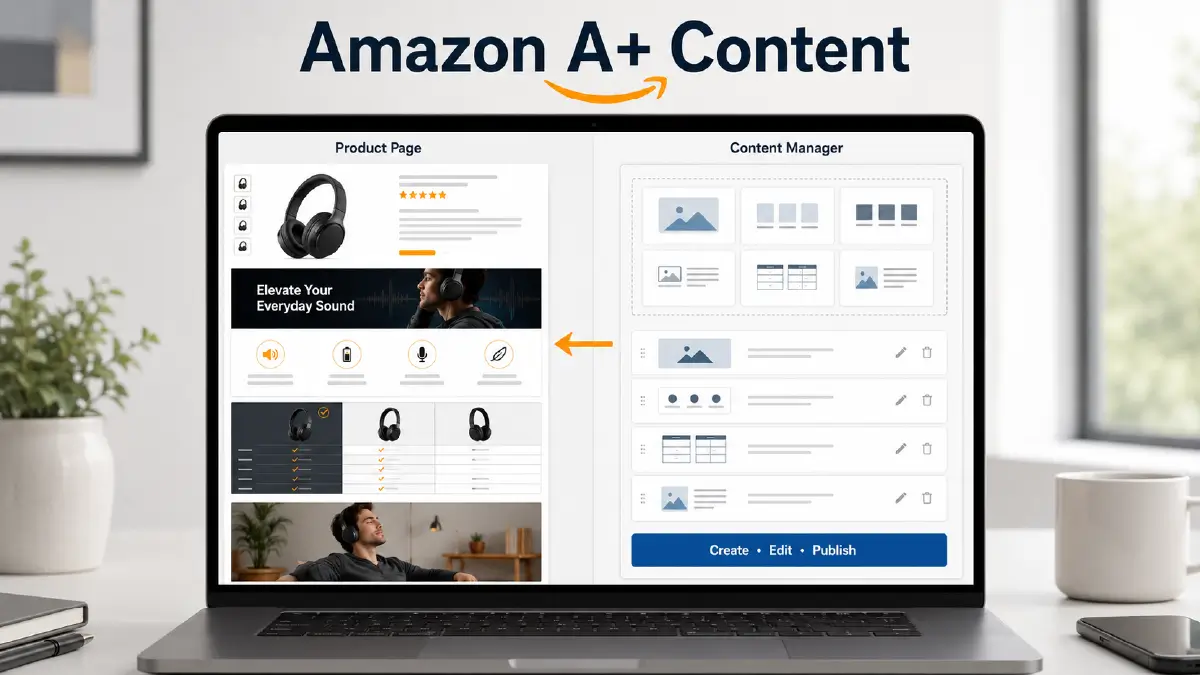
A+ content is high-quality product details on product pages that are displayed through certain modules on Amazon. This description, rich in a specific layout, highlights the product’s features in a way that gives customers a clear idea of the product.
A+ content manager is a content management system under Amazon Seller Central. Through this system, brand owners and authorized resellers can create, edit, and publish content on product pages.
Why Image Editing for Amazon A+ Content Matters
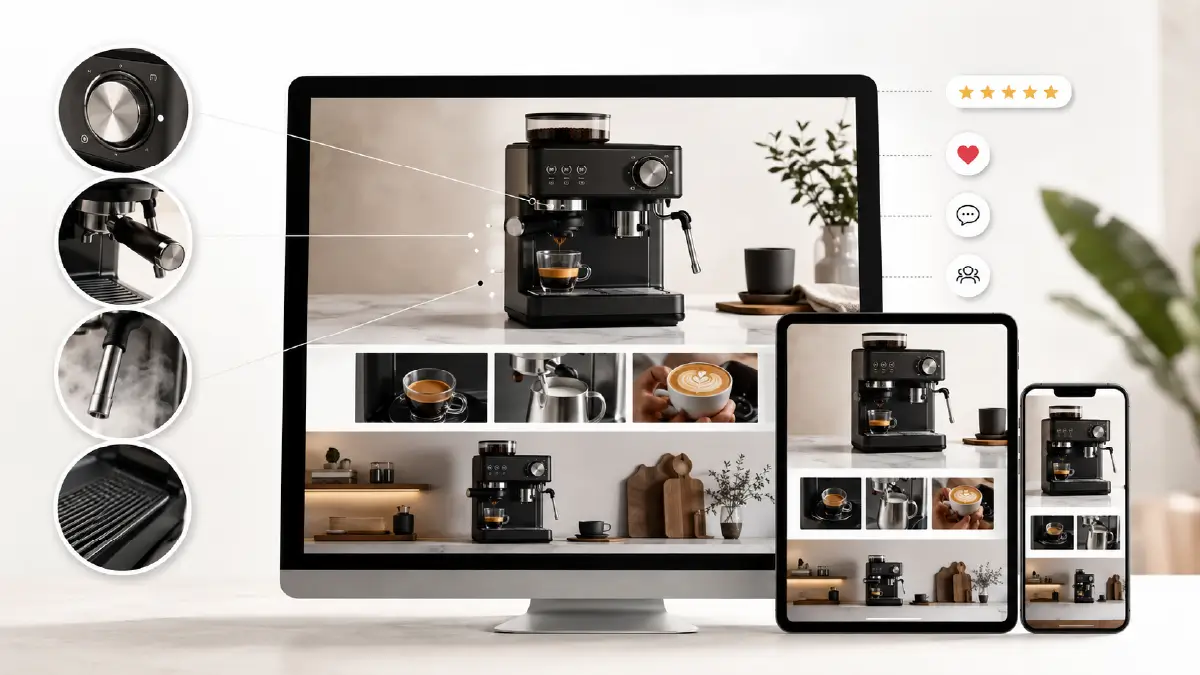
Product images make up a significant portion of a product page, and that is why ensuring the quality of those images is essential. Turning them into A+ content requires professional edits before the display, and with that come the following benefits:
- Store visitors get a clear view of the product and can examine its various aspects in detail
- Clearer images increase customer engagement and positive reviews
- Flawless, detailed images help with visual storytelling, which increases brand value in the long run
- Images become responsive across all devices, thus improving the user experience
Classification of A+ Content on Amazon
Amazon offers three main categories of A+ content to display on product detail pages:
- Basic A+ Content
- Premium A+ Content
iii. A+ Brand Story Content
Basic A Plus
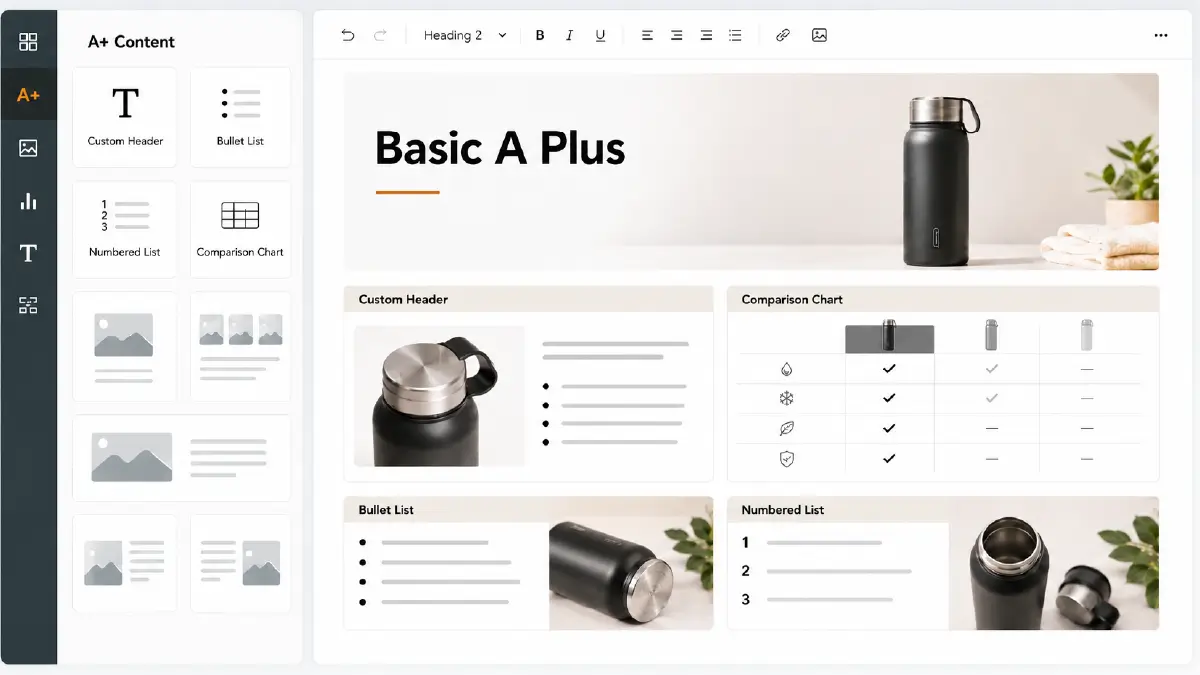
These are primarily text-based content displayed in the product description section. Apart from images, the modules include product comparison charts, text layouts, and a text editor, including number/bullet lists and custom headers.
Premium A Plus
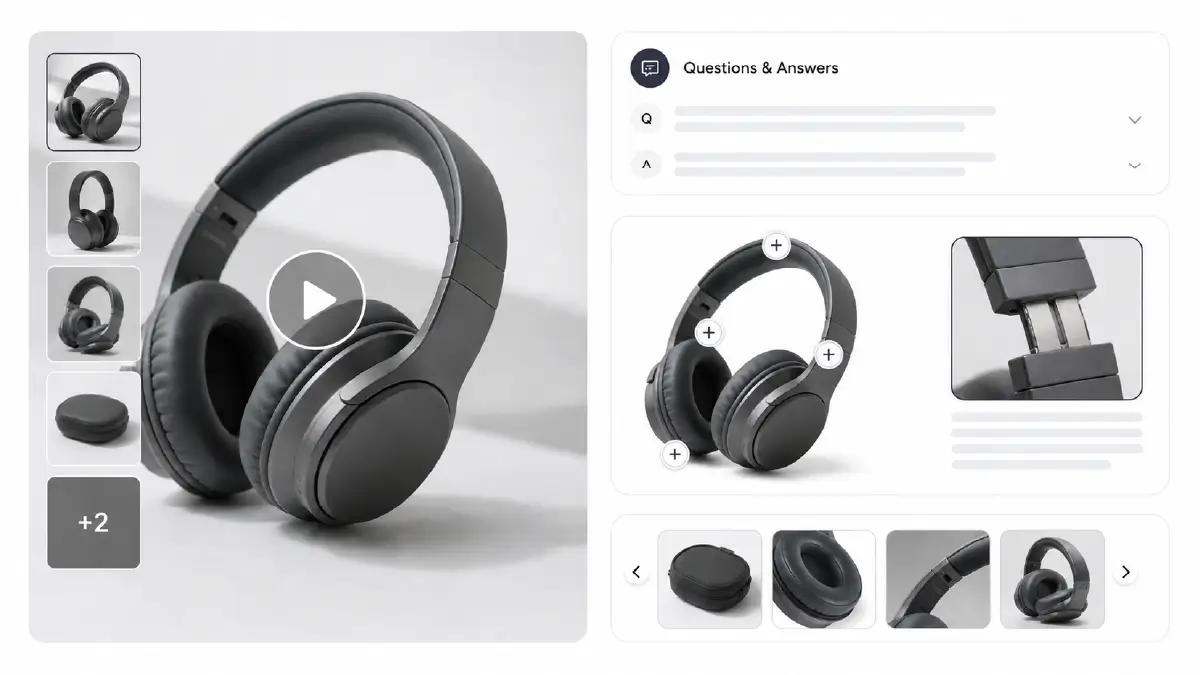
These content types also take the place of product descriptions, but they are more advanced than the basic ones. Here you will find a variety of features, including multiple videos, Questions and Answers modules, hotspots, and carousels.
Basic A+ vs Premium A+
In the table below, you can see the main differences between the basic and premium A+ content, which will help you choose the right one for your work.
| Criteria | Basic A+ Content | Premium A+ Content |
| Minimum Image resolution | 970 x 300 pixels | 1464 x 600 pixels |
| Modules allowed on the product detail page | 5 | 7 |
| Modules available for selection | 14 | 19 |
| Videos | x | ✓ |
| Hover hotspot | No | ✓ |
| Navigation carousel | No | ✓ |
| Q&A module | No | ✓ |
A Plus Brand Story
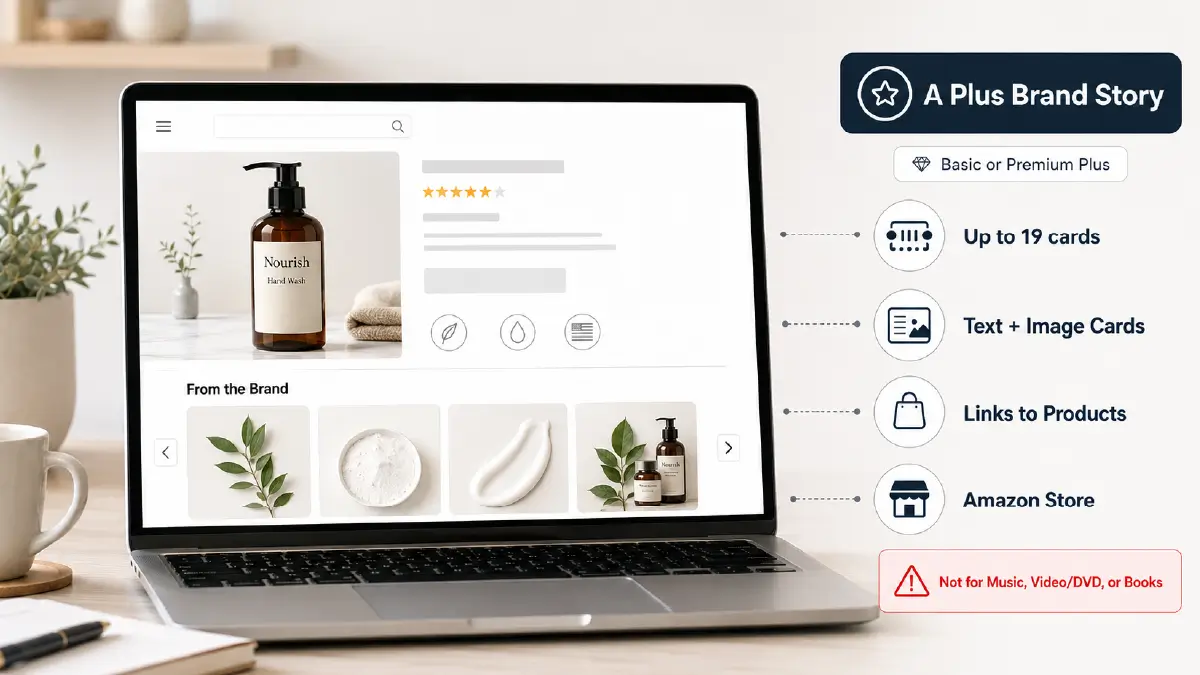
Usable with Basic or Premium Plus, this content is housed in the “From the Band” section. Its plus point is that you can add up to 19 pre-formatted cards to a carousel. Other features include text and image cards, linking to other products, and your Amazon store.
However, its one major drawback is that you can’t use it for music, video or DVD, and book products.
A+ Content Examples That Convert
Established brands around the world, such as Nike and Apple, are taking full advantage of Amazon’s A+ content system. With a focus on images, we’ve rounded up a couple of the best that will help you with your image editing.
Apple Airpods
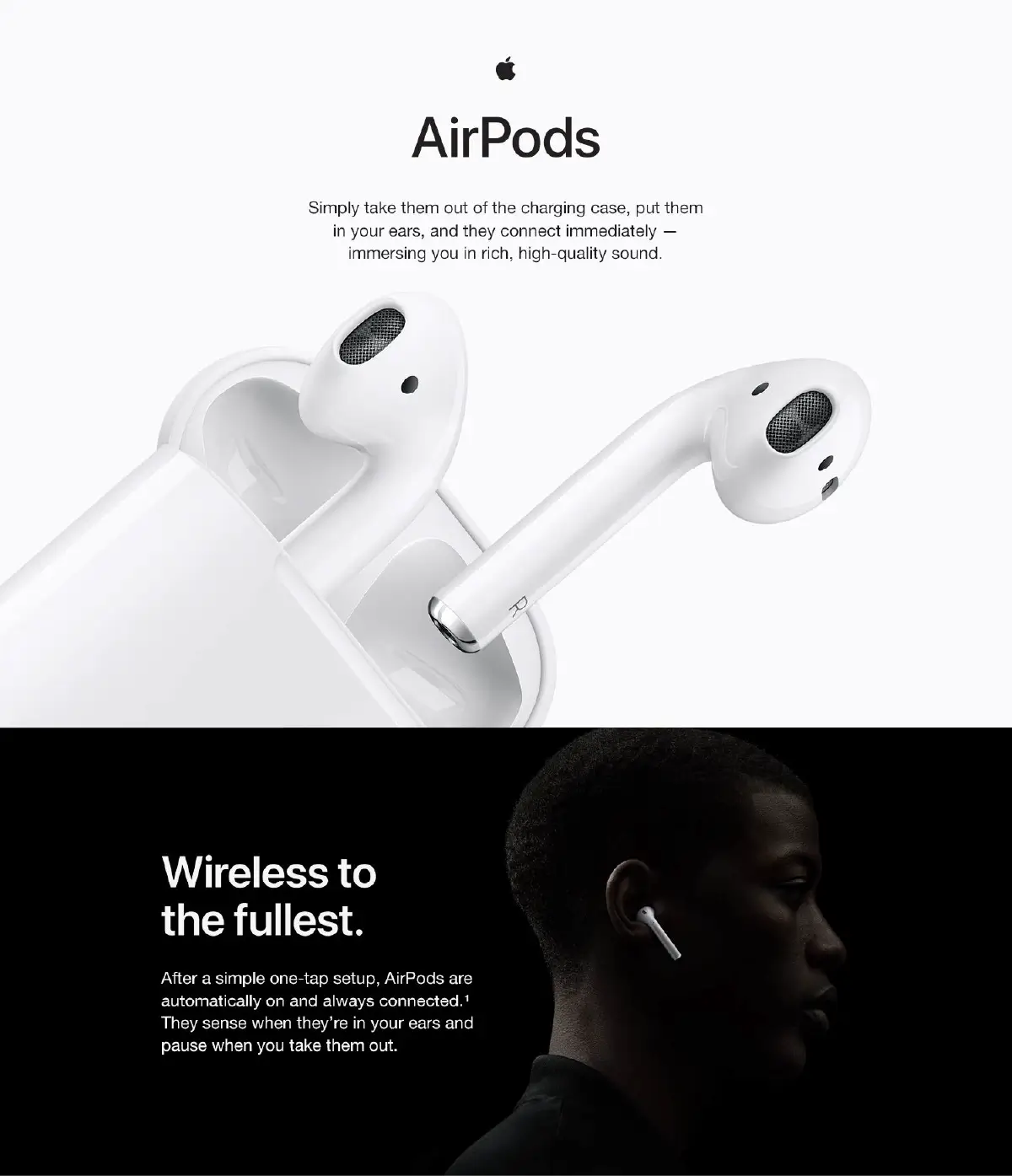
Why this presentation works so well
- Simple background
- The product is clearly stated with very few words
- The product image is clearly drawn in the black and white color combination
- It is visible even at a very close distance without any flaws
YETI Rambler
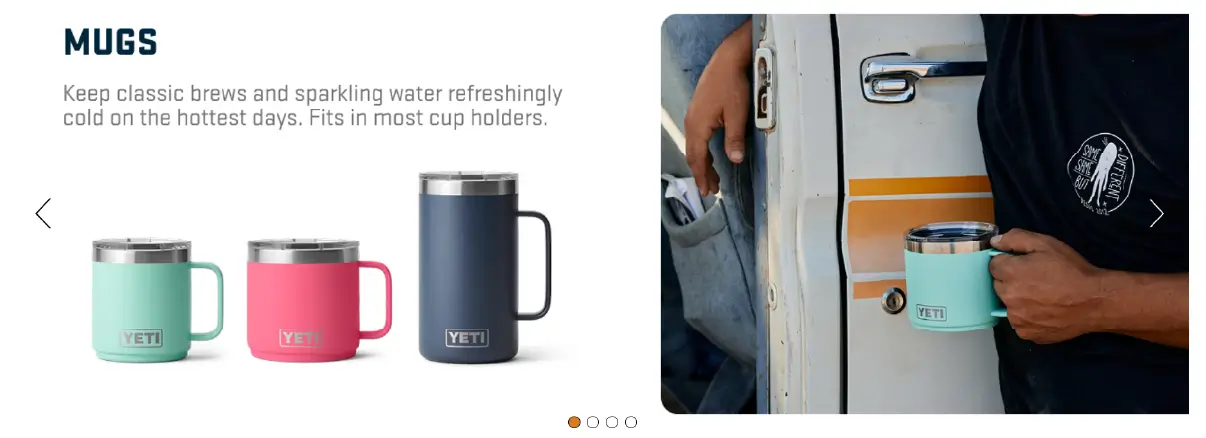
Why this presentation works so well
- The carousel is rich in lifestyle shots
- Multi-sizes draw attention in their own way due to the distinct color contrast
- Clean and decluttered image content
A+ Content Image Editing
When you decide to retouch images, keep in mind that this is Amazon photo editing, meaning you must follow the platform’s image guidelines to the letter. You will use the following specifications as the foundation for your editing and then move forward:
Technical Requirement
- Image resolution: Minimum 72 dpi
- Image file format: JPG, PNG, BMP (RGB colorspace only; No CMYK)
- Image file size: Not more than 2 MB
How to Edit Existing A+ Images
To make any changes to your Plus content, you need to edit the product detail page and submit it to Amazon Seller Central. Only after the edits are reviewed and approved will you see the changes take effect. Now, all you need to do for the necessary editing is as follows:
- Go to Advertising → A+ content manager
- Under the content table, search for what you wish to edit. You can navigate the search by typing any of the three items below or by searching from the table.
- The project name
- The product name
- ASIN (Amazon Standard Identification Number)
- Once you find the desired item, select it and click Edit from the drop-down menu.
- Find the image you wish to edit from the module boxes and click on the ‘X’.
- Upload a new image and add alt-text. Here you can add images in the following two ways:
- From the media library
- From your computer
- Give the ASINs a final review
- Submit the edits
Pro Tips: Dos and Don’ts
If you want to save your painstakingly edited photos from rejection, you need to take some precautions. Here are some dos and don’ts for you to follow properly, which will set the stage for your photos to be approved:
Dos
- Use high-definition, clear, and error-free images, but keep the image file size under 2MB
- Each image should be unique; no repetition is allowed
- Clear, descriptive, and unique alt-text for each image, but no more than 100 characters
- Maintain a clear visual hierarchy (size information, high contrast, large bold fonts for headlines, etc.)
- Have a mobile-friendly content structure
- Give images plenty of white space, which maintains a clean environment and brings the most important parts of the product to the eyes.
Don’ts
- Uploading blurry or low-quality images
- Repetition of the same image
- Repetition of the alt-text
- Use of animated images (GIFs)
- Irrelevant alt-text product descriptions
- Adding HTML tags
- Using CMYK color space
- Using watermarks
- Using QR codes
- Adding hyperlinks
- Including more than one brand logo and icons that can’t be navigated through the text.
- Using terms like “eco-friendly”, “compostable”, and “biodegradable” and their symbols
A+ Content Image Optimization
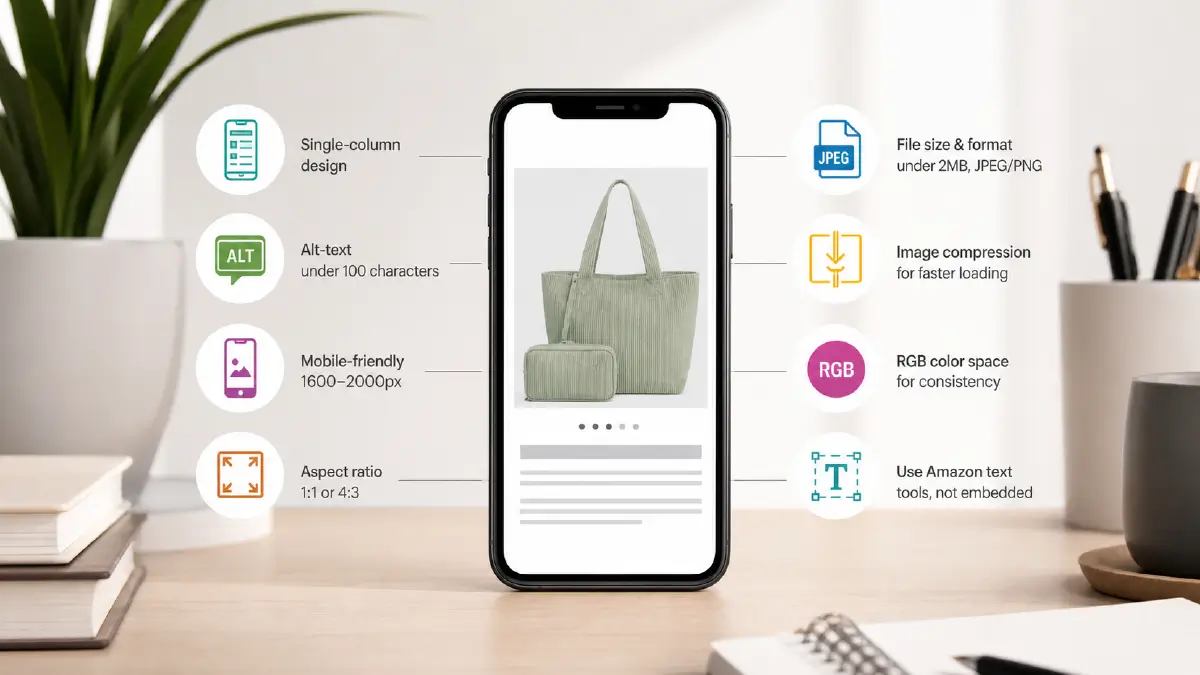
If your images aren’t responsive, all your hard work editing them will be in vain. So you’ll want to give equal importance to the following things for your Amazon listing:
- Single-Column Designs: Use a single-column layout that spans the entire width of the screen. This allows users to scroll naturally and is even helpful for zooming in.
- Alt-text: Provide unique alt text for each image, no more than 100 characters. No repetition, no punctuation, no words like free, guaranteed, best, or price. However, space is allowed.
- Mobile screen supported resolution: Choose images with the longest side between 1,600 and 2,000 pixels. This will ensure that the image will zoom on all devices without being blurry. As a best practice, design at 2x scale (1940 × 600 pixels), as it will be better for smartphones with high resolution.
- Aspect ratio: Choose 1:1 (square) or 4:3 aspect ratio, as it gives the best results in all modules, regardless of the A+ content type.
- Image file size and format: Keep it below 2 MB to 500 KB. This will ensure that the image loads quickly on mobile data connections or low internet speeds. Choose JPEG for lifestyle shot type images as it provides better detail. And export the image to PNG for clarity of infographic-type images.
- Text embedded images: Images with embedded text are not readable on small screens. Instead of adding text while editing images in Photoshop, use the text field in Amazon Seller Central.
- Image compression: You can use tools like ImageOptim or TinyPNG to compress HD-quality images. This will reduce the size of the image while maintaining the quality.
- RGB: Save images in the RGB color space for consistent display across devices.
Frequently Asked Questions About Amazon A+ Content Images
1. What is the minimum resolution of images for Basic A+ Content?
For Basic A+ Content, the minimum resolution of images should be 970 x 300 pixels.
2. Why do A+ Content images look blurry after upload?
When you upload A+ content images to Amazon Seller Central, Amazon automatically compresses them. The e-commerce platform wants to ensure fast loading of images at all costs, and in doing so, it reduces the image file size without being careful about pixelation. And as a result, your images get blurry.
3. How do I edit existing A+ Content modules without rebuilding the entire page?
- Log in to Amazon Seller Central and go directly to Advertising, and from there, enter the A+ Content Manager.
- Find the project/ASIN/product that your module is associated with by typing the name in the search box or browsing the table of contents.
- Select the content you wish to edit and click the Edit button from the drop-down menu.
- If you want to change the text, do it by directly typing in the box. And in the case of images, click the ‘X’ to remove the image and upload a new one. This way, you can add new modules, delete them, or change their order.
- Then, review and submit the edits.
4. What file formats are allowed for Amazon A+ Content images?
The file formats you can use for Amazon A+ images are JPG, PNG, and BMP (colorspace must be RGB because CMYK is not supported).
5. What are the advantages of a single-column layout?
The single-column layout displays the product across the entire width of the mobile screen. Users can then naturally scroll through the entire product detail page and even easily zoom in to inspect the product details. This design also improves the user experience by allowing product images to load faster.
Takeaways
For premium brand listings, Amazon A+ content needs to be ready in a way that best describes the product. You should proceed with Amazon image editing based on the technical requirements of the e-commerce platform.
After all, all the rules and structure techniques have the same goal, and that is to ensure crisp, clean, and highly relevant images and present them in the most comfortable viewing experience for the audience.
So, start editing content modules with mobile optimization in mind. You will find it not only complying with Seller Central compliance, but also driving customer engagement and that most desirable outcome – sales conversions.