Clipping Path vs Masking: Which One Should You Use?
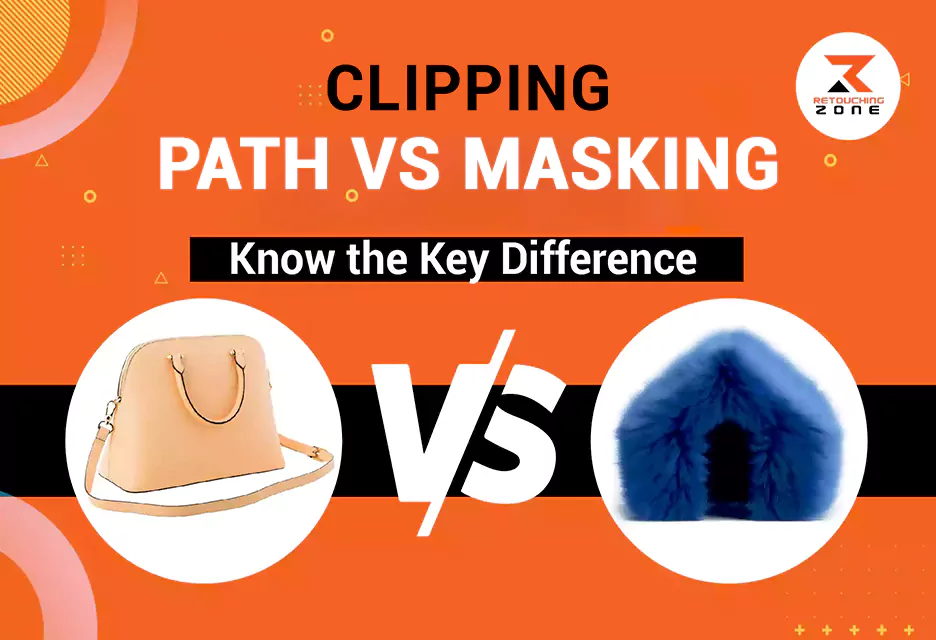
Choosing between clipping path vs masking is the difference between a professional product shot and a messy one. Clipping path is used for sharp and defined edges, whereas image masking is perfect for soft edges. The first one is simpler to apply than the latter.
Products like books, jewelry, clothes, etc., need clipping. However, the masking technique works best for items like hair, fur, etc. Let’s learn the details of both photo editing methods and find out which one works best in which situations.
What is a Clipping Path?
A clipping path is a graphic design technique. Graphic designers call it “Deep Etching” or a “Closed Vector Path“. It involves isolating a subject or cutting out a specific area from an image and forming a close vector shape or path.
Professionals mainly use a vector-based selection tool. It is called the Pen Tool. They use it to create curves and paths by merging several anchor points.
Pros
- Extremely precise for hard-edged objects
- Works well for print and vector-based workflows
- Smaller file size compared to layered masks
Cons
- Not suitable for soft or complex edges
- Time-consuming for detailed objects
- Destructive (cannot recover hidden pixels later)
Types of Clipping Path
There are three main types of Photoshop clipping paths. Let’s learn about them.
01. Single-layer Clipping Path
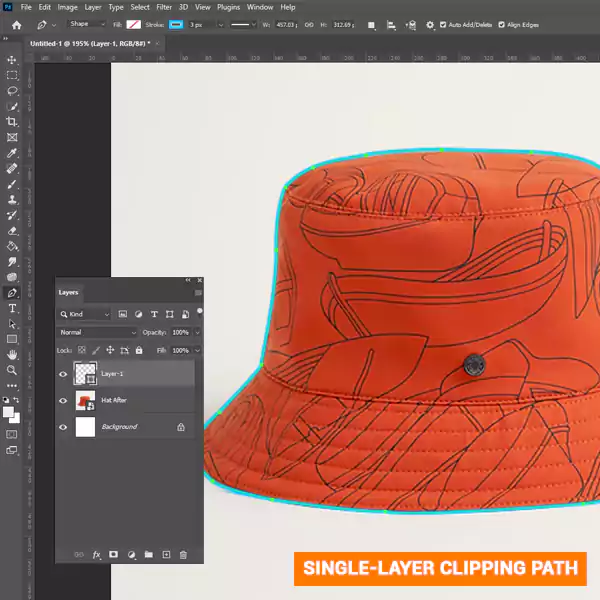
This type of clipping path is formed with a single, continuous closed-vector path over a unique layer. Graphic designers use this simple technique to erase or replace the background of a photo.
Products with simple shapes and clear, distinct edges are perfect for a single-layer clipping path. Items like books, phones, bottles, boxes, etc. are ideal for this editing technique.
02. Multi-layer Clipping Path

This is a little complex image editing task. When an image has at least two elements, you must use several layers separately. Each subject requires a separate path to isolate and extract it from the photo.
Multi-clipping paths are especially helpful for e-commerce products. It allows you to edit several photo components in the same background. You can use it for complex products, like jewelry, wristwatches, shoes, cosmetics, clothes, etc.
03. Illustrator Clipping Path

When you use Adobe Illustrator software to form one or several clipping paths in the same image, it is called an Illustrator clipping path. It is mainly used for complex shapes and designs while creating graphic design, logos, and illustrations.
Graphic designers may also create clipping paths in Illustrator to form clean product outlines or mask artwork into shapes.
What is Clipping Masking?
Clipping masking is a setup of layers where you apply a mask. It is mainly used to conceal one or several parts of a layer while making other layers visible. You can determine how much to make visible the specific layer on the shape of the other layer beneath it.
Clipping masking is a temporary and straightforward technique to artistically merge and manage the content of your canvas into two layers. The original layers of artwork will remain intact while you are adding new depth or composition to the photo.
Pros
- Non-destructive (editable anytime)
- Handles soft edges & transparency
- Faster for complex selections (e.g., using Select & Mask)
Cons
- Can be less precise for geometric shapes
- Larger file sizes (especially with multiple layers)
- Requires more skill for advanced masking techniques
Types of Masking
Image masking comes in various types. The following are the key ones:
01. Layer Masking

A layer mask is a non-destructive editing tool to conceal or show portions of a layer specifically. It gives you flexibility to edit and create futuristic composites. You won’t have to delete the pixels permanently.
Graphic designers use three grayscale values: black, grey, and white. This showcases the intensity or opacity of the layer or effect. It can be anywhere from 0 (black) to 255 (white). The grey is in the middle position.
02. Clipping Mask

Clipping masks are straightforward because you use the top layer to form the shape. Designers don’t have to paint or make complex selections. It is perfect for simple cutouts as clipping masks offer a shape-based controlling system. You can apply a single layer over multiple layers without altering the original photo.
03. Alpha Channel Masking

Alpha channel masking involves separating or isolating precise elements through masking. Graphic designers mainly use this technique for making soft transitions and retaining the natural, delicate attributes of the image.
It is also known as soft or raster masking. Professionals mainly use it for clipping fine details, like fur, hair, fringes, or fibers. After separating the elements, they create individual channels to edit each further. One primary advantage of Alpha channel masking is less file size.
04. Channel Mask

Channel masking is mainly used to manually define your own painting mask by forming a complex selection of a photo. This tool is excellent for creating and storing masks. You can also use it to make pinpoint and delicate selections.
The versatile tool can be used with other tools like blending modes, adjustment layers, etc. It is possible to set up the opacity level of an object. You can use it to adjust the luminosity and contrast of a channel.
05. Collage Masking

College masking is primarily used to merge several images into one by seamlessly combining them. You will isolate or extract multiple subjects from each image background and combine them onto a new background. Graphic designers use the layer masking technique for this purpose.
06. Quick Mask

A quick mask is a special image editing technique that allows you to form and edit selected subjects of an image quickly. Professionals generally use the Quick Selection tool or the Magnetic Lasso tool for this purpose. But fine-tuning the selection tool is the key. Plus, you can include or remove elements to form the mask. The masking area will be visible as a semi-transparent red overlay.
07. Vector Mask

Vector masks are great for creating clean, sharp edges, especially for complex compositions. Don’t mix up vector masks with pixel-based masks. They are more accurate than them.
You can scale, resize, and edit images with vector masks without losing the original quality. Professionals use vector masks to work with illustrations or shapes that have curves or straight lines.
08. Translucent and Transparent Masking
Translucent masking involves controlling how much of a layer will be visible. With this tool, the graphic is neither fully visible nor entirely hidden. Instead, you keep the graphic moderately visible, like water, glass, etc.
In contrast, transparent masking is about making the background fully visible in a layer. You can utilize this technique to retain soft edges and fine details of objects like smoke, veils, etc.
Clipping Path vs Image Masking: Key Differences
| Specifications | Clipping Path | Image Masking |
| Subject Edge | Sharp and defined edges (vector-based) | Soft edges (pixel-based) |
| Image Type | Simple images with solid or single-color backgrounds | Images with complex or multi-color backgrounds |
| Complexity | Relatively simple but requires careful pen tool drawing | More complex, especially for intricate objects |
| Precision | Very high (manual pen tool control) | Flexible (brushes, gradients, and channel masks) |
| Working Method | Usually applied first when both methods are required | Often applied after clipping path for finer details |
| Using Purposes | Websites, print media, advertising, and marketing materials | Background removal, color adjustments, and fine edge control |
| Product Type | Books, jewelry, clothing, electronics, etc. | Hair, fur, smoke, fabric edges, etc. |
| Non-destructive | No (permanent cutout) | Yes (reversible) |
| Transparency | No (hard edges only) | Yes (supports partial opacity) |
| File Formats | Works well with PNG, JPEG, and EPS | Best with PSD, TIFF, and PNG with transparency |
| Learning Curve | Faster to learn | Takes longer to master |
| Time Consumption | Usually quicker to create | More time-consuming |
| Pricing | Photo clipping path begins at $0.33 | Image masking starts at $0.39 |
The following are the key dissimilarities between clipping path vs. masking.
Subject Edge
What does your image edge look like? If it has sharp edges, you can use clipping paths in Photoshop. It allows you to achieve better clean cuts. However, masking is not an effective technique for images with defined and distinct boundaries.
In contrast, if your photo has a soft edge, masking is the best choice. It offers seamless blending between layers. You can form a smooth transition and achieve a natural-looking cutout.
Compatibility
Choosing the proper image editing technique is the key to perfect results. Sometimes, you may feel confused about using a clipping path or image masking. Some photos may have both hard and soft edges. What should you do in such cases?
First, use a clipping path Photoshop for the defined and clean edges. This technique is better for images with complex parts. But the subjects must have simple shapes. Remember, you can’t return to the previous position after creating the clipping path. It doesn’t have undoable layers.
Then, use masking for the soft edges. This technique is easy to apply to images with simple parts. You can go back to the previous position using masking. Editing and refining the existing mask is easy.
Image Type
Does your image have a simple background? If it has a solid backdrop color, a clipping path is the best choice.
In contrast, an image with a busy background is incompatible with clipping functions. It can’t cut out all the subjects from the backdrop. Even if you use it, the result won’t satisfy you.
Masking is the best choice for this purpose. You can remove complex or multi-colored subjects from the background.
Using Purpose
If you want to use product images on a website, print media, advertisement, or marketing purposes, a clipping path Photoshop is the best choice. Jewelry, clothing, or other similar items work best for this method.
Images with thin or smooth edges require masking. It is also effective for photos with small details. You can add or remove unnecessary elements from an image. Adjusting the color scheme is also possible with this technique.
Time Consumption
For graphic designers, every second counts when crafting perfect designs for clients. Image editors must choose the proper editing technique to boost productivity and get the best results.
Masking an image requires more time than clipping it. However, if you want to save time, it doesn’t mean you will forcibly use the alternative method. Best results come when you use the most appropriate approach.
When to Use Which?
Use Clipping Path When:
- The subject has clean, sharp edges (e.g., jewelry, electronics).
- You need a precise, clean cutout for print or e-commerce
- The background must be completely removed (no fading or soft edges).
Use Masking When:
- The subject has fine details (hair, fur, lace, smoke).
- You need semi-transparency (glass, shadows, reflections).
- You want a non-destructive edit (can refine later).
Frequently Asked Questions: Clipping Path Vs Masking
-
Should you use a clipping path or masking for background removal?
You can use both clipping path and image masking for background removal. However, the image subject will determine which one to use. For example, Photoshop clipping paths are better for a book with defined edges. But image masking is perfect for products like muffs.
-
Which type of subject is perfect for clipping paths in Photoshop?
Focus on the subject edge. If it has a rectangular, square, or round shape, it is perfect for a clipping path.
-
How does image masking work in Adobe Illustrator?
In Adobe Illustrator, the masking function conceals the subject after defining the outlined area.
-
Is there any similarity between a clipping path and masking?
Both clipping path and masking work based on the specific subject. Plus, you use both tools to cut out one or multiple objects from an image.
-
Can you use a clipping path as the mask for further masking?
The functionality of a clipping path and image masking is not the same. You can follow the multi-clipping path approach to make the final result natural and effective.
-
Which is faster: Clipping Path or Masking?
A clipping path is usually faster for simple shapes, while masking may take longer for detailed selections but offers more flexibility.
-
Can I combine Clipping Path and Masking?
Yes! Many professionals use both techniques together—clipping paths for the main object and masking for fine details—to achieve the best results.
Wrapping Up
Clipping path vs masking basically draws a line between two different types of products when it comes to editing. So the question is not which is better, but when is the best time to use one?
Both are capable of creating high-quality e-commerce product visuals in Adobe Photoshop. Sometimes, you need one or the other, and sometimes both. When you have a case for using both, try the path first and then move on to masking.
Ultimately, based on whether you are working with sharp edges or fine details, you need to decide your editing requirements.