If you’ve spent any time in Adobe InDesign, you already know it’s the industry’s go-to tool for building print layouts, product catalogs, and professional publications. But here’s something many beginners overlook: InDesign has its own built-in clipping path tools — and knowing how to use them properly can save you hours of back-and-forth between Photoshop and InDesign in your workflow.
A clipping path in InDesign lets you isolate a subject from its background directly inside the layout software, without exporting the image to another application first. Whether you’re dropping a product shot into a catalog, wrapping text around a subject, or building a layered promotional flyer, this guide walks you through everything you need to know.
Estimated time to complete: 10–30 minutes depending on image complexity.
What Is a Clipping Path in InDesign?
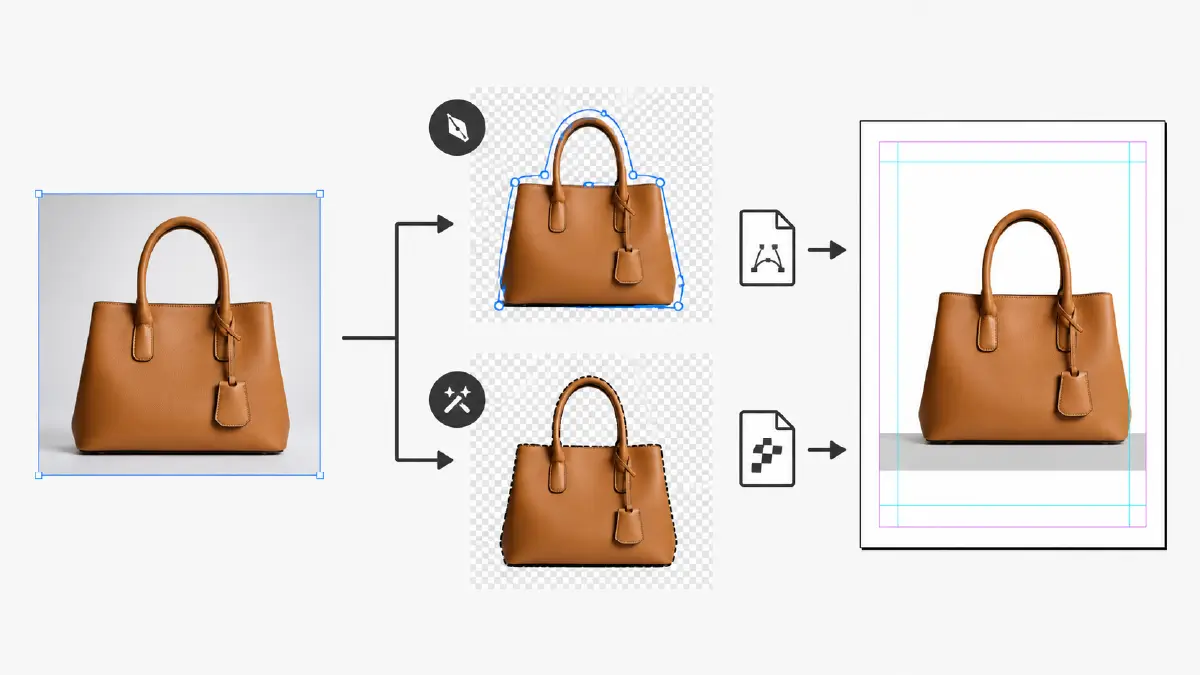
A clipping path is a vector-based outline drawn around a specific subject within a placed image. Everything inside the path stays visible; everything outside it gets hidden. The result is a cleanly isolated subject that sits naturally within your InDesign layout — no rough edges, no distracting backgrounds.
InDesign supports two main methods for creating clipping paths. You can draw one manually using the Pen Tool, giving you complete control over every anchor point and curve. Or you can use InDesign’s automatic Detect Edges feature, which analyzes the image and generates a path based on contrast boundaries. The automatic method works well for images with clean, solid-colored backgrounds. For everything else — complex products, soft edges, or detailed shapes — a manually drawn path gives far better results.
It’s worth clarifying a common point of confusion: in InDesign, the terms clipping path and clipping mask are often used interchangeably, but they describe slightly different things. A clipping path is a vector outline saved inside the image file (typically created in Photoshop and embedded in a TIFF or EPS). A clipping mask in InDesign is created within the software itself using the Object menu. Both achieve the same visual result — hiding the background around a subject — but the method of creation differs.
Why Use Clipping Paths in InDesign?
Most designers create clipping paths in Photoshop and import the result. So why bother doing it directly inside InDesign? Here’s why it matters:
-
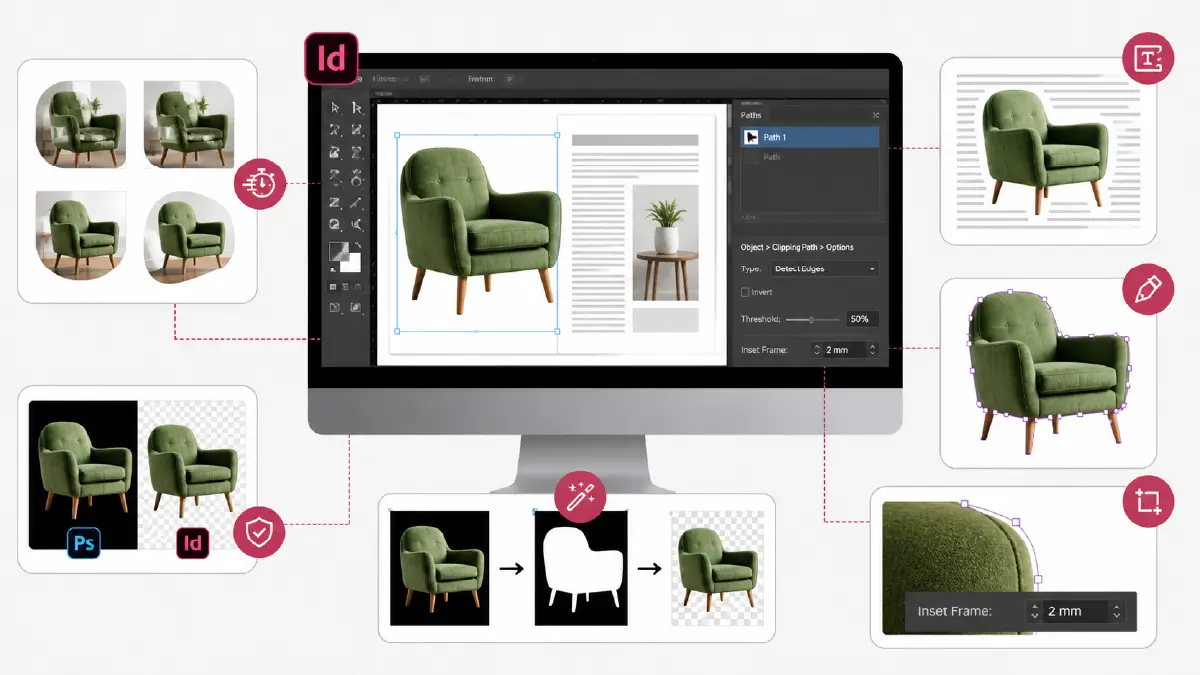
Faster iteration: When you’re working on a multi-image layout, adjusting paths directly in InDesign avoids the round-trip back to Photoshop for every change
-
Non-destructive editing: InDesign’s clipping paths never alter the original image file — you can reset or remove the path at any time
-
Text wrap support: InDesign can use the clipping path boundary to automatically wrap body text around irregular subject shapes — something Photoshop can’t do in a layout context
-
Detect Edges automation: For product images with solid white or black backgrounds, InDesign can generate a usable path in seconds
-
Precise layout control: Adjusting the Inset Frame value lets you fine-tune how tightly the path hugs the subject edge directly within your layout
Common Uses of Clipping Paths in InDesign
Product Catalogs
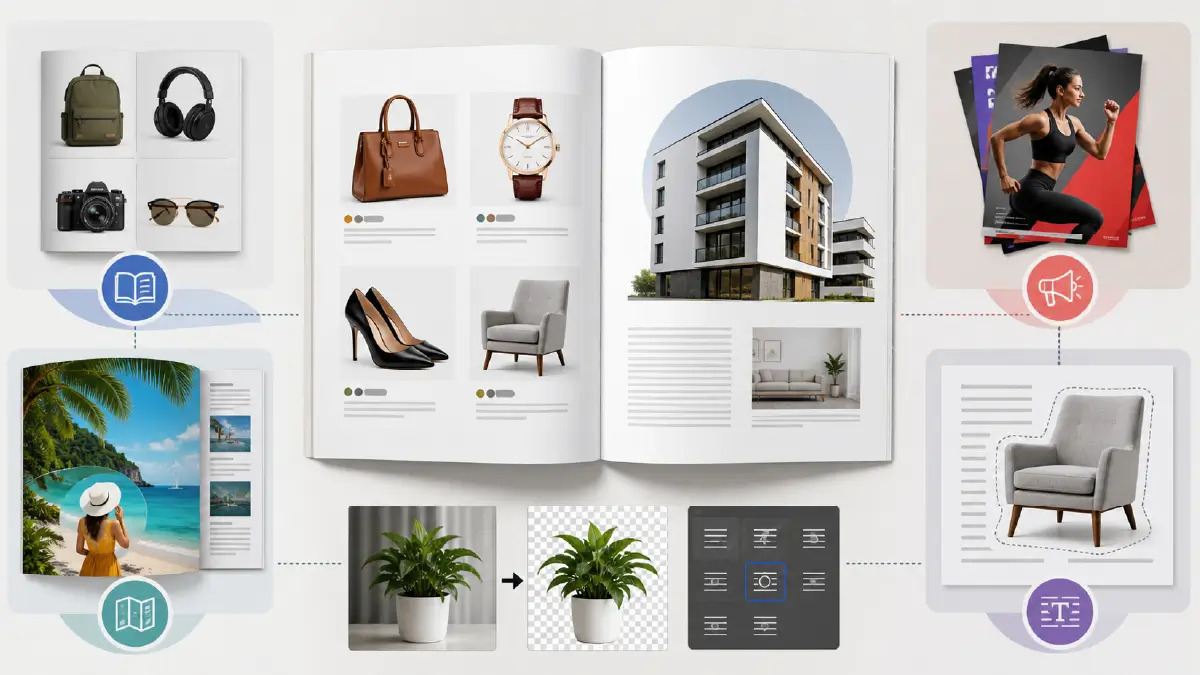
Retailers and brand agencies use clipping paths constantly when building product catalogs. Isolating each product from its background gives the catalog a clean, consistent look — whether you’re designing a fashion lookbook, electronics guide, jewelry spread, or furniture collection. Clean cutouts also make it easy to reposition products freely across the layout without background rectangles interfering with the design.
Brochures and Marketing Materials
Clipping paths let you integrate product or lifestyle images seamlessly into brochure layouts. A real estate brochure with a cleanly cutout building photo, a restaurant menu with isolated dish photography, or a travel guide with cutout landmark images all benefit from this technique. The subject feels like a natural part of the design rather than a photo pasted on top of it.
Flyers and Promotional Graphics
Event invitations, gym advertisements, fitness program flyers, and travel promotions often use cutout subjects layered over graphic backgrounds. Clipping paths make this kind of composition clean and professional — the subject blends naturally into the design rather than looking like a collage.
Text Wrap Around Subjects
One of InDesign’s most powerful uses of clipping paths is wrapping text around complex subject outlines. Once a clipping path is applied, go to Window > Text Wrap and choose “Wrap around object shape” — InDesign uses the path boundary to flow text naturally around the subject’s edges.
Step-by-Step: How to Create a Clipping Path in InDesign
Drawing a deep etching in InDesign is slightly different than using Adobe Photoshop. The following are the steps to create an image isolation area in InDesign.
Step 1 — Place Your Image
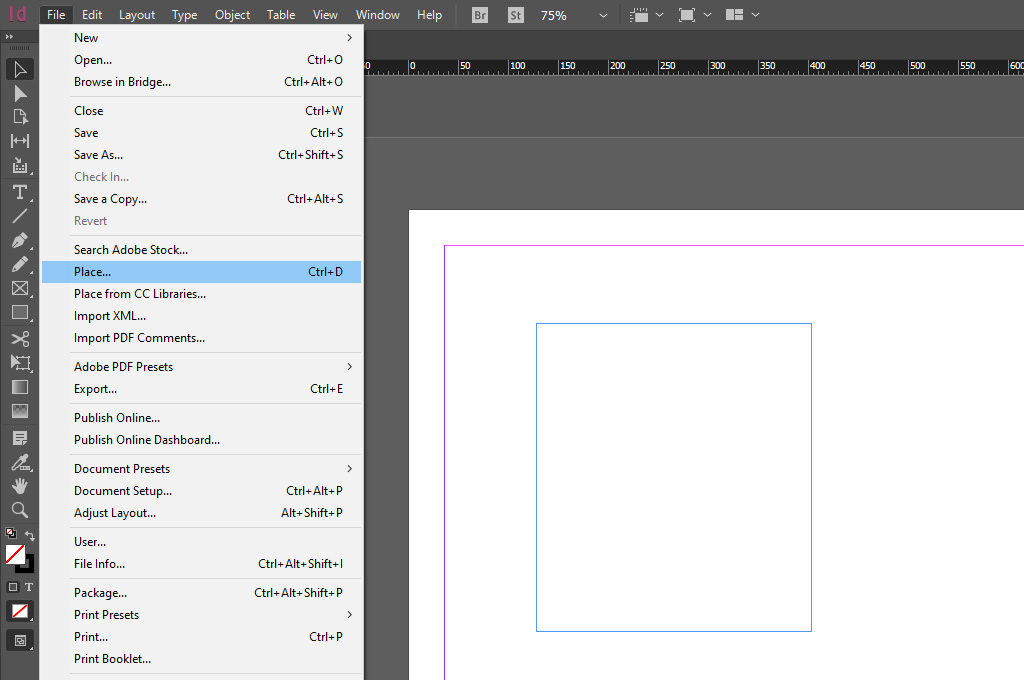
Open InDesign and go to File > Place (or press Ctrl/Cmd + D). Browse to your image file and click Open. Click once on your layout canvas to place the image at its default size, or click and drag to define the placement area manually.
Once the image is placed, you’ll notice it sits inside a rectangular frame by default. That frame is InDesign’s container for the image — separate from the image content itself. The clipping path you’ll create will work on the image content, not the outer frame.
Step 2 — Convert the Image Frame to a Shape (Optional)
If you want to fit your image inside a specific shape — a circle, rounded rectangle, or custom polygon — this is the step to do it. Select the image frame, then go to Object > Convert Shape and pick the shape you want. The image will be cropped into that shape. For a standard clipping path that follows the product’s natural outline, skip this step and move directly to Step 3.
Step 3 — Draw the Clipping Path with the Pen Tool
Select the Pen Tool from the toolbar (keyboard shortcut: P). Before you start drawing, make sure you’re working with the image selected but not the frame — click once on the image with the Direct Selection Tool first, then switch to the Pen Tool.
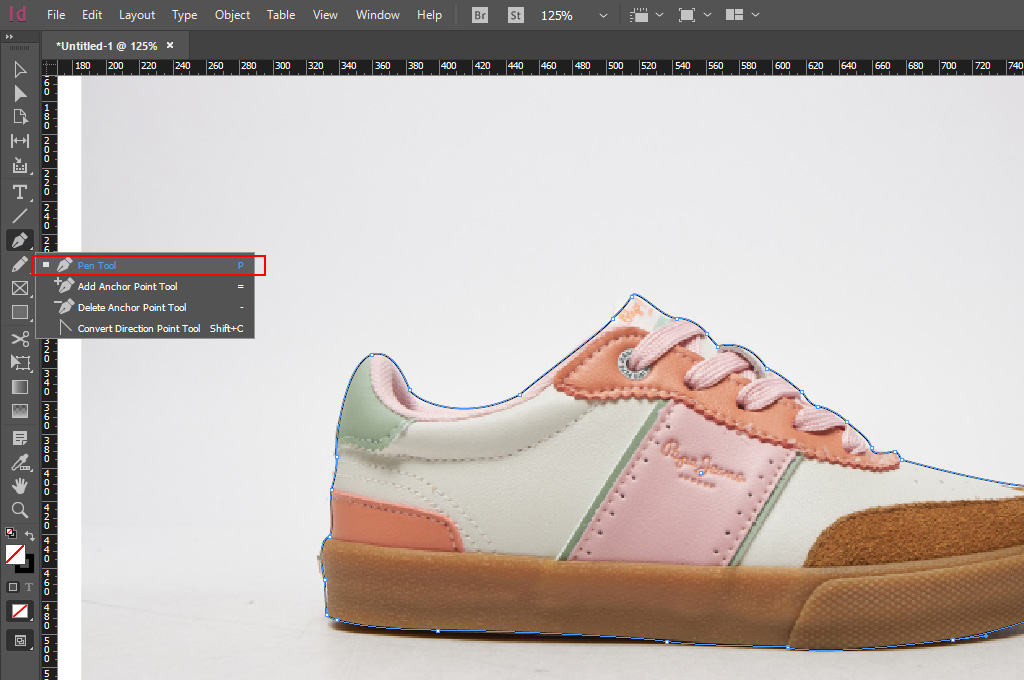
Click along the edge of your subject to place anchor points. For straight edges, single clicks create sharp corner points connected by straight lines. For curves, click and drag to pull out Bezier direction handles that shape the arc. Work steadily around the entire subject, placing anchor points wherever the edge changes direction. When you return to your starting point, a small circle appears next to the cursor — click it to close the path.
Take your time with this step. The quality of your clipping path depends almost entirely on anchor point placement and curve accuracy. Zoom into 150–200% as you work — edge details that look fine at 75% zoom often reveal jagged imperfections at full resolution.
Step_04: Apply the Clipping Mask

With your closed path created, go to Object > Clipping Path > Options (or press Ctrl/Cmd + Alt + Shift + K). A dialog box will open with several settings.
In the Type dropdown, choose one of the following options:
-
Detect Edges — Best for images with solid white or black backgrounds. InDesign analyzes contrast and auto-generates a path boundary
-
Photoshop Path — If your image was saved as a TIFF or EPS with a Photoshop-created clipping path embedded, InDesign detects it here automatically
-
Alpha Channel — If your image has a saved alpha channel (transparency mask), InDesign can use it as the clipping boundary
-
User-Modified Path — Appears after you’ve manually adjusted an auto-generated path
For the manual Pen Tool path you drew in Step 3, simply close the dialog and your path is already active as the clipping boundary.
Click OK to apply. The background outside your path will disappear, leaving your isolated subject visible on the layout.
Step 5 — Use Detect Edges for Simple Backgrounds
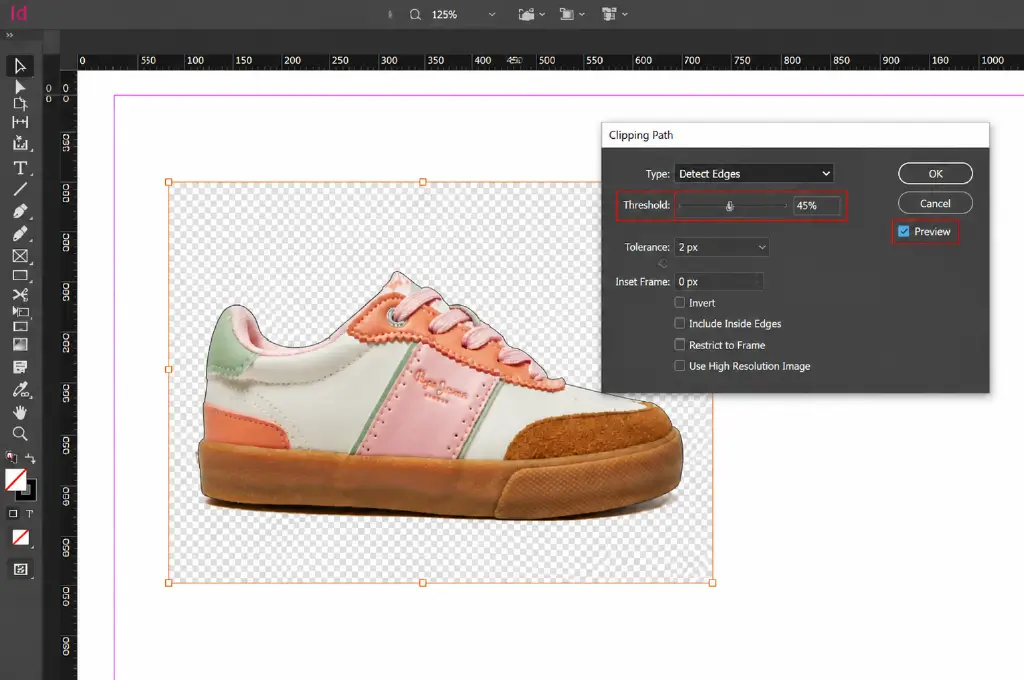
If your product image has a clean solid background (white, black, or a single flat color), you can skip manual path drawing entirely. With the image selected, go to Object > Clipping Path > Options, set the Type to Detect Edges, and adjust the Threshold slider.
The Threshold value controls sensitivity — a lower value creates a tighter path that hugs the subject closely, while a higher value gives the path more breathing room. Start at around 25 and adjust until the path sits cleanly along the subject edge without cutting into it. Check the Preview checkbox to see the result in real time before committing.
How to Adjust a Clipping Path in InDesign
Even a carefully drawn path sometimes needs fine-tuning after it’s applied. Here are the three most effective adjustment techniques.
Use the Direct Selection Tool
Press A to switch to the Direct Selection Tool. Click on the clipping path outline — you’ll see all your anchor points appear as small squares. Click any individual anchor point to select it, then drag it to a new position or use the arrow keys for precise nudging. To adjust the curve of a segment, click an anchor point and drag its direction handles to reshape the arc.
Adjust the Inset Frame
Go back to Object > Clipping Path > Options and look for the Inset Frame field. Entering a positive value here shrinks the clipping path inward from the current boundary — useful when the path is cutting just slightly too tight and revealing a sliver of background around the subject edge. A value of 1–3 pixels is usually enough for most product images.
Fine-Tune the Threshold (Detect Edges Only)
If you used Detect Edges rather than a manual path, return to the Clipping Path dialog and adjust the Threshold slider until the path boundary sits exactly where you need it. Increasing the threshold loosens the path; decreasing it tightens the grip around the subject. Use Preview mode so you can see the effect of each adjustment before applying it.
Clipping Path vs. Clipping Mask in InDesign
Many beginners use these terms interchangeably — understandably, since both hide parts of an image. Here’s a clear breakdown of when to use each:
In practice: use a clipping path when you need to trace the natural outline of a subject. Use a clipping mask when you want to display an image within a specific shape — like a product photo inside a circle or hexagonal frame.
Pro Tips for Better Results
-
Zoom into 150–200% while drawing your path. Fine details — loose threads on fabric, the curve of a bottle cap — are invisible at normal zoom but obvious in the final printed output
-
Place fewer anchor points than you think you need. Overloading a path with points creates lumpy, unnatural curves. Work with the minimum number of points that accurately captures the shape
-
Use the Curvature Pen Tool for smooth, rounded objects like bottles, glasses, or circular products. It automatically generates smooth curves as you click, without needing to drag out handles manually
-
Name your paths when working with multi-image projects — go to the Paths panel and rename “Path 1” to something descriptive like “Bag-Front-Outline”
-
Save your InDesign file as a Package (File > Package) when sharing with clients or printers — this bundles all linked images with their embedded paths into a single folder, preventing broken link errors
-
For hair, fur, or fine details, don’t rely on InDesign’s clipping path tools alone. These edge types require Photoshop’s Refine Edge or Select & Mask feature for accurate results — then import the finished file into InDesign
Frequently Asked Questions
What is the difference between a clipping path and a clipping mask in InDesign?
A clipping path is a vector outline that isolates a subject by hiding the background outside the path boundary. A clipping mask uses one object’s shape to reveal or hide portions of another layer or image. In InDesign, both are created through the Object > Clipping Path menu, but they serve different layout purposes.
Can InDesign automatically detect a clipping path saved in Photoshop?
Yes. If you saved your image as a TIFF or EPS file from Photoshop with an embedded clipping path, InDesign detects it automatically. When you place the image and go to Object > Clipping Path > Options, select “Photoshop Path” from the Type dropdown and InDesign applies it instantly.
What image backgrounds work best with InDesign’s Detect Edges feature?
Detect Edges works best with images that have a clean, solid white or black background. Images with gradient backgrounds, busy textures, or soft shadows around the subject tend to produce inconsistent results — for those, a manually drawn Pen Tool path gives far more accurate output.
How do I wrap text around a clipping path shape in InDesign?
Apply your clipping path first, then open the Text Wrap panel via Window > Text Wrap. Select the image frame and click “Wrap Around Object Shape.” InDesign uses the clipping path boundary as the text wrap contour automatically.
Can I edit a clipping path after applying it?
Absolutely. Select the image and switch to the Direct Selection Tool (press A). Your anchor points become visible and fully editable — you can move, add, or delete individual points at any time without removing and redrawing the entire path.
When should I create the clipping path in Photoshop instead of InDesign?
If you’re working with complex edges — detailed products, irregular outlines, fine details — create the clipping path in Photoshop where you have more precise control. Save the file as a TIFF with the path embedded, then place it in InDesign. For simple product shapes with clean backgrounds, InDesign’s Detect Edges handles the job well enough without leaving the layout software.
Conclusion
Getting comfortable with clipping paths in InDesign opens up a lot of creative possibilities — cleaner catalog layouts, more dynamic flyer compositions, and text wrap effects that look genuinely polished rather than forced. The key is practice. Start with a product image on a plain background, use Detect Edges to see how the auto-generation works, then try a manual Pen Tool path on a more complex shape to feel the difference.
If you regularly work with large volumes of product images that need precise background removal before they land in InDesign, it’s worth having that work handled at the source. Retouching Zone’s Clipping Path Service delivers Photoshop-quality, path-embedded TIFF files ready to drop directly into any InDesign layout — with a free trial available so you can judge the quality firsthand.