What level do you want to take Amazon photo editing to, where attracting visitors is what drives the marketplace, not how big the ecommerce platform is?
There is no room for compromise in the quality and presentation of the product photos; rather, high-end retouching takes over the areas of basic editing. So Learning how to professionally edit product photos for Amazon is the only way to survive the competition, where the key parameter of sales growth is brand trust.
In this guide, we’ll walk you through the exact techniques you need to retouch your items like a pro.
Amazon Photo Editing in 5 Steps
Originally captured pictures may not have the correct standard to upload to this e-commerce site. Your unedited photos lack the necessary editing to showcase the product accurately.
Here is the guide on how to edit photos for an Amazon listing.
Step 01: Import the Image
- The background area of an Amazon product photo must be pure white and RGB color values must be 255, 255, 255. It helps customers to enjoy a consistent shopping experience for product search and detail pages.
- Import the Image in Adobe Photoshop. Navigate to the toolbar area and tap on the Pen tool from the lower half zone. Press the P key on your keyboard to access the Pen tool.
Step 02: Create A Clipping Path
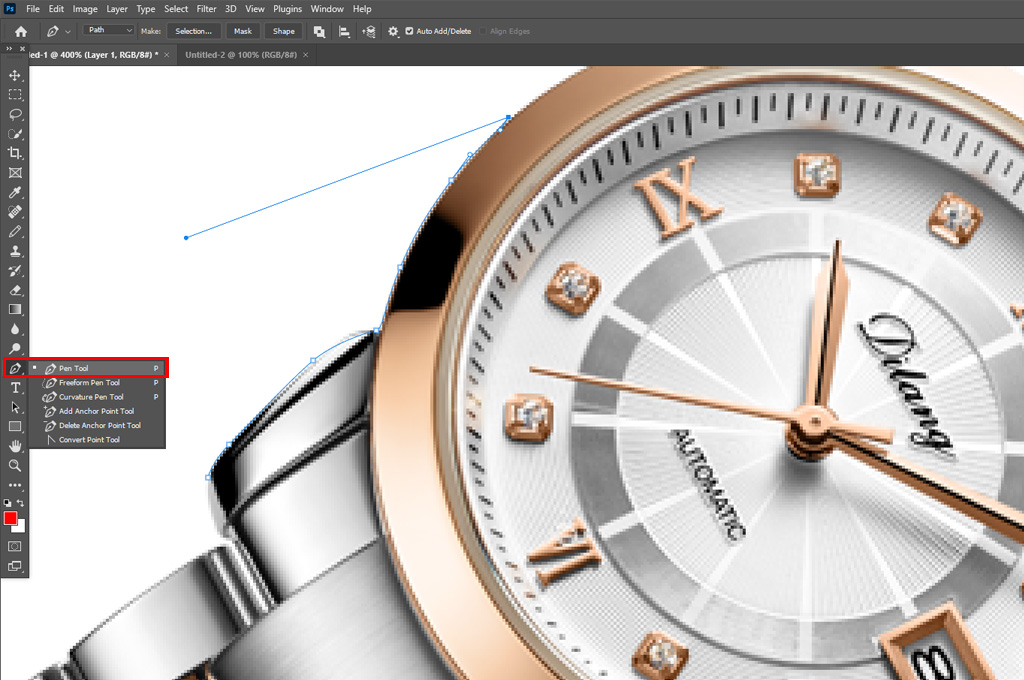
- Turn on the Rubber Band option next to the “Geometry options.” It helps you make smooth forms and previsualize the path you have created. Then, tap on the Auto Add field.
- Next, head to the Options Bar and select the “Exclude Overlapping Shape Areas” option to hide the overlapping areas of the shapes.
- After turning on the pen tool, click on the Image and use it to create a path and shape.
- Once you create a perfect path, hit the Ctrl button on the keyboard. Then, tap on the left mouse icon to deselect the path selection tool.
- If you want to invert the selection or select any area outside the initial clipping path, press “Shift + Ctrl + I.”
- Once you are done with creating a perfect clipping path, press “Ctrl + X” to eliminate the background and turn it into a white backdrop.
Step 03: Color Correction
- If your products are too dark, too bright, or unnatural in color, Amazon is less likely to approve uploading the items’ photos.
- Maintaining natural and consistent color in Amazon product listings is the key. The items should be the same as the pictures.
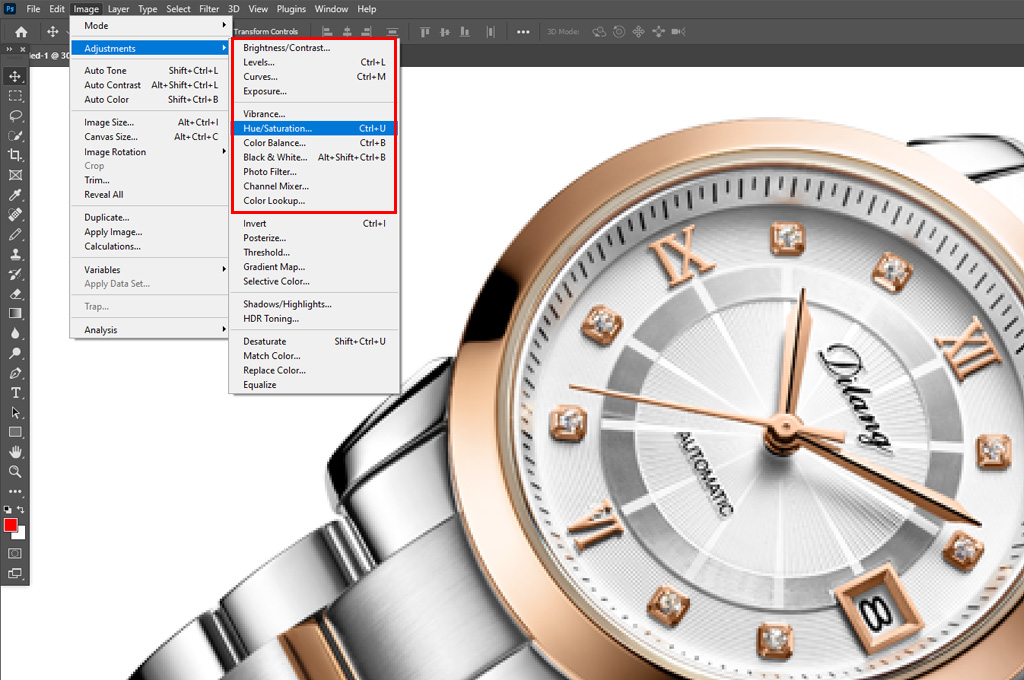
- Go to Image > Adjustments > Hue/Saturation to adjust your product image’s hue, saturation, and lightness. Finally, press the OK button.
Step 04: Work on Imperfections
- Your Amazon product photos may contain unwanted things you don’t want your customers to notice.
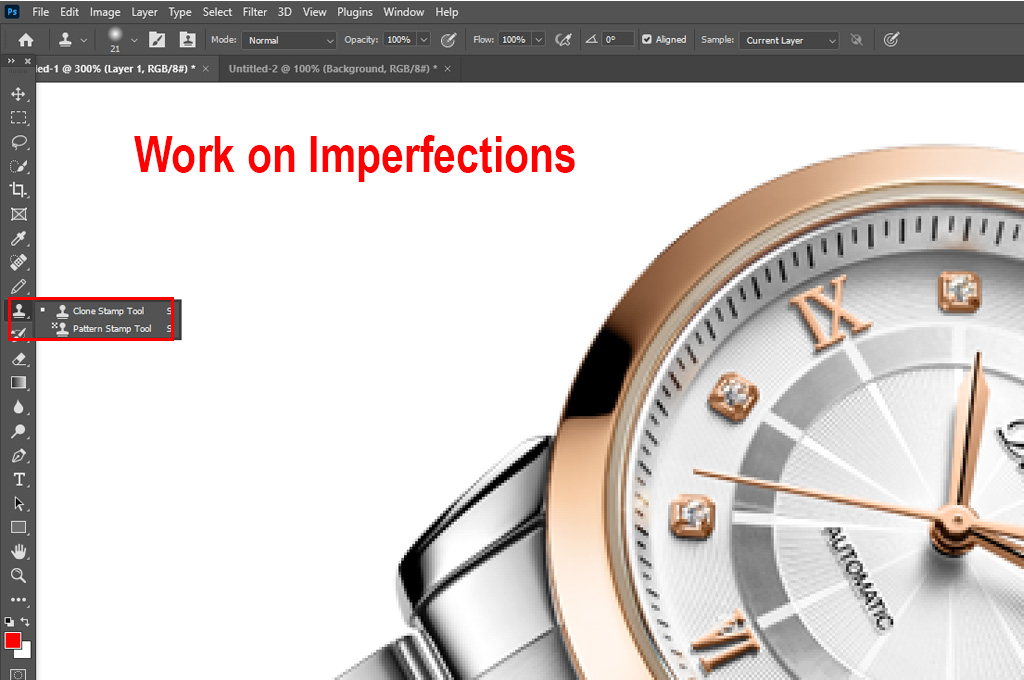
- The best solution is to use the Clone Stamp tool. Navigate to the toolbar and select the rubber stamp icon.
- Finally, choose the Clone Stamp tool from the drop-down list. Alternatively, press the ‘S’ button on your keyboard to select it automatically.
- Work on various options, like size, hardness, blending mode, etc., for your desired result.
Step 05: Resize the Product Image
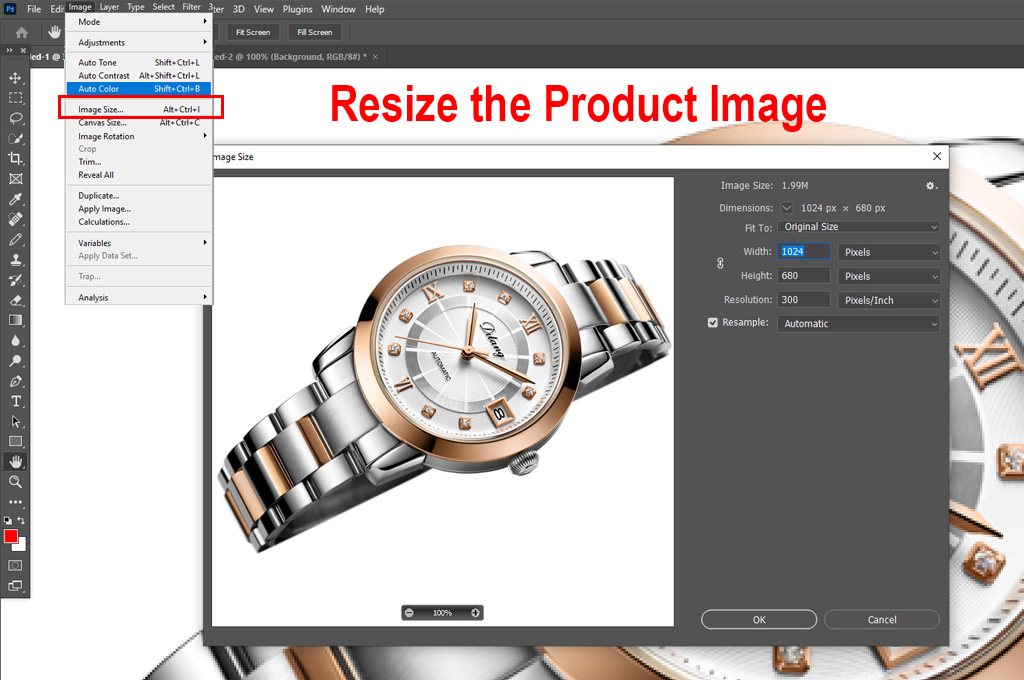
- Remember, your Amazon product must cover at least 85% of the frame size. It should not be cut off anywhere. Capturing a close and focused look at the photo is vital.
- If your product shots have more than 15% empty area, crop the unnecessary area.
- Keep the photo open and select Image > Image Size. Add your preferred value for height and width in the dialogue box. Press the OK button to resize the picture.
- Standard Amazon product images have 2,000 x 2,000 pixels with a 1:1 aspect ratio. The minimum pixels are 1000 for height or width. But it can’t be more than 10,000 pixels combined.
Final Words
Being an expert in Amazon photo editing will have a positive impact directly on the conversion rates of your ecommerce business. When uploading photos to the platform, definitely prioritize the JPG format because it will give you fast loading speeds.
If you are worried about color mode, then sRGB or CMYK is your best bet for a consistent web experience. Finally, keep these five steps as your quick guide, and you will no longer have to worry about your product listings on Amazon.