Best Plugins for Photoshop and Lightroom for Image Editing in 2026
With the best plugins for Photoshop and Lightroom comes professional-grade functionality, efficiency, and creativity. Adobe Photoshop and Lightroom plugins have been a game-changer, but in 2026, these add-on programs have gone beyond their limits by making impossible tasks simple and less time-consuming.
Over time, there are many pro-level options for your photo editing software, and you may feel confused about which one to use. After conducting in-depth research, we have selected some top plugins for Photoshop and Lightroom in 2026. These powerful tools can scale up your design process in seconds. Let’s dive in without further ado!
Best Plugins for Photoshop 2026
Photoshop plugins can help you make various creative changes to your photos. More importantly, it saves you valuable time as you don’t have to edit every aspect manually.
Web Sharpener Extension
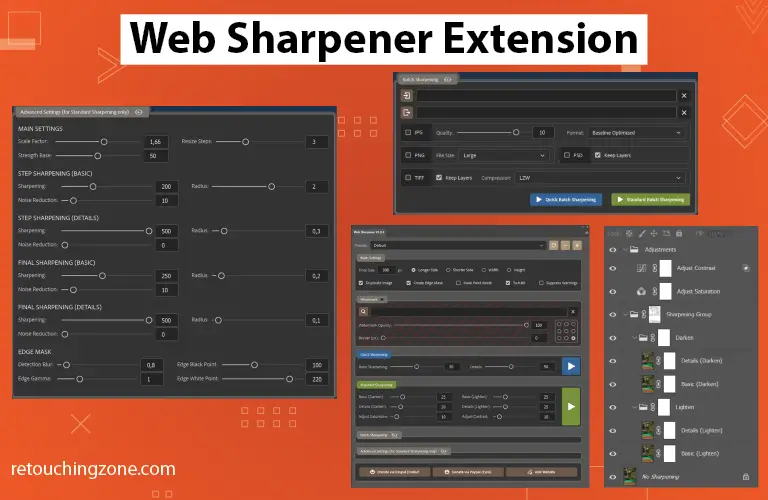
Are you looking for a dedicated web sharpener for resizing, sharpening, or cropping? If so, you can’t go wrong with Web Sharpener Extension. This free third-party add-on enables you to scale your images down to meet the standard of the particular platform or website.
With this powerful tool, you can convert your images into sRGB to maintain a consistent color display across all devices. Web Sharpener comes with a few predefined presets to customize your images more conveniently. Adding optional film grain is also possible with this third-party extension.
Pros
- It is fully free
- User-friendly interface for easier navigation
- Customizable presets to save time and effort
- Perfect for resizing, sharpening, and cropping
- Doesn’t make the software slow or crash
Cons
- No advanced features like other premium tools
- Limited editing capabilities
- May not work with older version computers
Nik Collection
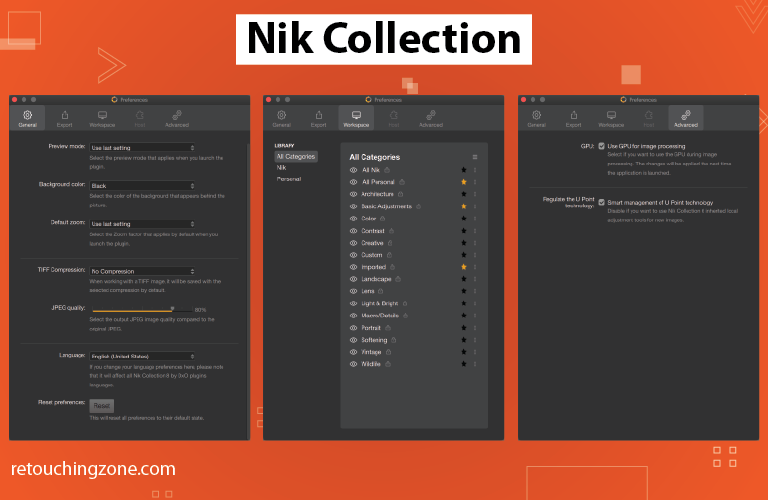
This photo editing plugin is highly versatile. You can use the tool for both Photoshop and Lightroom to perform basic functions. It can be sharpening, reducing noise, or converting colorful images into black-and-white. Besides, you can use the extension for advanced tasks, like color correction, HDR processing, etc.
Nik Collection is equipped with U-Point technology to make precise local adjustments. You can adjust the color, tone, brightness, and contrast with a few clicks. Working on RAW files will be hassle-free with this powerful image editing plugin.
Pros
- Non-destructive editing option
- Highly versatile for basic and advanced editing
- Streamlined and intuitive interface
- Clever and powerful local adjustments
- A huge library of presents and filters
Cons
- Occasional issues with newer versions of Photoshop
- Large file sizes in non-destructive editing
- Noise reduction and sharpening could be better
Lumenzia Add-on
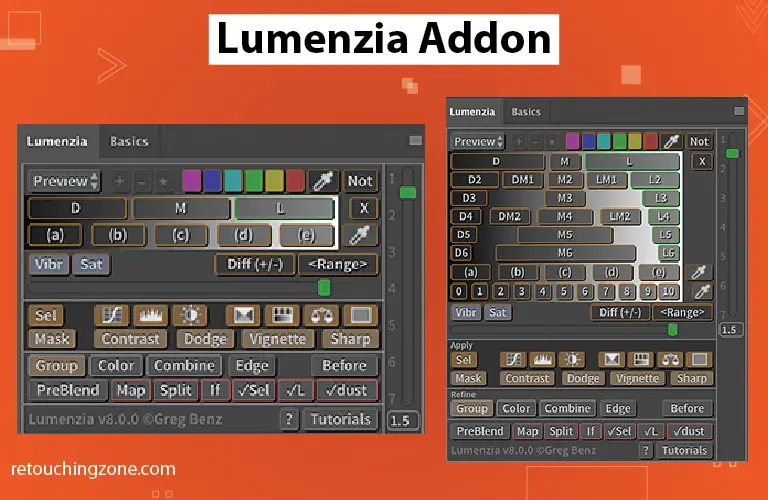
Photo editors who prefer pixel-perfect results will surely love Lumenzia Add-on. This powerful extension allows you to apply luminosity masking on your image for better control. You can create, apply, and refine masks with this plugin. This tool enables graphic designers to adjust the brightness of areas within a photo selectively.
Adjust the luminosity value depending on your requirements. Create stunning and realistic edits in Photoshop. You can rapidly manipulate images and discard masks while keeping the image size small and flexible.
Pros
- Real-time preview of masking
- Easy to target specific areas
- Perfect for smooth, natural-looking edits
- Simplifies exposure blending
- Smaller file size by not using channels
Cons
- Steeper learning curve at first
- Must be careful to avoid overediting
Ultraflares
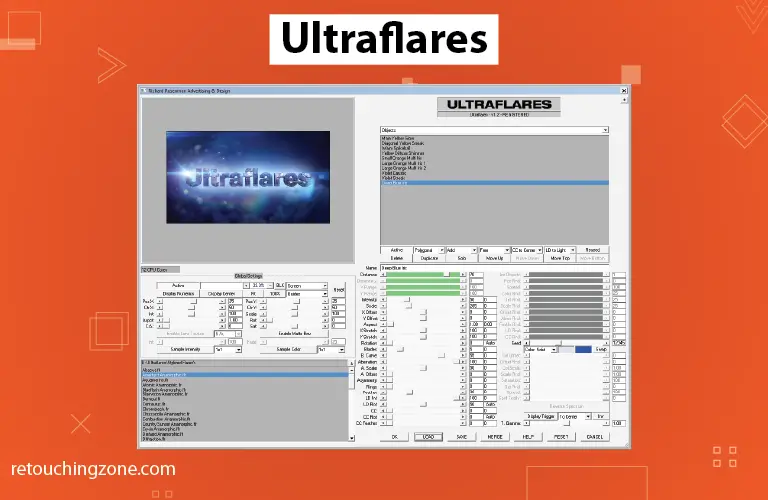
Want to add a special starburst or soothing bokeh look in your images? 3D artists and digital artists are always after customized lens flare effects to create immersive and striking visuals. Ultraflares extension allows you to produce photorealistic and highly customizable lens flares for images and videos.
It allows you to generate complex, physically plausible lens effects. This will add depth and emotional impact to visuals. This Photoshop plugin can replicate real-world optical effects to make images more authentic with a higher level of precision.
Pros
- Equipped with Hierarchical Stacking, Lens Orbs, etc.
- Comes with a huge library of presets
- Easy to modify each part of a flare
- Quick, real-time previews of editing
- Not prone to cartoony or overblown results
Cons
- Requires time to understand complex features
- May run slowly on older or low-spec computers
ON1 Photo RAW
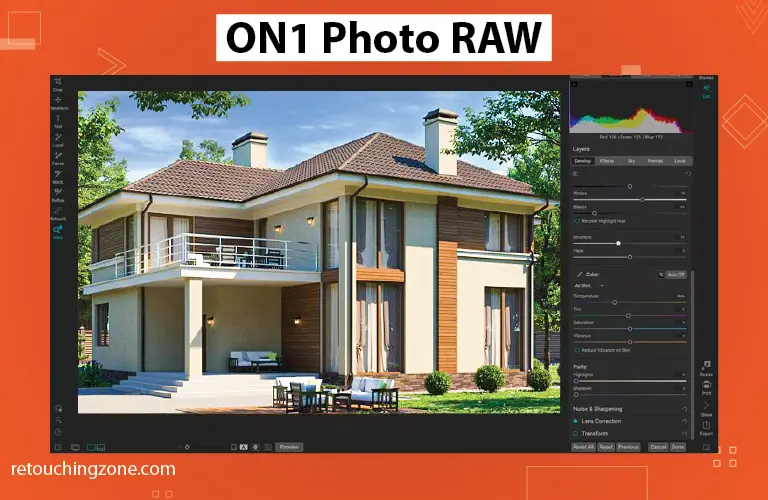
How about using one photo editing software in another without leaving the primary editor? Yes! You heard me right! You can install ON1 Photo RAW as a plugin into your Adobe Photoshop and Lightroom software to access many powerful features of this tool.
It is equipped with many realistic AI features. For instance, its NoNoise AI allows you to decrease digital noise in images. Don’t worry; it will preserve the fine details and sharpness level. Another notable feature is the Sky Swap AI. You can replace the dull sky with a new sky from a huge set of sky libraries or import your customized one.
Pros
- Extensive preset image effects and filters
- Easy to apply basic edits, like Resizing, HDR, Portrait, etc.
- Layer-based editing system
- Many advanced AI features for quick and realistic results
- Simple to edit RAW files
Cons
- May show slow performance in less-powerful computers
- A little complex layout and workflow to understand
Best Plugins for Lightroom 2026
Lightroom plugins can help you achieve a consistent, smooth, and reliable workflow. Apart from batch processing, these extensions can make your editing process creative.
Helicon Focus
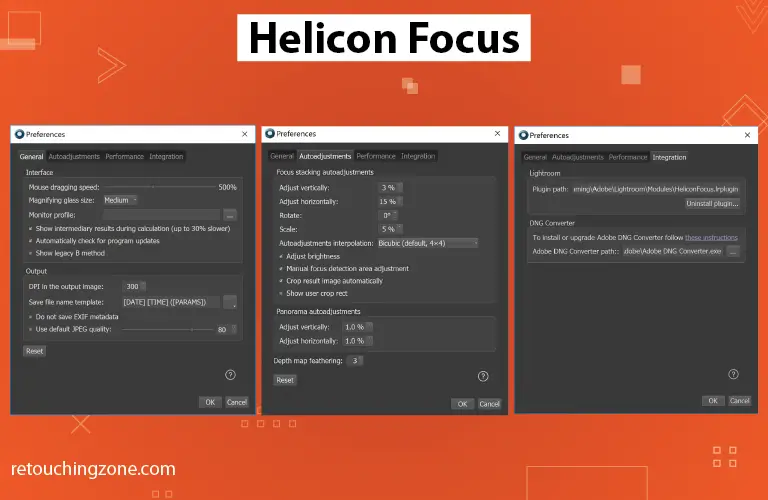
There are not many plugins for adjusting the depth of field (DOF) in images. Helicon Focus is one of the best extensions to modify DOF from shallow to deep. Professionals mainly use this Lightroom extension for macro, landscape, and close-up photography.
Professionals mainly use Helicon Focus for focus stacking, where multiple images with different focal points are combined. This helps them to highlight intricate and extensive details. Bringing out the best depth of field is the primary purpose of using this tool. You will have to spend minimal time retouching images later.
Pros
- Ideal for creating a superior depth of field
- Various functions to control the focus stacking process
- Comes with a retouching tool for detailed corrections
- Supports RAW format images
- User-friendly interface and fast processing
Cons
- May show inaccuracy occasionally for deeper focus stacks
- Not the best choice for images with overlapping subjects
DxO PureRAW 4
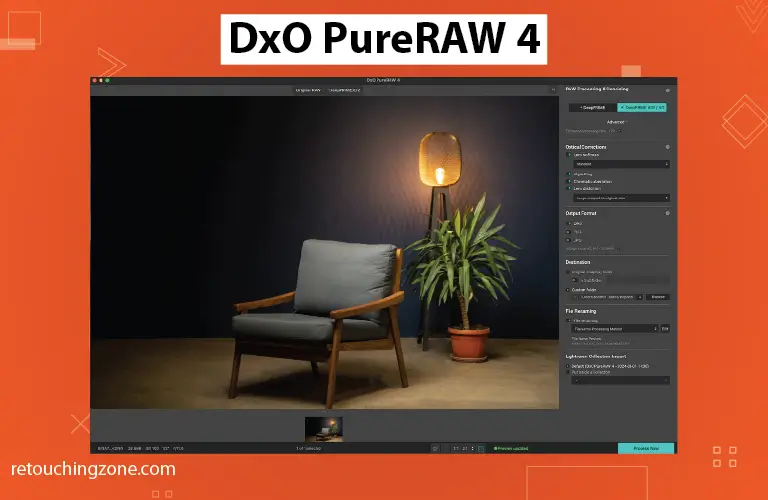
When it comes to improving RAW image files, very few can beat DxO PureRAW 4. This powerful extension can help you preserve the natural look of your images through detailed sharpening. It fine-tunes the textures, edges, and micro-contrasts of an image using its deep technology.
Does your image exhibit a weird color shift, loss of contrast, or a distortion effect? DxO PureRAW 4 can fix such imperfections as perfectly as you expect. Any unwanted grain in your photos? This tool automatically detects and eliminates noise instantly. It brings out the important details of the photo and creates a professional look.
Pros
- High-quality RAW noise reduction
- Automatic lens flaw correction
- Easy to preserve original colors and textures
- Supports DNG files to preserve details
- Frequent updates to enjoy new features
Cons
- Not the best choice for creative editing
- High-spec computers are needed for better output
Portraiture 3
Are you looking for a reliable skin retouching plugin, especially for portrait photography? Portraiture 3 is one of the best choices for this purpose. The tool has powerful masking and smoothing algorithms to detect and remove skin imperfections within seconds automatically.
Besides, this Lightroom plugin can remove and clear textures from various body parts. It has healing and portrait-enhancing functionalities to improve facial features. Portraiture 3 is specially suitable for images taken with modern high-megapixel cameras.
Pros
- Perfect for achieving natural skin-smoothing results
- Clear and well-organized user interface
- Automatic skin masking system
- Lots of presets and customizing options
- Batch processing for multiple images at once
Cons
- Relatively expensive for new users
- Minimal scope for creative editing
Negative Lab Pro
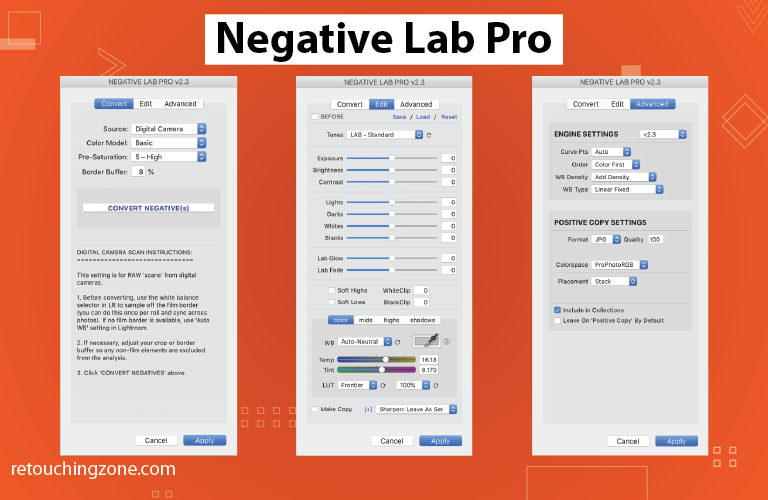
Wondering how to colorize your old black-and-white images easily? Those days are gone when we relied on traditional color filters. Negative Lab Pro is a modern Lightroom plugin that can convert black-white images into colorful. You can also use this extension for transforming DSLR scanned negatives into positives.
The tool is equipped with an auto-analysis system to automatically detect and correct color, tone, contrast, and exposure. It can maintain ideal film profile matching and preserve natural film characteristics.
Pros
- Perfectly control white and black points, shadows, highlights, etc.
- Easy to process an entire batch of films or images
- Comes with many built-in presets
- Roll analysis function to maintain consistency
- Powerful algorithms for photorealistic results
Cons
- Not a complete retouching solution
- Less convenient manual editing
Conclusion
You can make every second of image editing worthwhile with these best plugins for Photoshop and Lightroom. In 2026, any could be the greatest pick that meets your graphic design requirements. You won’t have to edit and retouch every aspect of the image manually.
Plus, there is no need to switch between several photo editing software. These built-in tools have many advanced features and functions to improve the image quality and achieve professional-grade results
FAQs on Best Plugins for Photoshop and Lightroom
Are plugins for Photoshop and Lightroom free in 2026?
Like the previous years, Photoshop and Lightroom plugins in 2026 come with free and premium versions. Naturally, the premium ones have more creative features to improve image quality.
Are plugins for Photoshop and Lightroom free?
Some are free and some are not. But premium ones have more creative features to improve image quality.
How much do Photoshop plugins cost?
The price can be anywhere from $5 to $100+. Generally, the more features, the higher the pricing tag.
Can plugins affect the performance of Photoshop or Lightroom software?
High-spec modern computers and the latest versions of Photoshop and Lightroom software usually don’t cause performance issues. Using updated plugins is always recommended.
Should beginners use Photoshop and Lightroom plugins?
Both beginners and experienced image editors and graphic designers can use Photoshop and Lightroom. But beginners may take more time to understand the interface.
Can you use the same plugins for both Photoshop and Lightroom?
Not always. Some may work and some may not. Check out the website source to see whether it is compatible with both or either of them.