
While photo masking can be a daunting task, knowing how to use Affinity to remove background makes it worth multiple sessions of taking shots. While you are worrying about the unwanted cluttered background, it’s already stealing the spotlight from your product.
But you’ll be surprised at how well Affinity’s “Selection Brush Tool” isolates complex objects. That’s not all, there’s more to this helpful photo editing app.
This make-you-fast-editor guide will teach you step-by-step how to remove background using the Affinity app.
How to Remove Background in Affinity (Quick 6 Steps)
Affinity offers various types of selection tools to clear unwanted backgrounds. But the Selection Brush Tool is one of the best choices for simple and effective background removal. It provides better control to precisely select the subject area. Let’s start the step-by-step procedure.
Step_01: Import the Image
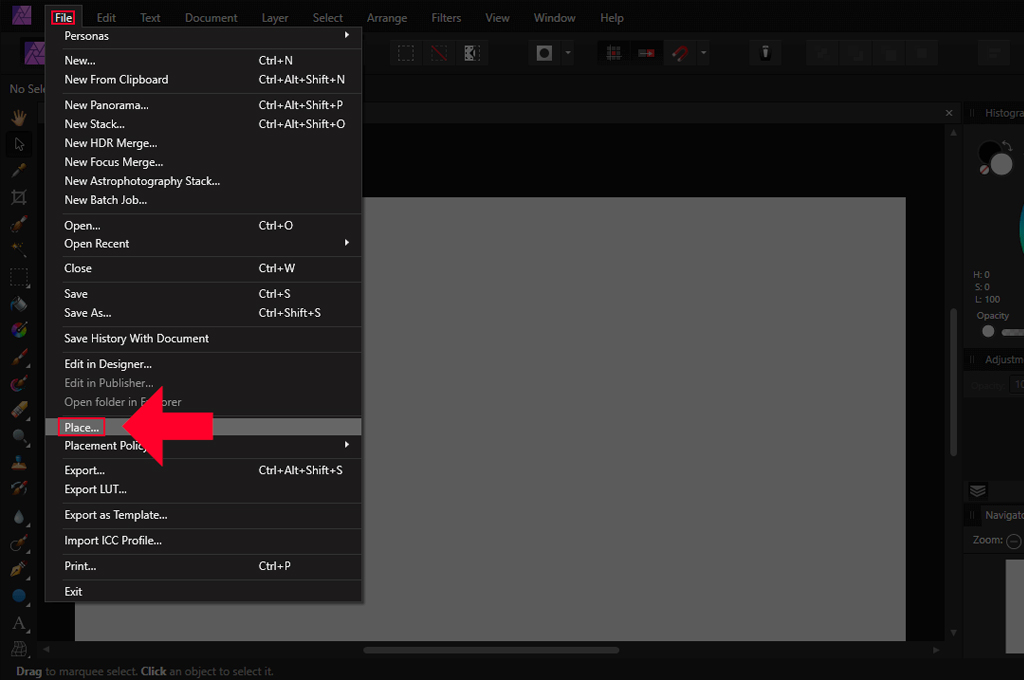
- Launch the software. Navigate to the menu bar panel and select File > Open.
- Select the image for background removal. Right-click on the picture and hit the Open button from the drop-down list.
- Or, visit your image folder, drag the image, and drop it onto the software.
Step_02: Unlock the Layer
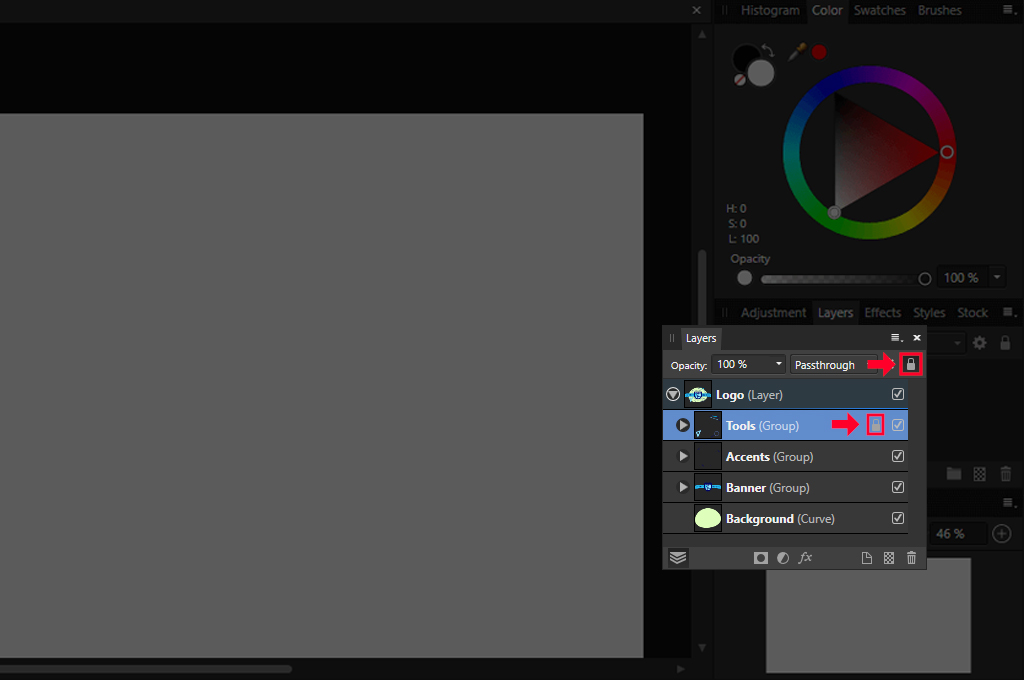
- The screen will show a new layer on the right side of the layer panel. Right-click on the layer and select the unlock option.
- Or directly tap on the lock icon next to the layer to make the layer editable.
Step_03: Choose Rasterize and Trim
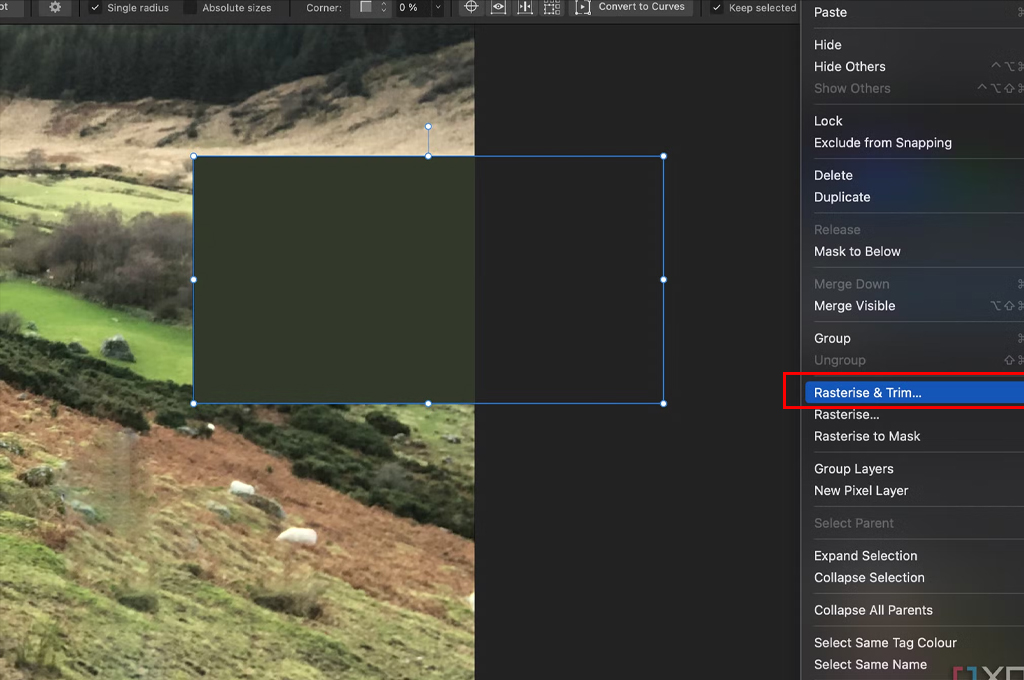
- The next step is permanently removing unnecessary parts of the document layer.
- Go to the layer panel again and right-click on the layer. Select the “Rasterize and Trim” option from the drop-down lists.
- This function allows you to transform a placed image layer or a vector layer into a pixel layer. You can erase all parts outside the noticeable canvas section.
You may also like to read… White Background Product Photography: A Complete Guide
Step_04: Use the Selection Brush Tool for Selection
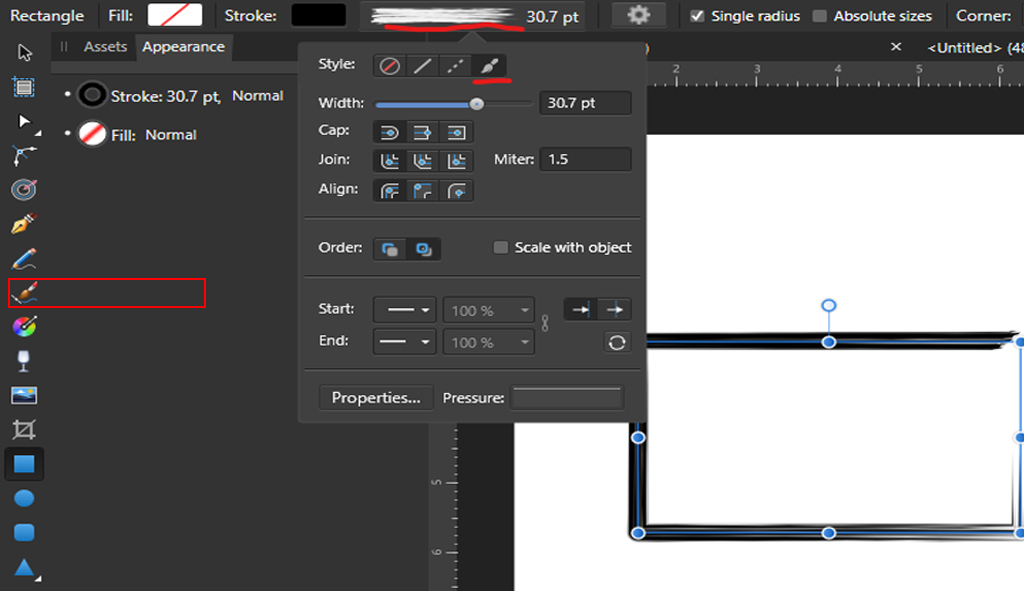
- Hover over the left-hand toolbar section and tap on the Selection Brush Tool.
- Drag the cursor up/down and adjust the hardness and left/right to increase/decrease the brush size.
- Tap on the context toolbar and set the brush opacity and flow settings based on your editing requirements.
- Use the brush tool to paint over the subject you want to isolate. Or brush over the background area you wish to erase.
- If there is a clear visual distinction between the subject and the background, you can brush over the background area.
Step_05: Refine the Selection
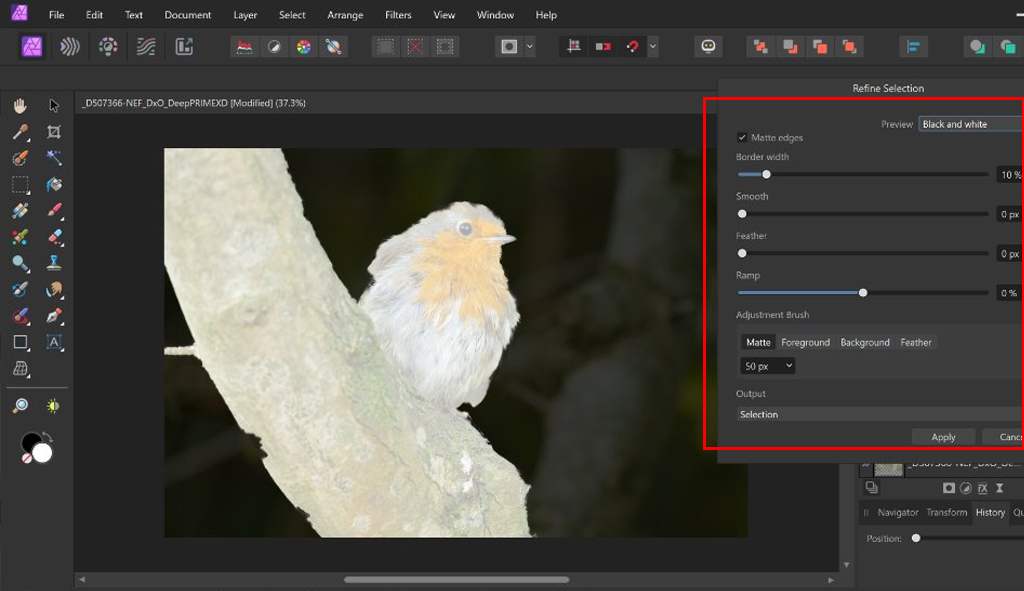
- Once you make a perfect selection of the object, head to the toolbar section at the top and select the “Refine Selection” option.
- A dialog box will pop up on the right side. There will be an overlay mode. The selected area will be visible, and the non-selected area will have red paint.
- The primary goal of using this feature is to make your selection as accurate as possible by adjusting the edges. It is mainly useful for complex subjects like fine details.
- Carefully brush over the areas to add or remove from the selection. Once you are satisfied with the result, hit the “Apply” icon.
You may also like to read… A Simple Tutorial on How to Extend a Background in Photoshop CC
Step_06: Remove the Background
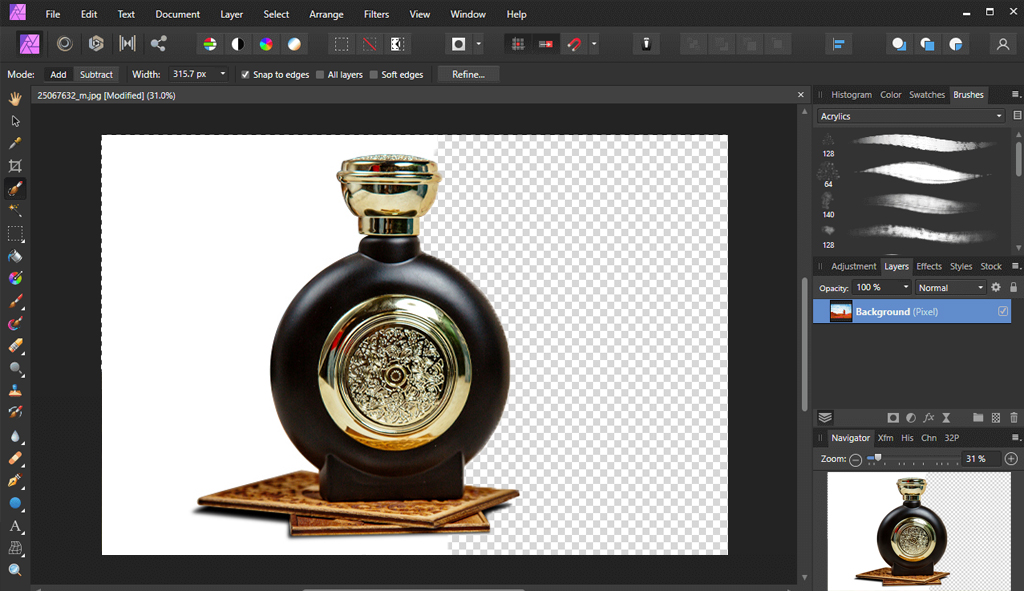
- The selection area will be visible on the screen. Press the “Delete” button from your keyboard.
- Now, only the main subject will be displayed. It will have a transparent background. You can add any backdrop based on your preferences and requirements.
- Finally, select File > Export. Choose PNG as the format and ensure the “Area” is set to “Whole document”
Similar Reads for You
- 4 Best Photo Background Removal Apps for Mac for Beginners
- Top Industries that Rely on Professional Photo Retouching
- Photoshop vs. Lightroom: Best Choice for Photo Editing
Frequently Asked Questions for Affinity Remove Background
-
What is the best tool for background removal in Affinity?
The Selection Brush Tool is the most effective choice because it uses “Smart Selection” to detect edges, providing more control and precision than standard marquee tools.
-
Why do I need to “Rasterize and Trim” my layer before deleting the background?
You must Rasterize and Trim to convert an “Image” layer into a “Pixel” layer; otherwise, the software will not allow you to directly delete or manipulate the individual pixels of the background.
-
How do you handle complex edges like hair or fur in Affinity?
After making a rough selection, click the “Refine” button in the top context toolbar. This opens a specialized dialog where you can brush over fine details to separate them from the background perfectly.
-
Is it free to use Affinity to remove background?
Yes, once you own the software, the above 6-step process using the Selection Brush and Refine Edge tools allows you to remove any background without needing additional paid plugins.
-
What file format should I use to save an image with a removed background?
You should always export your file as a PNG. Unlike JPEGs, PNG files support transparency, ensuring the background remains clear when you place the subject into a new design.
Conclusion
How to use Affinity to remove background faster actually lies in using the app’s Selection Brush tool. The above 6 steps will quickly get you out of all the chaos when battling with the most intricate details in any image.
Make sure to zoom in on the subject appropriately to ensure precise selection and background removal. Try several times to achieve a perfect result. Finally, check out the exported PNG file after editing and experience how handy this Affinity app is!