You know how important it is to know how to tell what ecommerce platform a site is using, when every online store is becoming a mainstream business. The digital store you are going to build must be built on the best ecommerce platform.
And in this year 2026, the ecommerce platform identification methods are no longer nitty-gritty complex; they are as simple as starting with “View page source” and “Inspect” elements. These are, by all means, not unfamiliar; you’ll often hear them referred to as source code.
Simply hit Ctrl+U or F12 and find your wanted platform name and you are good to go. This is the level of proficiency you’ll be at after reading today’s article, a comprehensive guide that will see you building what lies under pretty much any website in no time. Let’s get rolling.
Key Takeaways
- It consists of source code and easy-to-use techniques to build an eCommerce store foundation.
- 4 Tools to Detect any Online eCommerce Platforms without knowing the code like identifier
- Besides just brand names, Unique Identifiers of quality ecommerce websites
How to Tell What Ecommerce Platform a Site Is Using: A Quick Overview
Combining all of the techniques you’ll find across the internet comes down to essentially 6 core methods for verifying which eCommerce platform a website is using. In the table below, you can see exactly what you should be looking for in any method.
| Detection Method | What to look for |
| Use Web Detectors | Name of the platform in the technology profile |
| Test Admin/Install Paths | Whether “/admin” or “/login” takes you to the login page |
| Check URL Patterns | Platform-wise unique URL structure |
| View page source | Name of the platform in CDN, Meta tags. Apps (mostly used by the platform), unique plugins path |
| Inspect Options | Name of the platform throughout Network, Cookies, Themes |
| Examine Robots.txt File | Name of the platform, robots, sitemap |
Use Web Detectors
Among ecommerce platform detection methods, the easiest and no-code technique is to use these web detectors. Among these, those that are websites, by typing the name of the site on the home page and searching, all the information related to the platform comes up.
And those that are browser extensions, you just have to click on the extension symbol that sticks on the browser while browsing the specific site, and the relevant information comes up immediately.
These online tools are as follows:
- Wappalyzer
- BuiltWith
- What’s Runs
- Koala Inspector (Only extension)
Test Admin/Install Paths
You can verify the platform by creating a more wordy path at the end of the full URL in the website’s address bar. For example, “/wp-admin” for WooCommerce, “/admin” for Shopify, “/login” for BigCommerce.
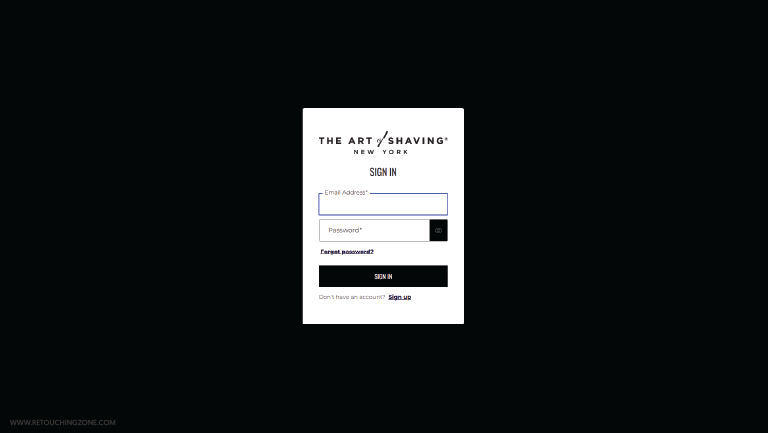

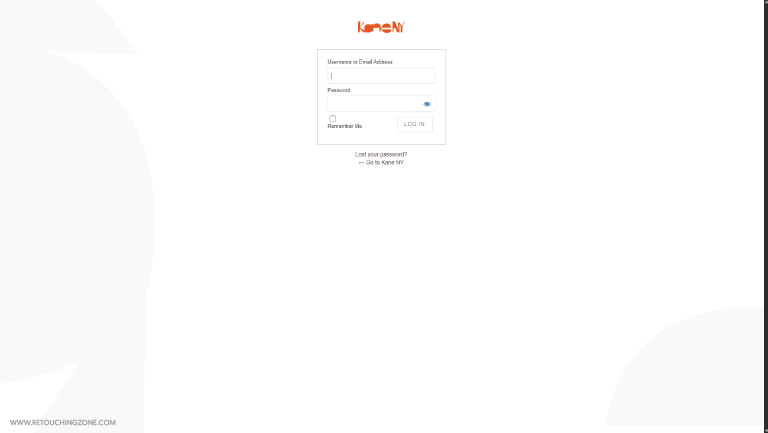
Either way, you will be taken to the login page of the relevant website, where you will be shown boxes to enter your username and password. And this is how you make sure what ecommerce platform a site is using without looking at a page full of code.
Check URL Patterns
It’s so easy to figure out how to tell what ecommerce platform a site is using that you can do it just by looking at the site’s URL. Yes, that’s not an exaggeration; you just have to pay close attention to the URL patterns of custom domains.
For example, Shopify‘s URLs are exactly like this, without any alternatives: “/products/product-name”.
For BigCommerce, it would be either “/products/product-name/” or just “/product-name/” directly after the domain name.
For Squarespace, either “/shop/product-name” or “/store/product-name”.
For Wix, only “/product-name”.
View page source
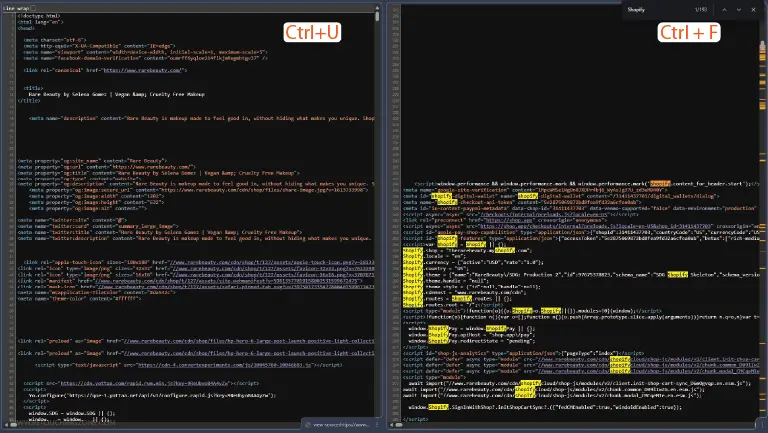
Not only digital stores, but when browsing any other websites, right-click anywhere on the site, and you’ll get this out of other options, which can also be done by pressing “Ctrl+U”.
After clicking on it, you can see the huge code repository in a new window, which is the source page of the respective website, and the codes you can see are collectively called the source code.
Just press “Ctrl + F” for Windows (or “Cmd + F” on Mac) and then search for the name of your desired platform, like Shopify or BigCommerce. If the name is not found at all, then it means that this site is not built with that ecommerce platform.
But if it is found, then you can start verifying. There are different types of words that, when associated with the platform name, will signal a specific platform. Those ways are as follows:
Fetch CDN
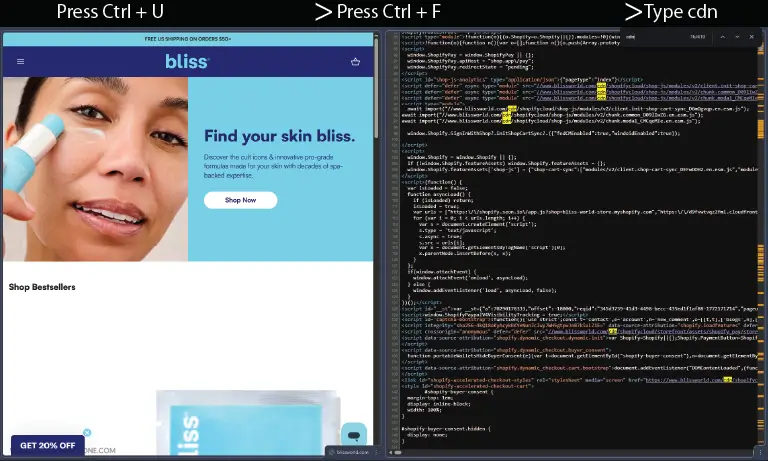
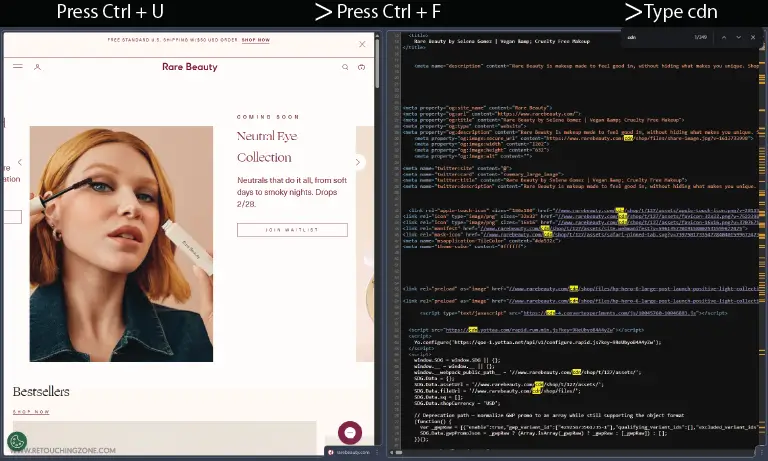
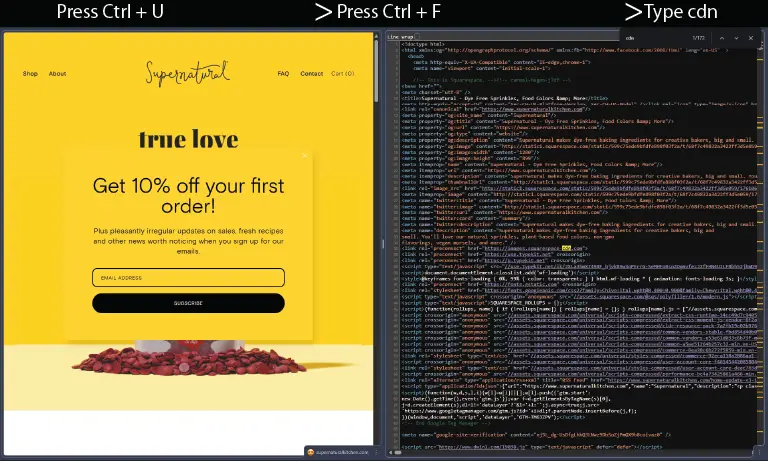
CDN is short for Content Delivery Network, a content repository that is responsible for delivering content like photos or videos to users based on their location. When you search for a platform name, you’ll see CDN included in many of the codes along with that name, like this:
- For the Shopify ecommerce platform: “cdn.shopify.com”
- For BigCommerce: “cdn11.bigcommerce.com”
- For Squarespace: “squarespace-cdn.com”
Plugins path

For WooCommerce, the popular ecommerce plugin under the WordPress content management system (CMS), you need to look for the following paths
/plugins/woocommerce/
Apart from that, you can also search “/wp-content/” and be confident that the online store is built on WordPress.
Trace Apps
Some of the platforms use various types of apps to seamlessly manage various business-centric functions. For example, the presence of the following app names means the site is Shopify:
- Klaviyo
- Loox
- Boostcommerce
- Judge.me
- Recharge
- Recart
You can usually find these apps in the source page by following the path “/apps/”.
Wix and Squarespace are not as app-friendly, so you won’t be able to take advantage of this identifier for them. However, you can get some of the above from BigCommerce.
Inspect options
Like page source, this is also a vast collection of codes that accommodates some of the ecommerce platform detection methods that provide the highest level of assurance.
When you right-click on the site, under View Page Source, you’ll find another option called Inspect. Click on this and press “F12” key alternatively, which will take you to a new page with many tabs at the right side of the store.
Themes/CSS class
From the Inspect tab, you can check the platform by searching for themes or CSS classes. To accomplish that, search for classes or IDs with certain prefixes. E.g.”shopify-section-” use corresponding to html “sqsp-” for Squarespace.
Elements
By default, the opened page has a tab called ‘Element’. So, you don’t have to change any tabs, and you can search for your platform name by just pressing “Ctrl+F”.
If the site is built for your desired platform, all coded lines will be highlighted. Otherwise, it will show Undefined.
Network Requests
Select the ‘Network’ tab, refresh the page and enter the name of the platform to be searched. If it is found, it will show many ‘Requests’; click on any of them. Then you will see the platform name, JS or CSS, in different file formats.
Browser Cookies
You will find the ‘Cookies’ in the ‘Applications’ tab, where you can see the platform name by clicking on any of the files shown in the same way.
Examine Robots.txt File
Like checking URL patterns, another technique is worth noting that complements ecommerce platform identification methods, and that is robots.txt verification.
While on a webpage, add “/robots.txt” to the end of the full URL in the address bar above and enter. This will open a rich text file where you will find words like “Disallow: /admin”, “/cart”, “/orders”, and “sitemap”.
If you find one of your platforms’ names here, you will know that it is the platform behind the respective site.
Frequently Asked Questions for Ecommerce Platform Identification Methods
-
Why should I detect ecommerce platform details of a website?
This identification is very important because it allows you to know what tools your competitors are using, study them, and build your own store accordingly.
-
How to tell what ecommerce platform a site is using by looking at the page source?
Right-click anywhere on the web page and click View Page Source. Just pressing Ctrl + U while visiting the site will also take you to this source page. Then use Ctrl + F to search for the name of your platform (Shopify, BigCommerce, Wix, Squarespace).
The names are usually hard-coded with various identifiers, including CDN, Meta tags, Plugins path, etc.
-
Which are the most popular ecommerce platforms that most online stores use?
Another name for these ecommerce tools is website/store builder, among which the most popular ones are:
- Shopify
- BigCommerce
- Squarespace
- OpenCart
- Magento
- Wix
-
How to identify the ecommerce platform behind a site without checking any code?
The best online tools for instant ecommerce platform detection without the hassle of understanding the code are:
- Wappalyzer (https://www.wappalyzer.com/)
- BuiltWith (https://www.builtwith.com)
- What’s Runs (https://www.whatruns.com/)
- Koala Inspector (Only extension- https://koala-apps.io/)
-
Is WooCommerce like Shopify?
Whereas Shopify is a full-fledged website builder with a variety of tools, WooCommerce is only an e-commerce plugin that runs on the foundation of the WordPress CMS. Unlike other identifiers, you have to search for it among the plugins specifically to locate it in the source code.
In a Nutshell
This complete guide on how to tell what ecommerce platform a site is using proves to be your online store-building made easy. The easiest of these is the no-code approach of web apps like Wappalyzer and BuiltWith. These online tools (websites + browser extensions) will save you hours of research.
Or else if you want to go similar with high-certainty metrics for ecommerce platform detection methods, then there we have some source codes for you. Finding platforms using the strategies outlined above via View page source and Inspect elements is not too difficult.
At least you know the names like Shopify or BigCommerce. The most you need to do is pay close attention to the spelling and case sensitivity of the brand names and their short forms.